
How to Recover Your Apple ID on Iphone: A Step-by-step Guide
Are you having trouble accessing your Apple ID on your iPhone? Don’t worry, we’ve got you covered! In this article, we’ll guide you through the process of recovering your Apple ID on your iPhone, step by step.
What to Do If You Forget Your Apple ID Password
If you’re unable to access your Apple ID due to a forgotten password, don’t panic. You can easily recover it using your iPhone or another device associated with your Apple ID.
Step 1: Check if Your Email is Associated With Your Apple Id
Before proceeding, make sure that the email address associated with your Apple ID is correct. If you’re not sure what email address is linked to your Apple ID, follow these steps:
- Open the Settings app on your iPhone.
- Tap on your name (at the top of the screen).
- Scroll down and tap on “Access & Safety.”
- Tap on “Modification Password” and enter the code from the prompt.
- Enter a new password and confirm it.
If you’re still having trouble, move on to the next step.
Step 2: Use The Apple ID Recovery Tool
The easiest way to recover your Apple ID is by using the Apple ID recovery tool. Here’s how:
- Open a web browser on your iPhone or another device.
- Go to https://Iforgot.Apple.Com/Password/verify/appleid.
- Enter the email address associated with your Apple ID and click “Continue.”
- Follow the instructions provided by Apple to verify your identity.
Step 3: Recover Your Apple ID Using Another Device
If you’re unable to recover your Apple ID using your iPhone, try using another device that’s associated with your Apple ID. Here’s how:
- Open a web browser on the other device.
- Go to https://Iforgot.Apple.Com/Password/verify/appleid.
- Enter the email address associated with your Apple ID and click “Continue.”
- Follow the instructions provided by Apple to verify your identity.
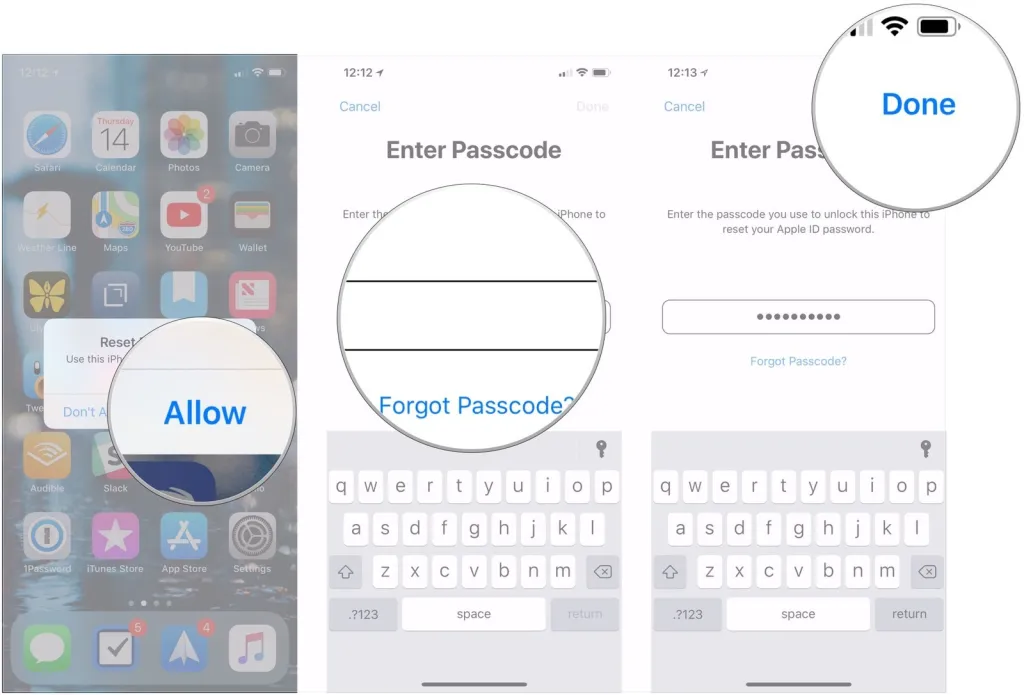
Step 4: Reset Your Apple ID Password
If you’ve successfully recovered your Apple ID, but still can’t access it due to a forgotten password, follow these steps:
- Open the Settings app on your iPhone.
- Tap on your name (at the top of the screen).
- Scroll down and tap on “Access & Safety.”
- Tap on “Modification Password” and enter the code from the prompt.
- Enter a new password and confirm it.
What to Do If Your Apple ID is Disabled or Blocked
If you’ve tried recovering your Apple ID, but are still having trouble due to a disabled or blocked status, follow these steps:
- Go to https://Support.Apple.Com.
- Search for “disabled or blocked Apple ID.”
- Follow the instructions provided by Apple to resolve the issue.
Common Issues And Solutions
Here are some common issues you might encounter when trying to recover your Apple ID on iPhone, along with their solutions:
- Problem: You forgot your Apple ID password.
- Solution: Use the Apple ID recovery tool or reset your password using another device associated with your Apple ID.
- Problem: Your email address is not recognized by Apple.
- Solution: Try verifying your identity using a different method, such as two-factor authentication or a verification code sent to your phone.
- Problem: Your Apple ID has been disabled for safety reasons.
- Solution: Go to the Apple support page and follow the instructions provided to resolve the issue.
Conclusion
Recovering your Apple ID on iPhone is easier than you might think. By following these steps, you should be able to regain access to your account in no time. Remember to always use strong passwords and keep them confidential to avoid any future issues. If you have any further questions or concerns, feel free to ask.
Faqs
Here are some frequently asked questions related to recovering Apple ID on iPhone:
Q: How do I recover my Apple ID password?
A: You can recover your Apple ID password using the Apple ID recovery tool or by resetting it using another device associated with your Apple ID.
Q: What should I do if my email address is not recognized by Apple?
A: Try verifying your identity using a different method, such as two-factor authentication or a verification code sent to your phone.
Q: Can I recover my Apple ID if it’s been disabled for safety reasons?
A: Yes, you can try resolving the issue by going to the Apple support page and following the instructions provided.
Hope this helps!


