
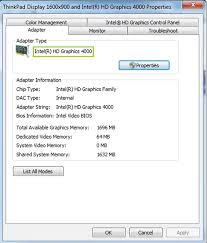
How to See Your Pc’s Video Card Details on Windows 7
Are you curious about your computer’s video card details? Do you want to know what kind of graphics processing unit (GPU) is installed in your PC with Windows 7 operating system? Look no further! In this article, we’ll guide you through the process of accessing and understanding your PC’s video card information.
What You Need to Know
Before we dive into the nitty-gritty details, let’s quickly cover some basics. The video card, also known as a graphics processing unit (GPU), is responsible for rendering images on your computer screen. It’s an essential component of any computer system, and understanding its specifications can be useful in various situations.
System Information: A Quick Overview
Windows 7 offers a built-in tool called System Information that allows you to view detailed information about your PC’s hardware components, including the video card. This utility is accessible from the Start menu or by using the keyboard shortcut Win+R.
How to See Your Video Card Details on Windows 7
To access your video card details using System Information:
- Press the Windows key + R to open the Run dialog box.
- Type “msinfo32” in the text field and press Enter.
- In the System Information window, click on the “+” icon next to “Components” to expand it.
- Select “Display” from the list of components.
- Under “Adapter”, you’ll see the name and details of your video card.
Diagnostic Tools: Another Option
Another tool available in Windows 7 is DirectX Diagnostic Tool (DxDiag). This utility provides detailed information about your computer’s graphics capabilities, including the video card specifications.
To run DxDiag:
- Press the Windows key + R to open the Run dialog box.
- Type “dxdiag” and press Enter.
- In the DirectX Diagnostic Tool window, click on the “Display” tab.
- Under “Device”, you’ll see the name and details of your video card.
Third-party Tools: Speccy And Cpu-z
If you’re looking for more detailed information about your computer’s hardware components, including the video card, consider using third-party tools like Speccy or CPU-Z.
Speccy is a free program that provides detailed information about your computer’s hardware and software components. To use Speccy:
- Download and install the program from Piriform.
- Launch Speccy and click on the “Graphic” tab.
- Under “Device”, you’ll see the name and details of your video card.
CPU-Z is another free tool that provides detailed information about your computer’s CPU, motherboard, and other components. To use CPU-Z:
- Download and extract the program from the manufacturer’s website.
- Launch CPU-Z and click on the “Graphics” tab.
- Under “Device”, you’ll see the name and details of your video card.
Conclusion
In this article, we’ve shown you how to access and understand your PC’s video card details using various tools available in Windows 7, including System Information and DirectX Diagnostic Tool (DxDiag). We’ve also introduced you to third-party tools like Speccy and CPU-Z that can provide more detailed information about your computer’s hardware components.
Frequently Asked Questions
- Q: What is a Video Card?
A: A video card, also known as a graphics processing unit (GPU), is responsible for rendering images on your computer screen. - Q: How do I Access my Video Card Details in Windows 7?
A: You can use the System Information tool or DirectX Diagnostic Tool (DxDiag) to view your video card details. - Q: What Other Tools Are Available to View Video Card Details?
A: Third-party tools like Speccy and CPU-Z provide more detailed information about your computer’s hardware components, including the video card. - Q: Are These Tools Free?
A: Some of the tools mentioned in this article are free, while others may require a purchase or subscription. - Q: Can I Use These Tools on Other Versions of Windows?
A: Some of the tools mentioned in this article may not be compatible with earlier versions of Windows.
Bonus Tips
- To update your video card drivers, go to the manufacturer’s website and download the latest drivers for your specific GPU model.
- Regularly cleaning dust from your computer’s components can help improve performance and prolong its lifespan.


