
How to Update Applications: A Comprehensive Guide
Are you tired of dealing with outdated applications on your devices? Do you want to stay up-to-date with the latest features and security patches? Look no further! In this article, we will guide you through the process of updating applications on various devices, including smartphones, tablets, PCs, and Smart TVs.
Updating Applications: Why It’s Important
Before we dive into the nitty-gritty of updating applications, let’s talk about why it’s essential to do so. Updating applications ensures that your device is running with the latest features, security patches, and bug fixes. This not only enhances your user experience but also protects you from potential security threats.
Updating Applications on Android Devices
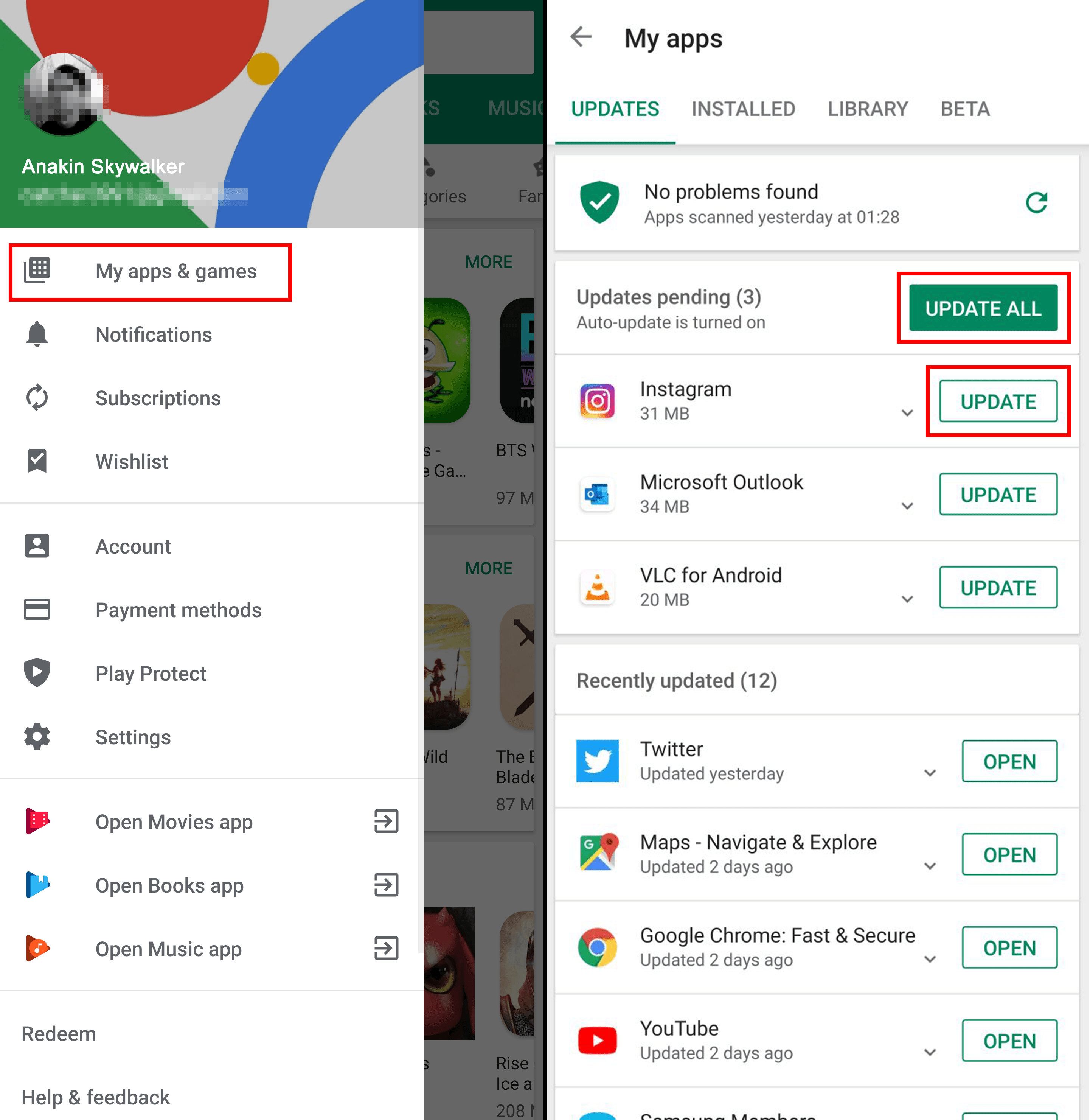
If you own an Android device, updating applications is a straightforward process. Here’s how to do it:
- Open The Play Store: Tap on the Play Store icon on your home screen or find it in your app drawer.
- Tap on The Menu Icon: Located at the top right corner of the screen, this icon looks like three horizontal lines.
- Select “My Apps & Games”: From the menu, choose “My Apps & Games.”
- Look For Updates: Scroll through the list to find applications that need updating.
- Tap on Update: Select the application you want to update and tap on the “Update” button.
Updating Applications on Google Devices
If you own a Google device, such as a Pixel or Nexus smartphone, updating applications is similar to the process on Android devices:
- Open The Play Store: Find the Play Store icon on your home screen or in your app drawer.
- Tap on The Menu Icon: Located at the top right corner of the screen, this icon looks like three horizontal lines.
- Select “My Apps & Games”: From the menu, choose “My Apps & Games.”
- Look For Updates: Scroll through the list to find applications that need updating.
- Tap on Update: Select the application you want to update and tap on the “Update” button.
Updating Applications on Apk Devices
If you don’t have access to the Play Store or prefer not to use it, you can update applications using APK files:
- Find The Apk File: Search for the APK file of the application you want to update.
- Download And Install: Download the APK file and install it on your device.
- Update The Application: Follow the prompts to update the application.
Updating Applications on Iphone Devices
If you own an iPhone or iPad, updating applications is a seamless process:
- Open The App Store: Find the App Store icon on your home screen.
- Tap on The Profile Icon: Located at the top right corner of the screen, this icon looks like a person.
- Select “Today” Tab: From the menu, choose the “Today” tab.
- Look For Updates: Scroll through the list to find applications that need updating.
- Tap on Update: Select the application you want to update and tap on the “Update” button.
Updating Applications on PC Devices
If you own a Windows PC, updating applications is relatively easy:
- Open The Microsoft Store: Find the Microsoft Store icon on your taskbar or start menu.
- Click on The Three Dots Icon: Located at the top right corner of the screen, this icon looks like three dots.
- Select “Downloads And Updates”: From the menu, choose “Downloads and Updates.”
- Look For Updates: Scroll through the list to find applications that need updating.
- Click on Update: Select the application you want to update and click on the “Update” button.
Updating Applications on Mac Devices
If you own a Mac, updating applications is similar to the process on Windows PCs:
- Open The App Store: Find the App Store icon on your dock or start menu.
- Click on The Update Button: Located at the top right corner of the screen, this button looks like a blue update arrow.
- Look For Updates: Scroll through the list to find applications that need updating.
- Click on Update: Select the application you want to update and click on the “Update” button.
Updating Applications on Smart TV Devices
If you own a Smart TV, such as an LG or Samsung device, updating applications is relatively easy:
- Open The Content Store: Find the Content Store icon on your remote control.
- Select “My Apps” Tab: From the menu, choose the “My Apps” tab.
- Look For Updates: Scroll through the list to find applications that need updating.
- Select Update: Select the application you want to update and select the “Update” button.
Conclusion
Updating applications is an essential process that ensures your device runs with the latest features, security patches, and bug fixes. By following these simple steps, you can easily update applications on various devices, including smartphones, tablets, PCs, and Smart TVs.
Frequently Asked Questions (FAQs)
- Why do I Need to Update my Applications?
Updating applications ensures that your device runs with the latest features, security patches, and bug fixes. - How Often Should I Update my Applications?
It’s recommended to update your applications regularly to ensure you have the latest features and security patches. - Can I Update Multiple Applications at Once?
Yes, you can update multiple applications at once by selecting them from the list of available updates. - Will Updating Applications Affect my Device’s Performance?
Updating applications should not affect your device’s performance, but it’s always a good idea to back up your data before updating. - Can I Roll Back an Application Update if I Experience Issues?
Yes, you can usually roll back an application update by uninstalling the updated version and reinstalling the previous version. - Why Are Some Applications Not Available For Update?
Some applications may not be available for update due to compatibility issues or other technical reasons. - Can I Update my Applications Manually?
Yes, you can update your applications manually by searching for the latest versions of the applications and installing them. - Will Updating Applications Affect my Device’s Warranty?
Updating applications should not affect your device’s warranty, but it’s always a good idea to check with the manufacturer or retailer to confirm.
References
- Google Play Store
- Apple App Store
- Microsoft Store
- LG Content Store
- Samsung Apps


