
How to Access Twitch on Pc, Smartphone, Tablet, Ps4, And More: A Step-by-step Guide
Are you excited to join the world of live streaming on Twitch? But do you know how to access it on your device of choice? Don’t worry, we’ve got you covered! In this article, we’ll take you through a step-by-step guide on how to access Twitch on PC, smartphone, tablet, PS4, and more.
Why Access Twitch in The First Place?
Twitch is an incredible platform for live streaming games, music, art, and other creative content. With millions of users worldwide, it’s the perfect place to connect with fellow gamers, artists, and streamers. Whether you’re a seasoned gamer or just starting out, accessing Twitch can open doors to new experiences and opportunities.
Accessing Twitch on PC
If you’re using your computer to access Twitch, follow these simple steps:
- Open Your Browser: Open your preferred web browser (e.G., Google Chrome, Mozilla Firefox, Microsoft Edge).
- Visit The Twitch Website: Navigate to www.Twitch.Tv and click on the “Sign in” button.
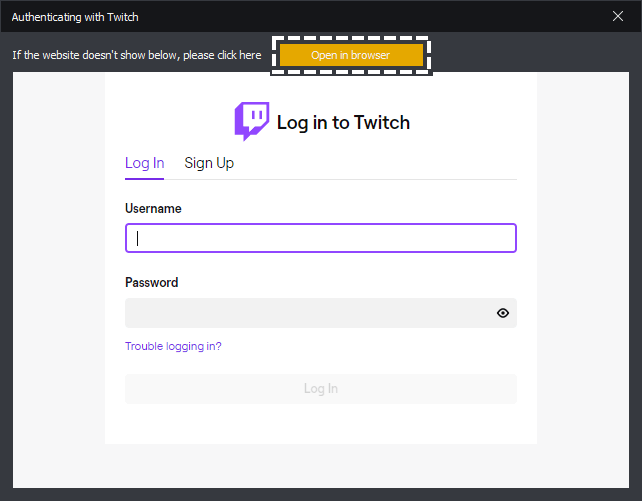
- Enter Your Credentials: Enter your Twitch username and password to log in.
- Verify Your Identity: If you’re accessing Twitch from a new device, you may be prompted to enter a verification code sent to your email address.
Accessing Twitch on Smartphone And Tablet
If you prefer using your smartphone or tablet to access Twitch, follow these steps:
- Download The Twitch App: Download the Twitch app from the Google Play Store (for Android devices) or the Apple App Store (for iOS devices).
- Open The App: Open the Twitch app on your device.
- Sign in With Your Credentials: Enter your Twitch username and password to log in.
- Verify Your Identity: If you’re accessing Twitch from a new device, you may be prompted to enter a verification code sent to your email address.
Accessing Twitch on Ps4
If you’re using your PS4 console to access Twitch, follow these steps:
- Download The Twitch App: Download the Twitch app from the PlayStation Store.
- Open The App: Open the Twitch app on your PS4 console.
- Authorise Access: Authorise access to your Twitch account by entering a verification code sent to your email address.
- Sign in With Your Credentials: Enter your Twitch username and password to log in.
Accessing Twitch Prime
Twitch Prime is an optional subscription service that offers additional benefits, such as ad-free viewing and exclusive rewards. To access Twitch Prime:
- Visit The Twitch Website: Visit www.Twitch.Tv and click on the “Sign in” button.
- Click on “Prime”: Click on the “Prime” tab to view your subscription status.
- Link Your Amazon Account: Link your Amazon Prime account to access Twitch Prime benefits.
Conclusion
Accessing Twitch is easy, whether you’re using a PC, smartphone, tablet, or PS4 console. By following these simple steps, you can join the world of live streaming and discover new experiences and opportunities.
Frequently Asked Questions (FAQs)
- Q: What is Twitch?
A: Twitch is a live streaming platform for games, music, art, and other creative content. - Q: How do I Access Twitch on my Pc?
A: Open your web browser, visit www.Twitch.Tv, and click on the “Sign in” button to log in with your credentials. - Q: Can I Access Twitch on my Smartphone or Tablet?
A: Yes, download the Twitch app from the Google Play Store (for Android devices) or the Apple App Store (for iOS devices). - Q: How do I Access Twitch Prime?
A: Visit www.Twitch.Tv, click on the “Prime” tab, and link your Amazon Prime account to access benefits. - Q: What Are The System Requirements For Accessing Twitch on my Device?
A: Check the minimum system requirements for each platform (e.G., PC, smartphone, tablet, PS4) to ensure smooth performance.
We hope this guide has been helpful in getting you started with Twitch!


