
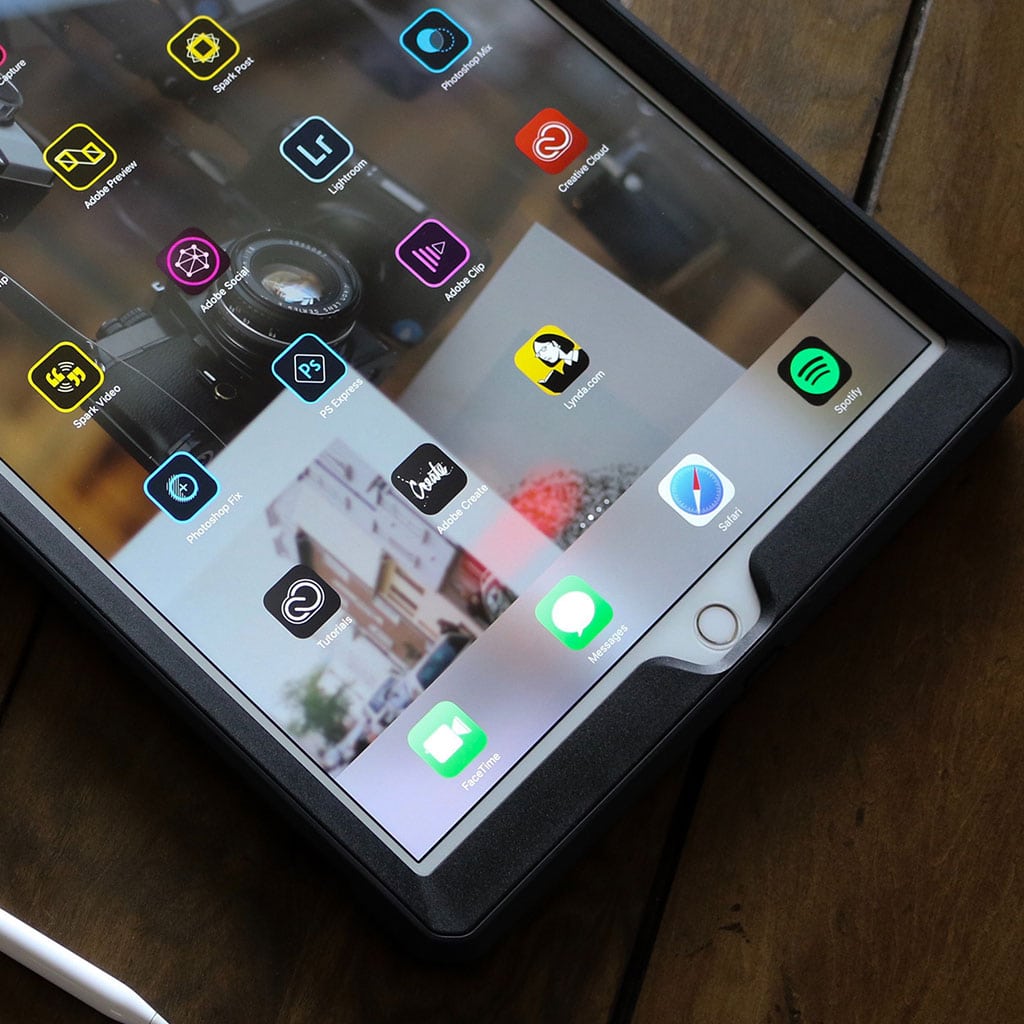
How to Create Folders on Your Ipad: A Step-by-step Guide
Are you tired of having a cluttered Home screen on your iPad? Do you want to organize your apps, documents, and photos into neat folders? Look no further! In this article, we’ll show you how to create folders on your iPad in just a few simple steps.
Why Create Folders on Your Ipad?
Creating folders on your iPad is a great way to keep your device organized and easy to use. By grouping similar apps, documents, or photos together, you can quickly find what you need without having to scroll through a long list of icons.
How to Create a Folder on Your Ipad’s Home Screen
To create a folder on your iPad’s Home screen, follow these steps:
- Take Your Ipad And Unlock It: Make sure your iPad is unlocked and ready to use.
- Find The App You Want to Add to The Folder: Locate the app you want to add to the folder by searching through your Home screen or by looking in the App Library.
- Drag The App Onto Another Icon: Drag the app icon onto another icon on your Home screen that represents a folder (you’ll know it’s a folder because it has a little folder icon next to it).
- Create a New Folder: If you don’t see an existing folder, tap and hold on an empty space on your Home screen until icons start jiggling.
- Tap The “New Folders” Button: Tap the “+” button in the top-right corner of the screen to create a new folder.
- Name Your Folder: Type a name for your folder using the keyboard that appears.
- Save Your Changes: Tap “Done” to save your changes.
How to Add Apps to a Folder
To add apps to an existing folder, follow these steps:
- Find The Folder You Want to Edit: Locate the folder you want to edit by searching through your Home screen or by looking in the App Library.
- Tap And Hold on The Folder Icon: Tap and hold on the folder icon until it starts jiggling.
- Drag Apps Onto The Folder: Drag apps from other parts of your Home screen onto the folder.
- Save Your Changes: Tap “Done” to save your changes.
How to Create a Folder in The Mail App
To create a folder within the Mail app, follow these steps:
- Open The Mail App: Locate the Mail icon on your Home screen and tap it to open the app.
- Tap on The “Modify” Button: Tap on the “Modify” button in the top-left corner of the screen.
- Select a Folder: Select the folder where you want to create a new subfolder.
- Tap on The “+” Button: Tap on the “+” button to create a new folder within the existing folder.
- Name Your Folder: Type a name for your folder using the keyboard that appears.
- Save Your Changes: Tap “Done” to save your changes.
How to Create a Folder in Safari
To create a folder within Safari, follow these steps:
- Open Safari: Locate the Safari icon on your Home screen and tap it to open the app.
- Tap on The Bookmarks Icon: Tap on the bookmarks icon in the top-right corner of the screen.
- Select “Favorites” or “Bookmarks”: Select either the Favorites or Bookmarks section, depending on where you want to create a new folder.
- Tap on The “+” Button: Tap on the “+” button to create a new folder within the selected section.
- Name Your Folder: Type a name for your folder using the keyboard that appears.
- Save Your Changes: Tap “Done” to save your changes.
How to Create a Folder With Password in Pages
To create a folder with password protection in Pages, follow these steps:
- Open Pages: Locate the Pages icon on your Home screen and tap it to open the app.
- Tap on The “+” Button: Tap on the “+” button to create a new document.
- Select “Folder”: Select the “Folder” option from the template chooser.
- Name Your Folder: Type a name for your folder using the keyboard that appears.
- Set a Password: Set a password for your folder by typing in a strong password and confirming it.
- Save Your Changes: Tap “Done” to save your changes.
Conclusion
Creating folders on your iPad is a simple way to keep your device organized and easy to use. By following these step-by-step guides, you can create folders on your Home screen, within the Mail app, in Safari, and even with password protection in Pages. Whether you’re looking to organize your apps, documents, or photos, creating folders is a great way to get started.
Frequently Asked Questions
- Q: How do I Delete a Folder?
A: To delete a folder, tap and hold on the folder icon until it starts jiggling, then drag it off the screen. - Q: Can I Add Multiple Apps to a Single Folder?
A: Yes, you can add multiple apps to a single folder by tapping and holding on an empty space on your Home screen, then dragging app icons onto the folder. - Q: How do I Rename a Folder?
A: To rename a folder, tap and hold on the folder icon until it starts jiggling, then type a new name using the keyboard that appears. - Q: Can I Create a Folder With Multiple Subfolders?
A: Yes, you can create a folder with multiple subfolders by following the steps outlined in this article. - Q: How do I Protect my Folders With Passwords?
A: To protect your folders with passwords, follow the steps outlined in the “How to Create a Folder with Password in Pages” section of this article. - Q: Can I Share my Folders With Others?
A: Yes, you can share your folders with others by tapping on the sharing icon within the relevant app (e.G., Mail, Safari). - Q: How do I Restore Deleted Folders?
A: Unfortunately, once a folder is deleted, it cannot be restored. However, you can create new folders and fill them with apps, documents, or photos to keep your device organized. - Q: Can I Use Third-party Apps to Manage my Folders?
A: Yes, there are several third-party apps available that allow you to manage your folders and add additional features not provided by Apple’s built-in folder management tools.


