
How to Speed Up Utorrent Free on Windows, Macos, And Android
Are you tired of waiting forever for your downloads to complete with uTorrent? Do you want to know the secrets to making your torrent downloads faster and more efficient? Look no further! In this article, we will guide you through the steps to speed up uTorrent free on Windows, macOS, and Android.
Why is Utorrent Slow?
Before we dive into the solutions, let’s first understand why uTorrent might be slow in the first place. There are several reasons why your torrent downloads might be slow:
- Your internet connection is not fast enough
- The torrent file you’re downloading has a large number of seeds or peers
- You have multiple torrents running at the same time, consuming all your bandwidth
- Your uTorrent settings are not optimized for speed
Speeding Up Utorrent Free on Windows
To speed up uTorrent free on Windows, follow these steps:
1. Open The Doors of The Modem/router
The first step to speeding up uTorrent is to open the doors of your modem/router. This will allow uTorrent to communicate with the internet and accommodate connections in entrance.
How to Do It:
- Open the browser on your computer and type in the IP address of your modem/router.
- Enter the login credentials for your modem/router (usually admin and admin).
- Look for the section dedicated to configuring the link LAN or incoming doors.
- Create a new virtual server or rule and set up public door and local door, or initial door and final door.
2. Optimise The Settings of The Program
Once you have opened the doors of your modem/router, it’s time to optimize the settings of uTorrent.
How to Do It:
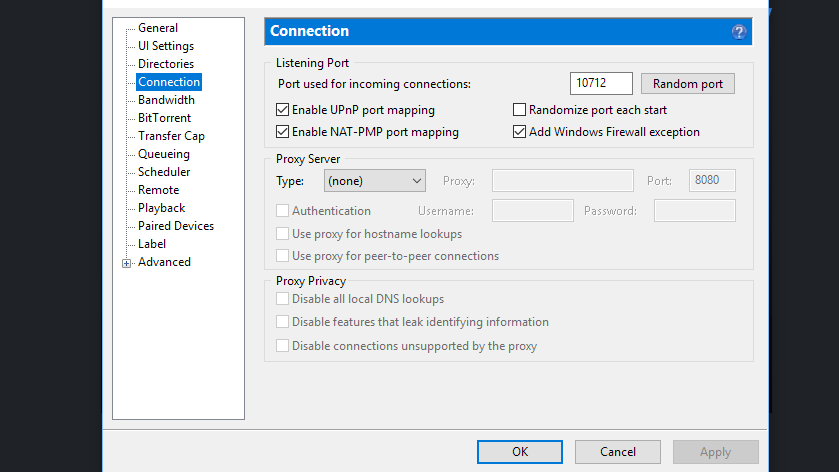
- Open the uTorrent client and go to the Options menu.
- Select the Connection tab and choose the TCP door used for connections in entrance.
- Enter the correct IP address of your modem/router.
- Click Save & Close to save the changes.
3. Other Tips
Here are some additional tips to help you speed up uTorrent:
- Try to download torrents with a large number of seeds and peers.
- Use a VPN (Virtual Private Network) to access foreign torrent sites and bypass regional blocks.
- Consider upgrading your internet plan for faster speeds.
Speeding Up Utorrent Free on Macos
To speed up uTorrent free on macOS, follow these steps:
1. Open The Doors of The Modem/router
Just like on Windows, the first step to speeding up uTorrent is to open the doors of your modem/router.
How to Do It:
- Open the Terminal app and type in the IP address of your modem/router.
- Enter the login credentials for your modem/router (usually admin and admin).
- Look for the section dedicated to configuring the link LAN or incoming doors.
- Create a new virtual server or rule and set up public door and local door, or initial door and final door.
2. Optimise The Settings of The Program
Once you have opened the doors of your modem/router, it’s time to optimize the settings of uTorrent.
How to Do It:
- Open the uTorrent client and go to the Preferences menu.
- Select the Network tab and choose the TCP door used for connections in entrance.
- Enter the correct IP address of your modem/router.
- Click Save & Close to save the changes.
3. Other Tips
Here are some additional tips to help you speed up uTorrent:
- Try to download torrents with a large number of seeds and peers.
- Use a VPN (Virtual Private Network) to access foreign torrent sites and bypass regional blocks.
- Consider upgrading your internet plan for faster speeds.
Speeding Up Utorrent Free on Android
To speed up uTorrent free on Android, follow these steps:
1. Open The Doors of The Modem/router
Just like on Windows and macOS, the first step to speeding up uTorrent is to open the doors of your modem/router.
How to Do It:
- Open the app settings for uTorrent and go to the Incoming Port section.
- Enter the correct IP address of your modem/router.
- Click Save & Close to save the changes.
2. Optimise The Settings of The Program
Once you have opened the doors of your modem/router, it’s time to optimize the settings of uTorrent.
How to Do It:
- Open the app settings for uTorrent and go to the Band section.
- Choose the correct speed limits for upload and download.
- Click Save & Close to save the changes.
3. Other Tips
Here are some additional tips to help you speed up uTorrent:
- Try to download torrents with a large number of seeds and peers.
- Use a VPN (Virtual Private Network) to access foreign torrent sites and bypass regional blocks.
- Consider upgrading your internet plan for faster speeds.
Conclusion
Speeding up uTorrent free on Windows, macOS, and Android is easier than you think! By following these simple steps, you can optimize the settings of your uTorrent client and open the doors of your modem/router to achieve faster download speeds. Don’t forget to try out additional tips like using a VPN or upgrading your internet plan for even better results!
Faqs
-
Q: What is Utorrent?
A: UTorrent is a popular BitTorrent client that allows you to download and upload files from the internet. -
Q: Why is my Utorrent Slow?
A: There are several reasons why your uTorrent might be slow, including a slow internet connection, a large number of seeds or peers in the torrent file, multiple torrents running at the same time, and non-optimized settings for speed. -
Q: How do I Open The Doors of my Modem/router?
A: To open the doors of your modem/router, you need to enter the correct IP address in your browser, log in with your credentials, and look for the section dedicated to configuring the link LAN or incoming doors. -
Q: What is a Vpn (Virtual Private Network)?
A: A VPN is a tool that allows you to access foreign torrent sites and bypass regional blocks by encrypting your internet traffic and routing it through a server in another country. -
Q: Can I Use Utorrent on Android?
A: Yes, you can use uTorrent on Android by downloading the app from the Google Play Store and following the instructions provided. -
Q: How do I Optimize The Settings of my Utorrent Client?
A: To optimize the settings of your uTorrent client, you need to adjust the speed limits for upload and download, choose the correct TCP door used for connections in entrance, and create a new virtual server or rule to set up public door and local door. -
Q: What Are Seeds And Peers?
A: Seeds are users who have already downloaded a torrent file and are sharing it with others, while peers are users who are currently downloading the same torrent file. -
Q: Can I Use Multiple Utorrent Clients at The Same Time?
A: Yes, you can use multiple uTorrent clients at the same time, but be aware that this might consume all your bandwidth and slow down your downloads.


