
Disabling Windows 10 Firewall: A Comprehensive Guide
Are you experiencing issues with your internet connection or specific applications not accessing the web? You might be thinking of disabling the Windows 10 firewall to resolve these problems. However, before taking such a step, it’s essential to understand the implications and risks involved.
What is The Windows 10 Firewall?
The Windows 10 firewall is an integrated security feature that protects your computer from unauthorized access and malware by controlling incoming and outgoing network traffic. It ensures that only trusted applications can communicate with the internet or other devices on your network.
Why Disable The Windows 10 Firewall?
Disabling the Windows 10 firewall might seem like a solution to resolve connectivity issues or allow specific applications to access the internet without restrictions. However, this action exposes your computer to potential security risks, including:
- Increased vulnerability to malware and viruses
- Unauthorized access by external devices or hackers
- Unsecured data transmission over the internet
How to Disable Windows 10 Firewall
There are multiple ways to disable the Windows 10 firewall, depending on your preferences and technical expertise. Here are some methods:
Method 1: Disabling Windows 10 Firewall Using Settings
- Open the Start menu and search for “Settings.”
- Click on the “Update & Security” option.
- Select “Windows Defender” from the left panel.
- Go to “Firewall & network protection” and click on the toggle switch to turn off the firewall.
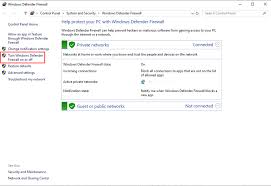
Method 2: Disabling Windows 10 Firewall Using Control Panel
- Open the Start menu and search for “Control Panel.”
- Click on the “System and Security” option.
- Select “Windows Defender” from the left panel.
- Go to “Firewall & network protection” and click on the toggle switch to turn off the firewall.
Method 3: Disabling Windows 10 Firewall Using Command Prompt
- Open the Start menu and search for “Command Prompt.”
- Right-click on the result and select “Run as administrator.”
- Type the command
netsh advfirewall set currentprofile offand press Enter. - Repeat the process for each network profile (Private, Public, Domain).
Method 4: Disabling Windows 10 Firewall Using Powershell
- Open the Start menu and search for “Windows PowerShell.”
- Right-click on the result and select “Run as administrator.”
- Type the command
Set-NetFirewallProfile -Enabled Falseand press Enter. - Repeat the process for each network profile (Private, Public, Domain).
Important Considerations
Before disabling the Windows 10 firewall, consider the following:
- You might be compromising your computer’s security and exposing it to potential threats.
- Disabling the firewall may not resolve connectivity issues or allow specific applications to access the internet without restrictions.
Conclusion
Disabling the Windows 10 firewall should be done with caution and only when absolutely necessary. It’s essential to weigh the benefits against the risks and consider alternative solutions to resolve connectivity issues or allow specific applications to access the internet.
Frequently Asked Questions (FAQs)
- Q: Will Disabling The Windows 10 Firewall Resolve my Internet Connectivity Issues?
A: Disabling the Windows 10 firewall might not resolve your internet connectivity issues. You should try troubleshooting other potential causes first. - Q: Can I Disable The Windows 10 Firewall For a Specific Application?
A: Yes, you can disable the Windows 10 firewall for a specific application by going to Settings > Update & Security > Windows Defender > Firewall & network protection and clicking on the toggle switch next to the application’s name. - Q: Will Disabling The Windows 10 Firewall Expose my Computer to Security Risks?
A: Yes, disabling the Windows 10 firewall exposes your computer to potential security risks, including increased vulnerability to malware and viruses, unauthorized access by external devices or hackers, and unsecured data transmission over the internet. - Q: Can I Re-enable The Windows 10 Firewall if I Disable It?
A: Yes, you can re-enable the Windows 10 firewall using the same methods described above.


