
How to Close a Facebook Page: A Step-by-step Guide
Are you tired of managing a Facebook page that’s no longer serving its purpose? Closing a Facebook page can be a great way to declutter your online presence and focus on more important things. However, the process can seem daunting if you’re not familiar with it.
In this article, we’ll walk you through the steps to close a Facebook page, including closing a page from your smartphone or tablet, from your PC, without access credentials, and without administrator privileges. We’ll also provide some additional tips and insights along the way.
Why Close a Facebook Page?
Before we dive into the process, let’s quickly discuss why you might want to close a Facebook page in the first place.
Perhaps the page was created for a specific event or purpose that has since passed, but you forgot to delete it. Maybe the page is no longer relevant or useful, and you’d rather focus on other online endeavors. Whatever the reason, closing a Facebook page can be a great way to simplify your digital life.
Closing a Facebook Page From Your Smartphone or Tablet
If you want to close a Facebook page using only your smartphone or tablet, follow these steps:
- Open The Facebook App: Tap on the Facebook icon to open the app.
- Access The Menu: Tap on the three horizontal lines (☰) in the top right corner of the screen to access the menu.
- Select Pages: Choose “Pages” from the menu options.
- Select The Page You Want to Close: Find the page you want to close and tap on its name.
- Tap on The Three Dots: Tap on the three dots (⋯) next to the page’s name.
- Choose Deactivate Page: Select “Deactivate Page” from the options.
If you’re prompted for a reason, enter one and confirm your decision by tapping on “Continue.”
Closing a Facebook Page From Your PC
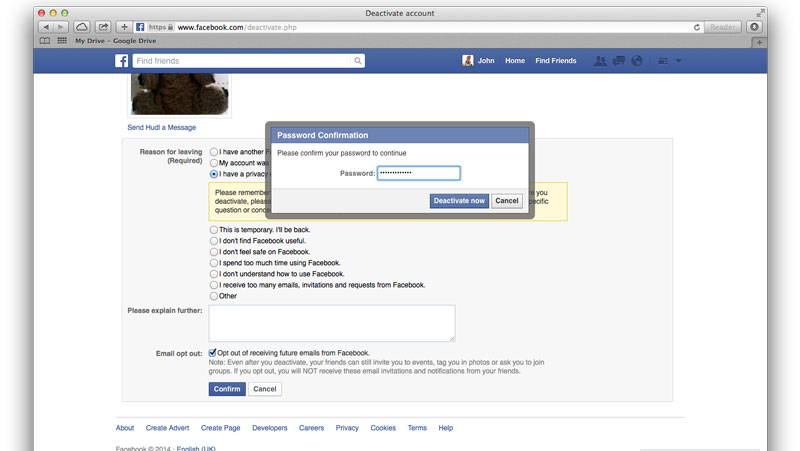
If you want to close a Facebook page using your PC, follow these steps:
- Open The Facebook Website: Go to www.Facebook.Com and log in to your account.
- Click on Settings: Click on the three dots (⋯) next to your profile picture and select “Settings.”
- Select Pages: Choose “Pages” from the settings menu.
- Select The Page You Want to Close: Find the page you want to close and click on its name.
- Click on Deactivation And Elimination: Click on the three dots (⋯) next to the page’s name and select “Deactivation and Elimination.”
- Choose a Reason For Deactivation: Enter a reason for deactivating the page if prompted.
- Confirm Your Decision: Confirm your decision by clicking on “Continue.”
Closing a Facebook Page Without Access Credentials
If you’re unable to access your account or have forgotten your login credentials, follow these steps:
- Try Recovering Your Password: Go to www.Facebook.Com and click on “Forgot Password” to recover your password.
- Use The Help Center: Visit Facebook’s Help Center (https://Www.Facebook.Com/help/) for more information on how to recover your account.
Closing a Facebook Page Without Administrator Privileges
If you’re not an administrator of the page but want to close it, unfortunately, only administrators can remove or delete pages. However, if someone points out that you’ve created the page and report you as the creator, Facebook may take action.
Additional Tips And Insights
- Close Unnecessary Pages: Don’t keep unnecessary pages open. Closing them will declutter your online presence and simplify your digital life.
- Use Facebook’s Built-in Tools: Take advantage of Facebook’s built-in tools to manage your page, such as the “Settings” menu and the “Deactivation and Elimination” feature.
- Keep Track of Your Pages: Make sure you keep track of all the pages you’ve created or been involved in. This will help you identify which ones can be closed.
Conclusion
Closing a Facebook page is a relatively simple process that can help declutter your online presence. Whether you’re closing a page from your smartphone, PC, without access credentials, or without administrator privileges, following these steps should guide you through the process.


