
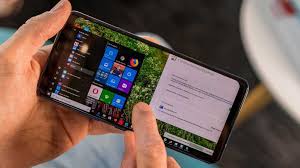
Controlling Your PC With Android: A Step-by-step Guide
Are you tired of leaving your computer at home when you’re out and about? Do you want to be able to check on your PC’s status from anywhere, without having to physically access it? Well, you’re in luck! With the help of some clever software solutions, you can control your PC with your Android smartphone.
Why Use a Remote Access Service?
Before we dive into the nitty-gritty of how to use these services, let’s quickly discuss why they might be useful. Imagine being able to check on your computer’s status, even when you’re not in the same room (or building, or city). You could see what programs are running, check for updates, and even take control of your PC from afar.
What Do I Need?
To get started with controlling your PC using an Android app, you’ll need a few things:
- An Android smartphone (of course!)
- A computer with the remote access software installed (we’ll cover this in more detail below)
- A stable internet connection (to keep your data synced and your connections smooth)
Option 1: Chrome Remote Desktop
The first service we’re going to explore is Chrome Remote Desktop. This is a free, Google-developed tool that allows you to access and control your computer from your Android device.
Step-by-step Guide to Setting Up Chrome Remote Desktop
Here’s how to set up Chrome Remote Desktop on both your PC and your Android smartphone:
- Install The Extension on Your PC: Head over to the Chrome Web Store and install the Chrome Remote Desktop extension.
- Set up The Server on Your PC: Launch the extension and follow the prompts to set up the server on your computer.
- Download The Client App on Your Android Device: Search for “Chrome Remote Desktop” in the Google Play Store and download the app.
- Connect to Your PC: Open the app, enter your PC’s IP address (or use the QR code), and follow the prompts to connect.
Option 2: Teamviewer
Another popular remote access service is TeamViewer. This tool offers more advanced features than Chrome Remote Desktop, such as file transfer and chat functionality.
Step-by-step Guide to Setting Up Teamviewer
Here’s how to set up TeamViewer on both your PC and your Android smartphone:
- Download The Software on Your PC: Head over to the TeamViewer website and download the client software for Windows or macOS.
- Set up The Server on Your PC: Launch the software, follow the prompts to set up the server, and enter a password.
- Install The App on Your Android Device: Search for “TeamViewer” in the Google Play Store and download the app.
- Connect to Your PC: Open the app, enter your PC’s IP address (or use the QR code), and follow the prompts to connect.
Other Options
There are many other remote access services available that you can explore, such as VNC Connect, AnyDesk, or GoToMyPC. Each has its own strengths and weaknesses, so be sure to research before choosing one.
What’s Next?
With these remote access services set up on your PC and Android device, you’ll be able to control your computer from anywhere in the world (as long as you have a stable internet connection). Just think of all the possibilities – checking your email from a coffee shop, accessing files from a park bench, or even working remotely from a beach.
Frequently Asked Questions
Here are some answers to common questions about controlling your PC with Android:
- Q: Is This Secure?
- A: Remote access services like Chrome Remote Desktop and TeamViewer have robust security features built-in, so you can be sure that your data is safe.
- Q: What if I’m Not Tech-savvy?
- A: Don’t worry – these services are designed to be easy to use, even for those who aren’t tech experts.
- Q: Can I Access my PC From Multiple Devices?
- A: Yes! Most remote access services allow you to access your computer from multiple devices at once.
Conclusion
Controlling your PC with Android is a game-changer. With the right software and setup, you can access your computer from anywhere in the world (as long as you have a stable internet connection). Whether you’re working remotely or just want to check on your computer’s status from afar, this technology has got you covered.
Faqs
Here are some answers to common questions about controlling your PC with Android:
- Q: Is This Secure?
- A: Remote access services like Chrome Remote Desktop and TeamViewer have robust security features built-in, so you can be sure that your data is safe.
- Q: What if I’m Not Tech-savvy?
- A: Don’t worry – these services are designed to be easy to use, even for those who aren’t tech experts.
- Q: Can I Access my PC From Multiple Devices?
- A: Yes! Most remote access services allow you to access your computer from multiple devices at once.


