
How to Close a Paypal Account: A Step-by-step Guide
Are you considering closing your PayPal account? Perhaps you’ve decided to switch to a different payment platform or simply want to declutter your online presence. Whatever the reason, it’s essential to follow the correct procedure to ensure a smooth and stress-free experience.
In this article, we’ll guide you through the process of closing a PayPal account, including the necessary steps for both personal and business accounts. We’ll also cover some common issues that may arise during the process and provide tips on how to resolve them.
Why Close a Paypal Account?
Before we dive into the nitty-gritty of closing a PayPal account, let’s quickly explore why you might want to do so. Here are some possible reasons:
- You’ve decided to switch to a different payment platform.
- You no longer need access to your PayPal funds.
- You’re experiencing issues with your account, such as errors or suspicious activity.
- You simply want to declutter your online presence.
Closing a Personal Paypal Account
To close a personal PayPal account, follow these steps:
- Log in to your PayPal account using your username and password.
- Click on the “Settings” icon (represented by a gear) located at the top right corner of the page.
- Select “Close Account” from the dropdown menu.
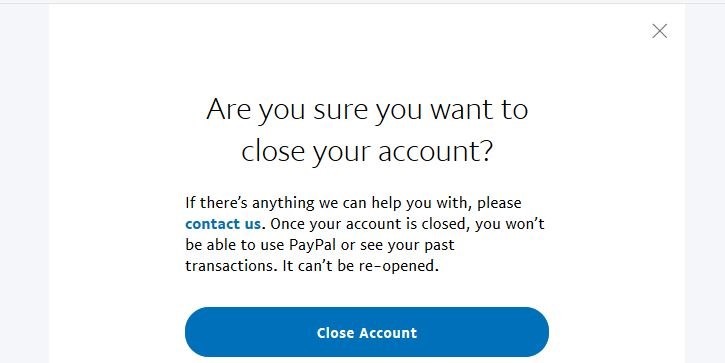
- Follow the prompts to confirm that you want to close your account.
- Enter your login credentials again for verification purposes.
Closing a Business Paypal Account
To close a business PayPal account, follow these steps:
- Log in to your PayPal account using your username and password.
- Click on the “Settings” icon (represented by a gear) located at the top right corner of the page.
- Select “Close Account” from the dropdown menu.
- Follow the prompts to confirm that you want to close your account.
- Enter your login credentials again for verification purposes.
Common Issues And Solutions
Here are some common issues you might encounter when closing a PayPal account:
- Pending Transactions: If you have pending transactions, you won’t be able to close your account until they’re completed. You can check the status of these transactions in the “Transaction History” section.
- Active Automatic Payments: If you have active automatic payments set up, you’ll need to cancel them before closing your account. You can do this by going to the “Payments” tab and selecting the “Cancel” option.
- Limited Account: If your account is limited due to suspicious activity, you may not be able to close it through the usual process. In this case, contact PayPal’s customer support for assistance.
Tips And Recommendations
Here are some tips and recommendations to keep in mind when closing a PayPal account:
- Make sure you have no outstanding transactions or payments before closing your account.
- Cancel any active automatic payments before closing your account.
- If you’re experiencing issues with your account, contact PayPal’s customer support for assistance.
Conclusion
Closing a PayPal account is a relatively straightforward process that can be completed in just a few steps. By following the guidelines outlined above and being aware of potential common issues, you’ll be able to close your account smoothly and efficiently. Remember to take care of any outstanding transactions or payments before closing your account, and don’t hesitate to contact PayPal’s customer support if you encounter any problems.
Frequently Asked Questions (FAQs)
- Q: How do I Close a Paypal Account?
A: To close a PayPal account, log in to your account using your username and password, then click on the “Settings” icon and select “Close Account.” - Q: Can I Close my Paypal Account if I Have Pending Transactions?
A: No, you won’t be able to close your account until any pending transactions are completed. - Q: How do I Cancel Active Automatic Payments Before Closing my Account?
A: Go to the “Payments” tab and select the “Cancel” option for each active automatic payment. - Q: What if my Paypal Account is Limited Due to Suspicious Activity? Can I Still Close It?
A: If your account is limited, contact PayPal’s customer support for assistance in closing your account. - Q: How Long Does it Take to Close a Paypal Account?
A: Closing a PayPal account typically takes just a few minutes.
Additional Resources
If you have any further questions or concerns about closing a PayPal account, we recommend consulting the official PayPal website for more information.


