
How to Download And Install Ios 14 on Your Iphone
Are you ready to upgrade your iPhone experience? Apple has just released the new major release of its operating system, iOS 14, which brings a slew of exciting features and improvements. In this article, we’ll guide you through the process of downloading and installing iOS 14 on your iPhone.
Compatibility Check
Before we dive into the installation process, let’s ensure that your iPhone is compatible with iOS 14. According to Apple, the following devices can run the new operating system:
- IPhone 11
- IPhone 11 Pro
- IPhone 11 Pro Max
- IPhone XS
- IPhone XS Max
- IPhone XR
- IPhone X
- IPhone 8
- IPhone 8 Plus
- IPhone 7
- IPhone 7 Plus
- IPhone 6s
- IPhone 6s Plus
- IPhone SE (1st generation)
- IPhone SE (2nd generation)
- IPod Touch (7th generation)
If you have any of these devices, you’re good to go!
Pre-installation Operations
Before installing iOS 14, there are some preliminary operations that need to be carried out. These include:
- Backing up your iPhone on iCloud or iTunes
- Saving photos and videos on your computer
- Updating iTunes or the Finder app (on Mac)
- Discharging your iPhone battery to at least 50%
Don’t worry; we’ll guide you through each of these steps in detail.
Downloading And Installing Ios 14
There are two ways to download and install iOS 14: The standard procedure and the alternative procedure. We’ll cover both methods, so you can choose the one that suits your needs.
Standard Procedure
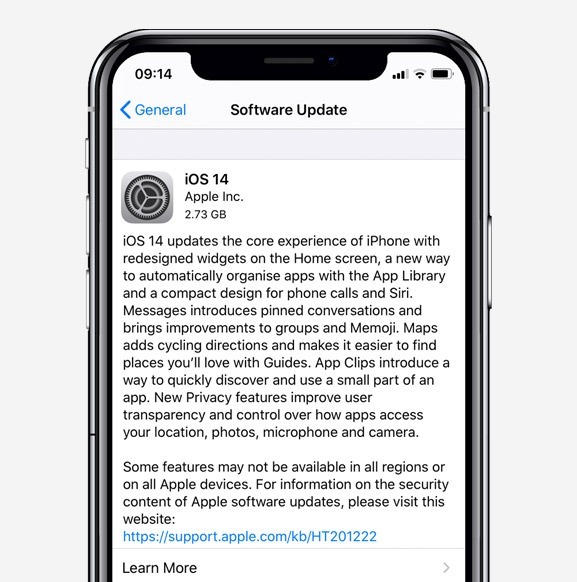
The standard procedure involves downloading and installing the update directly from your iPhone. To do this:
- Ensure your iPhone is connected to Wi-Fi.
- Go to Settings > General > Software Update.
- If an update is available, tap on “Download and Install.”
- Enter your password and accept the terms and conditions.
- Wait for the download and installation process to complete.
Alternative Procedure
The alternative procedure involves downloading the update from iTunes (on Windows) or the Finder app (on Mac). To do this:
- Connect your iPhone to your computer using a Lightning cable.
- Open iTunes (on Windows) or the Finder app (on Mac).
- Select your iPhone from the list of connected devices.
- Click on “Check for Updates” and follow the prompts.
Installation Cleaned
If you want to start fresh with iOS 14, you can choose to install it cleanly by erasing all data and settings. To do this:
- Connect your iPhone to your computer using a Lightning cable.
- Open iTunes (on Windows) or the Finder app (on Mac).
- Select your iPhone from the list of connected devices.
- Click on “Restore iPhone” and follow the prompts.
New Features in Ios 14
IOS 14 brings many exciting features, including:
- Widget: A new way to display information directly on your home screen.
- Bookshop App: A new app that organizes all installed apps by category.
- App Translate: An app that translates text and speech in real-time.
- App Clip: A new format for sharing apps without requiring a new account.
Other Novelties
IOS 14 also includes other novelties, such as:
- Siri: A new design and improved functionality.
- Safari: New features like tracker blocking and password security checks.
- Health App: Improved monitoring of sleep and health parameters.
- Home App: Enhanced control and suggestions for smart home devices.
Conclusion
Downloading and installing iOS 14 is a straightforward process. With this guide, you should be able to upgrade your iPhone experience with ease. Remember to follow the steps carefully and ensure that your device is compatible with the new operating system. Happy upgrading!
Frequently Asked Questions (FAQs)
- Q: What Are The Requirements For Installing Ios 14?
A: Your iPhone must be one of the compatible devices listed above. - Q: How do I Back up my Iphone on Icloud or Itunes?
A: Follow the steps outlined in our guide. - Q: Can I Install Ios 14 on an Older Iphone Model?
A: Unfortunately, no. Apple has discontinued support for older iPhone models. - Q: What Are Some of The New Features in Ios 14?
A: Some of the notable new features include Widget, Bookshop App, and App Translate. - Q: How do I Update Itunes or The Finder App on Mac?
A: Follow the steps outlined in our guide.
Let us know if you have any further questions!


