
How to Set Your Browser as Default on Any Device
Are you tired of constantly switching between browsers or worrying about your preferred browser not being set as default? Look no further! In this article, we will guide you through the simple process of setting your favorite browser as the default on any device.
Whether you’re using a Windows PC, Mac, Android phone, or iPhone, we’ve got you covered. Our step-by-step instructions will walk you through the process, and before you know it, you’ll be browsing like a pro with your preferred browser set as default.
Why Set Your Browser as Default?
Setting your browser as default can save you time and effort in the long run. Imagine not having to manually select your favorite browser every time you want to access the internet. It’s a small change that can make a big difference in your browsing experience.
How to Set Your Browser as Default on Windows PC
If you’re using a Windows PC, follow these simple steps to set your browser as default:
Windows 11: Setting Browser as Default
To set your browser as default on Windows 11, follow these steps:
- Click on the Start menu and select “Settings”.
- In the Settings window, click on “Apps” from the left panel.
- Scroll down to the “Default apps” section and click on it.
- Look for the “Browser” option and click on it.
- Select your preferred browser from the list of available browsers.
- Click on the “Done” button to confirm.
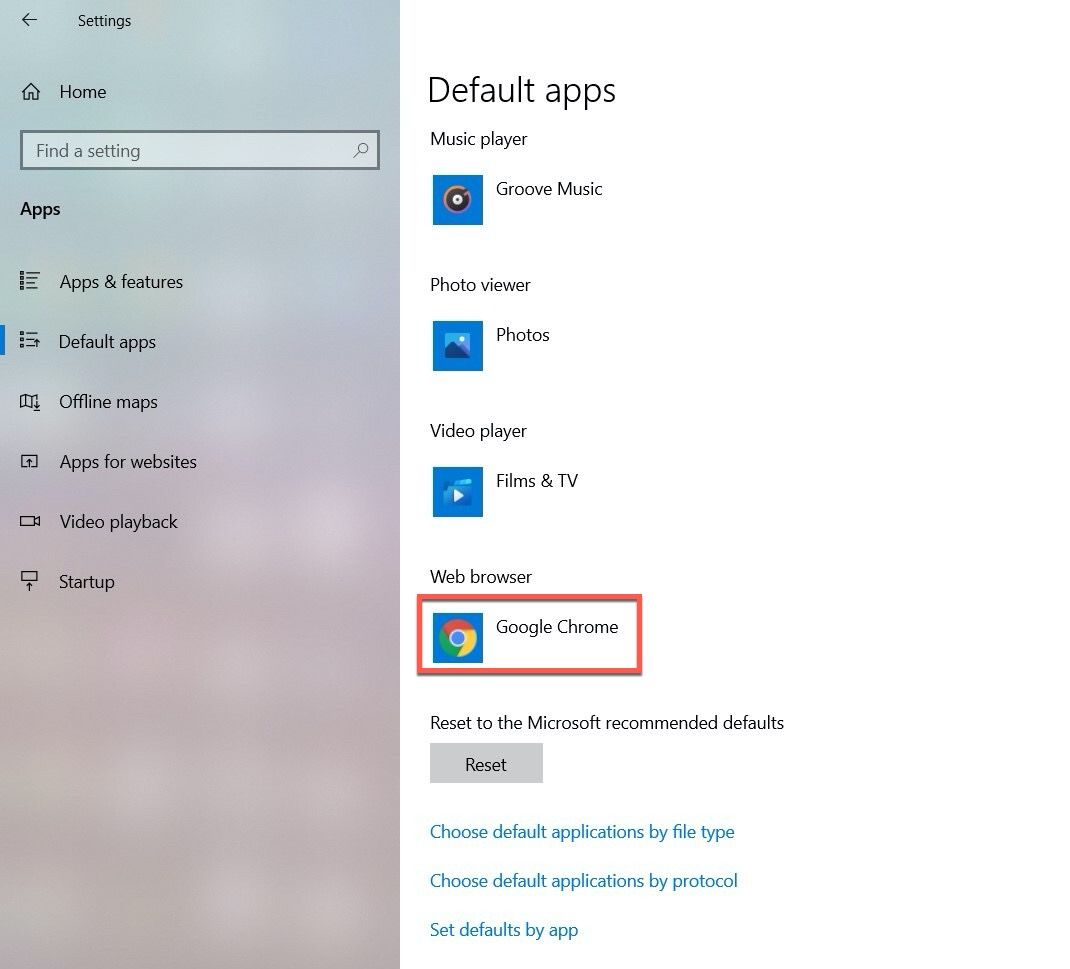
Windows 10: Setting Browser as Default
To set your browser as default on Windows 10, follow these steps:
- Click on the Start menu and select “Settings”.
- In the Settings window, click on “System” from the left panel.
- Scroll down to the “Default apps” section and click on it.
- Look for the “Browser” option and click on it.
- Select your preferred browser from the list of available browsers.
- Click on the “Done” button to confirm.
How to Set Your Browser as Default on Mac
If you’re using a Mac, follow these simple steps to set your browser as default:
- Click on the Apple menu and select “System Preferences”.
- In the System Preferences window, click on “General”.
- Look for the “Default web browser” option and click on it.
- Select your preferred browser from the list of available browsers.
- Click on the “OK” button to confirm.
How to Set Your Browser as Default on Android Phone
If you’re using an Android phone, follow these simple steps to set your browser as default:
- Go to Settings > Apps > Choose applications > App browser.
- Select your preferred browser from the list of available browsers.
- Click on the “OK” button to confirm.
How to Set Your Browser as Default on Iphone
If you’re using an iPhone or iPad, follow these simple steps to set your browser as default:
- Go to Settings > Safari (or your preferred browser).
- Scroll down and select “Default browser”.
- Select your preferred browser from the list of available browsers.
- Click on the “OK” button to confirm.
Conclusion
Setting your browser as default is a simple process that can save you time and effort in the long run. Whether you’re using a Windows PC, Mac, Android phone, or iPhone, we’ve provided step-by-step instructions to guide you through the process. Try it out today and enjoy browsing with your preferred browser set as default!


