
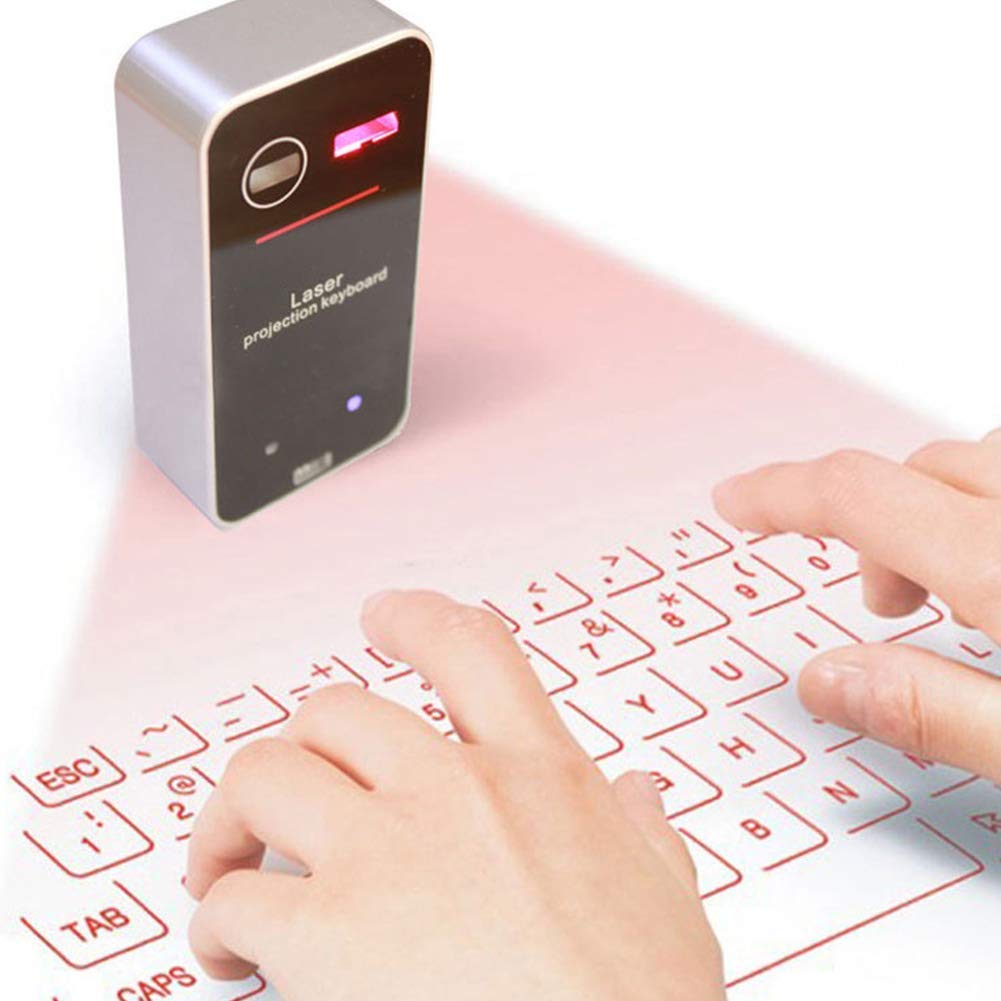
The Ultimate Guide to Virtual Keyboards: A Comprehensive Review
Are you tired of using physical keyboards that are cluttered, noisy, or just plain frustrating? Do you want to experience the freedom of typing without looking at your screen? Look no further than virtual keyboards! In this article, we’ll explore what virtual keyboards are, their benefits, and how to use them on Windows, macOS, smartphones, and tablets.
What is a Virtual Keyboard?
A virtual keyboard is an on-screen interface that allows you to type using a mouse, touchscreen, or other pointing device. It’s like having a miniature keyboard on your monitor, but without the physical clutter. With a virtual keyboard, you can type emails, messages, documents, and more with ease and comfort.
Benefits of Virtual Keyboards
- Convenience: No need to worry about cluttered desks or noisy keyboards.
- Comfort: Type without straining your hands or eyes.
- Flexibility: Use on multiple devices, including smartphones and tablets.
- Accessibility: Perfect for those with disabilities or temporary injuries.
How to Use a Virtual Keyboard on Windows
To access the virtual keyboard on Windows:
- Press the Win+r keys on your keyboard.
- Type “osk” in the Run dialog box.
- Click “OK” to open the virtual keyboard.
- You can now type using the mouse or touchscreen.
Tips And Tricks For Windows Users
- To toggle the virtual keyboard on and off, press Win+r again and type “osk” without quotes.
- To personalize your virtual keyboard settings, click on the Options button.
-
To add a link to the virtual keyboard in the taskbar, follow these steps:
-
Click on the Start menu.
- Type “windows key + R” and press Enter.
- Type “osk” and press Enter.
- A window will appear with the virtual keyboard.
- Right-click on the title bar of the window and select “Pin to Taskbar”.
How to Use a Virtual Keyboard on Macos
To access the virtual keyboard on macOS:
- Click on the Apple menu.
- Select “System Preferences”.
- Click on the “Keyboard” icon.
- Check the box next to “Use all F keys” to enable the virtual keyboard.
- You can now type using the mouse or touchscreen.
Tips And Tricks For Macos Users
- To toggle the virtual keyboard on and off, press Cmd+shift+k.
- To personalize your virtual keyboard settings, click on the Keyboard icon in System Preferences.
-
To add a shortcut to the virtual keyboard in the menu bar:
-
Click on the Apple menu.
- Select “System Preferences”.
- Click on the “Keyboard” icon.
- Check the box next to “Show keyboard and emoji viewer in menu bar”.
Virtual Keyboards For Smartphones And Tablets
Are you using an Android or iOS device? Don’t worry, we’ve got you covered! Here are some popular virtual keyboards:
- Gboard: The official Google virtual keyboard available on Android and iOS devices.
- Swiftkey: A popular virtual keyboard app for Android devices.
Tips And Tricks For Smartphone Users
- To download a virtual keyboard app, go to the App Store (iOS) or Google Play Store (Android).
- Choose your preferred virtual keyboard and install it.
-
To set up your virtual keyboard:
-
On Android: Go to Settings > Language & input > Virtual Keyboard.
- On iOS: Go to Settings > General > Keyboard.
Online Virtual Keyboards
Need a virtual keyboard online? Try Virtual Keyboard Online, a simple and user-friendly portal that allows you to type characters from any language without installing additional software.
Conclusion
In conclusion, virtual keyboards are an excellent alternative to physical keyboards. They offer convenience, comfort, flexibility, and accessibility. Whether you’re using Windows, macOS, or a smartphone/tablet, there’s a virtual keyboard waiting for you! So go ahead, give it a try, and experience the freedom of typing without looking at your screen.
Frequently Asked Questions
- Q: What is a Virtual Keyboard?
A: A virtual keyboard is an on-screen interface that allows you to type using a mouse, touchscreen, or other pointing device. - Q: How do I Use a Virtual Keyboard on Windows?
A: Press Win+r, type “osk”, and click “OK” to open the virtual keyboard. - Q: Can I Personalize my Virtual Keyboard Settings?
A: Yes, you can! On Windows, click on the Options button; on macOS, go to System Preferences > Keyboard. - Q: What Are Some Popular Virtual Keyboards For Smartphones And Tablets?
A: Gboard (Android/iOS), SwiftKey (Android). - Q: Can I Use a Virtual Keyboard Online?
A: Yes, try Virtual Keyboard Online! - Q: Are Virtual Keyboards Safe to Use?
A: Absolutely! As long as you download and install apps from trusted sources. - Q: Can I Customize my Virtual Keyboard on a Smartphone/tablet?
A: Yes, go to Settings > General > Keyboard (iOS) or Settings > Language & input > Virtual Keyboard (Android). - Q: Do Online Virtual Keyboards Store my Data?
A: No, they don’t! Online virtual keyboards are just for typing purposes and do not collect any personal data.
Hope you enjoyed this article!


