
How to Forward Documents in a Single File: A Step-by-step Guide
Are you tired of searching for files scattered across multiple folders? Do you want to simplify your workflow by forwarding documents in a single file? Look no further! In this article, we’ll show you how to forward documents in a single file using various methods.
Why Forward Documents in a Single File?
Forwarding documents in a single file can save you time and effort when sharing files with colleagues or clients. By consolidating multiple documents into one file, you can avoid the hassle of searching for individual files and reduce the risk of losing important information.
Method 1: Using Zip Files to Forward Multiple Documents
One popular method for forwarding multiple documents in a single file is by using ZIP files. ZIP files are compressed archives that allow you to store multiple files in one container.
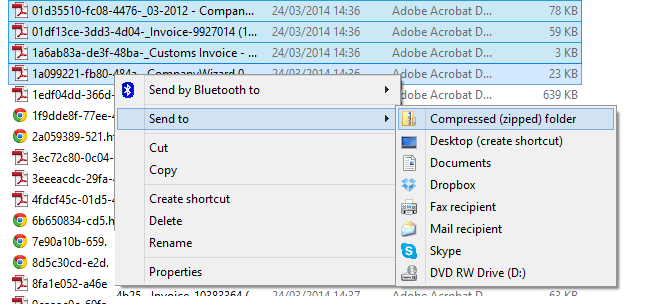
- On Windows, select the files you want to forward and right-click on them. Choose “Compress to ZIP” from the context menu.
- On Mac, select the files and go to File > Compress [number] items.
- If you’re using a smartphone, open the Files app and navigate to the folder containing the documents. Select the files and tap on the “Compress” button.
Method 2: Forwarding Pdfs in a Single File
If you need to forward multiple PDFs in a single file, you can use services like iLovePDF or Adobe Acrobat.
- With iLovePDF, select the PDFs you want to forward and upload them to the service. Choose the “Merge” option to combine the files into one.
- If you’re using Adobe Acrobat, open the application and navigate to the “Tools” menu. Select “Combine Files” to merge multiple PDFs into one.
Method 3: Forwarding Word Documents in a Single File
If you need to forward multiple Word documents in a single file, you can use the built-in feature in Microsoft Word.
- Open the first document and select all the content.
- Go to Insert > Object > Text from File and browse for the second document. Repeat this process for each additional document.
- Save the final document as a new Word file.
Method 4: Using Cloud Storage Services
Another option for forwarding documents in a single file is by using cloud storage services like Google Drive, OneDrive, or iCloud Drive.
- Upload the individual files to your cloud storage account.
- Create a shared folder and add the files you want to forward.
- Share the link with the recipient, who can access the files directly from the cloud storage service.
Method 5: Using File Hosting Services
If you need to forward large files or multiple documents, consider using file hosting services like WeTransfer.
- Upload the individual files to the WeTransfer platform.
- Create a shared link and send it to the recipient, who can access the files directly from the service.
Conclusion
Forwarding documents in a single file can simplify your workflow and save you time. By using ZIP files, PDF merging services, Word document combination features, cloud storage services, or file hosting services, you can easily share multiple documents with colleagues or clients. Choose the method that suits your needs and get started today!
Frequently Asked Questions (FAQs)
Q: What is the maximum size limit for uploading files to ZIP?
A: The maximum size limit for uploading files to ZIP depends on the operating system. On Windows, it’s 4 GB per file. On Mac, it’s 2 GB per file.
Q: Can I use iLovePDF to merge PDFs from different sources?
A: Yes, you can upload PDFs from different sources to iLovePDF and merge them into one file.
Q: How do I combine multiple Word documents in a single file using Microsoft Word?
A: Select all the content in the first document, go to Insert > Object > Text from File, and browse for the second document. Repeat this process for each additional document.
Q: Can I use cloud storage services like Google Drive or OneDrive to forward large files?
A: Yes, you can upload large files to your cloud storage account and share them with others using a shared link.
Q: What is the maximum file size limit for uploading files to WeTransfer?
A: The maximum file size limit for uploading files to WeTransfer is 2 GB per file.


