
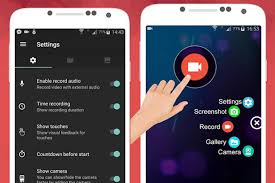
How to Record Your Phone’s Monitor: A Step-by-step Guide
Are you tired of using your phone’s built-in screen recording feature? Do you want to record your phone’s monitor without any hassle? Look no further! In this article, we will guide you through the process of recording your phone’s monitor on various devices, including Android, Samsung, Huawei, Xiaomi, iPhone, and PC.
Why Record Your Phone’s Monitor?
Recording your phone’s monitor can be useful in several situations. For instance, if you want to record a game or an app, you can use this feature to capture the gameplay or demo. It’s also helpful when you need to create tutorials or guides for others. With the ability to record your screen, you can easily share your knowledge and expertise with others.
Recording Your Phone’s Monitor on Android
If you have an Android device, you can easily record your phone’s monitor using the built-in feature. Here’s how:
- Swipe Down from the top of the screen to access the notifications menu.
- Swipe Left again to open the control panel.
- Tap on the “Record screen” option.
- Choose whether you want to record audio or not.
- Tap on the “Start recording” button.
- To stop recording, go back to the control panel and tap on the red square icon.
Recording Your Phone’s Monitor on Samsung
If you have a Samsung device, follow these steps:
- Swipe Down from the top of the screen to access the notifications menu.
- Swipe Left again to open the control panel.
- Tap on the “Record screen” option.
- Choose whether you want to record audio or not.
- Tap on the “Start recording” button.
- To stop recording, go back to the control panel and tap on the red square icon.
Recording Your Phone’s Monitor on Huawei
If you have a Huawei device, follow these steps:
- Swipe Down from the top of the screen to access the notifications menu.
- Tap on the “Control Panel” option.
- Swipe Left again to open the control panel.
- Tap on the “Record monitor” option.
- Choose whether you want to record audio or not.
- Tap on the “Start recording” button.
- To stop recording, go back to the control panel and tap on the red square icon.
Recording Your Phone’s Monitor on Xiaomi
If you have an Xiaomi device, follow these steps:
- Swipe Down from the top of the screen to access the notifications menu.
- Tap on the “Control Center” option.
- Swipe Left again to open the control panel.
- Tap on the “Record monitor” option.
- Choose whether you want to record audio or not.
- Tap on the “Start recording” button.
- To stop recording, go back to the control panel and tap on the red square icon.
Recording Your Phone’s Monitor on Iphone
If you have an iPhone device, follow these steps:
- Update Your Ios Version to 11 or later.
- Swipe Down from the top of the screen to access the control center.
- Tap on the “Screen Recording” option.
- Choose whether you want to record audio or not.
- Tap on the red square icon to start recording.
- To stop recording, go back to the control center and tap on the red square icon again.
Recording Your Phone’s Monitor on PC
If you want to record your phone’s monitor on a PC, you can use various software options:
Screen Copy (Windows)
- Download and install Screen Copy from the GitHub page.
- Follow the instructions to extract the file and open it in a terminal or PowerShell window.
- Type in the command
./Scrcpy.Exe -r [namevideo].Mp4and press Enter.
Quicktime Player (macOS)
- Connect your iPhone to your Mac using a cable.
- Open QuickTime Player on your Mac.
- Click on the menu bar and select “New” > “Recording” from this device.
- Choose whether you want to record audio or not.
- Click on the red square icon to start recording.
- To stop recording, click on the red square icon again.
Other Programs
There are other programs available that can help you record your phone’s monitor on a PC, such as:
- AirDroid (Windows/macOS) – A free software that allows you to control and record your phone’s screen directly from your computer.
- Huawei Share (Windows) – A free software dedicated to Huawei and Honor devices that allows you to control and record your phone’s screen.
- Reflector (Windows/macOS) – A paid software that converts your PC into an AirPlay receiver, allowing you to record your iPhone’s screen.
We hope this article has been helpful in guiding you through the process of recording your phone’s monitor on various devices. Remember to always follow the instructions provided by each device and software option carefully to ensure successful recording. Happy recording!


