
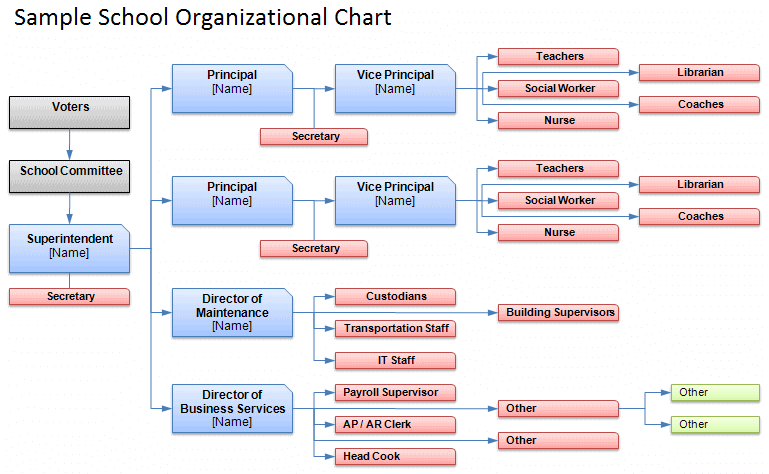
How to Create a Perfect Organigramma With Microsoft Word
In this article, we will guide you through the process of creating a perfect organigramma using Microsoft Word on your PC or Mac.
What is an Organigramma?
An organigramma is a type of chart that illustrates the hierarchies and degrees of components within a company or entity. It’s a simple yet effective way to visualize the structure of a society.
Why Use Microsoft Word For Creating an Organigramma?
Microsoft Word offers a versatile program called SmartArt that allows you to create complex graphic elements, including organigrammi. With its user-friendly interface and vast array of templates, creating an organigramma with Microsoft Word is a breeze.
Step 1: Launch Microsoft Word on Your PC or Mac
To get started, launch Microsoft Word on your computer. This can be done by searching for “Microsoft Word” in the Start menu (Windows) or Spotlight search (Mac).
Step 2: Insert a New Document And Select Smartart
Once Microsoft Word is open, insert a new document by clicking on the “Insert” tab and selecting the “SmartArt” option. In the window that opens, select the type of element you want to create, such as an organigramma.
Step 3: Choose Your Organigramma Template
Microsoft Word offers several pre-designed templates for creating organigrammi. Select one that suits your needs by clicking on the “Organigramma” option in the SmartArt window.
Step 4: Customize Your Organigramma
Once you have selected your template, customize your organigramma by modifying the text and layout to fit your specific needs.
Step 5: Add or Remove Boxes From Your Organigramma
To add or remove boxes from your organigramma, select the box you want to modify and click on the “Add Form” or “Remove Form” button in the SmartArt window.
Step 6: Save Your Organigramma
When you are finished creating your organigramma, save it as a new document by clicking on the “File” tab and selecting the “Save As” option.
Creating an Organigramma With Microsoft Word on Smartphones And Tablets
While Microsoft Word’s mobile app does not have all the features of its desktop version, you can still create simple organigrammi using the Forms feature.
Step 1: Launch Microsoft Word Mobile App
To get started, launch the Microsoft Word mobile app on your smartphone or tablet.
Step 2: Insert a New Document And Select Forms
Once Microsoft Word is open, insert a new document by clicking on the “+” button in the bottom-right corner. Select the “Forms” option from the menu that appears.
Step 3: Choose Your Organigramma Template
Select one of the pre-designed templates for creating organigrammi by scrolling through the available options.
Step 4: Customize Your Organigramma
Customize your organigramma by modifying the text and layout to fit your specific needs.
Conclusion
Creating an organigramma with Microsoft Word is a simple and effective way to visualize hierarchies and degrees within a company or entity. With its user-friendly interface and vast array of templates, you can create professional-looking organigrammi in no time.
Frequently Asked Questions (FAQs)
- What is an Organigramma?
An organigramma is a type of chart that illustrates the hierarchies and degrees of components within a company or entity.
- Why Use Microsoft Word For Creating an Organigramma?
Microsoft Word offers a versatile program called SmartArt that allows you to create complex graphic elements, including organigrammi.
- Can I Create an Organigramma With Microsoft Word on my Smartphone or Tablet?
Yes, you can create simple organigrammi using the Forms feature in Microsoft Word’s mobile app.
- How do I Customize my Organigramma?
You can customize your organigramma by modifying the text and layout to fit your specific needs.
- Can I Save my Organigramma as a New Document?
Yes, you can save your organigramma as a new document by clicking on the “File” tab and selecting the “Save As” option.
- What Are The Benefits of Using Microsoft Word For Creating an Organigramma?
Microsoft Word offers a user-friendly interface and vast array of templates that make it easy to create professional-looking organigrammi.
- Can I Use Microsoft Word’s Mobile App to Create Complex Graphic Elements?
Unfortunately, Microsoft Word’s mobile app does not have all the features of its desktop version, but you can still create simple organigrammi using the Forms feature.
- How do I Add or Remove Boxes From my Organigramma?
You can add or remove boxes from your organigramma by selecting the box you want to modify and clicking on the “Add Form” or “Remove Form” button in the SmartArt window.


