
How to Post Anonymously on Facebook: A Comprehensive Guide
Are you tired of having your posts seen by everyone on Facebook, but still want to engage with others online? Look no further! In this article, we will guide you through the process of posting anonymously on Facebook, using both desktop and mobile devices. We’ll also explore the different options available for maintaining anonymity while sharing your thoughts and opinions.
Why Anonymity Matters
In today’s digital age, online privacy is essential. Sharing personal opinions or taking part in important debates without compromising one’s safety online has become a priority for many users. Whether you’re an occasional user or a frequent social media enthusiast, keeping your identity concealed on Facebook can give you greater peace of mind while exploring and interacting in the vast digital world.
How to Post Anonymously on Facebook: A Step-by-step Guide
Posting Anonymously on Desktop
- Accessing Your Account: Log in to your Facebook account using a desktop device.
- Going to Settings: Click on the three dots at the top right corner of your Facebook page and select “Settings”.
- Privacy Options: Scroll down to the “Privacy” section and click on “Who can see my posts?”
- Customizing Privacy Settings: From here, you can choose who sees your posts. You can limit visibility to friends only or a public audience.
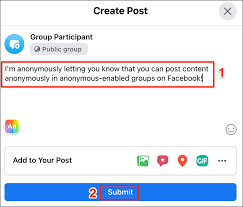
- Posting Anonymously: Once in a group where anonymous posting is allowed, look for the “Post Anonymous” option when creating a new post.
Posting Anonymously on Mobile
Using Facebook App
- Accessing Your Account: Open the Facebook app and navigate to your profile.
- Going to Groups: Tap on the groups icon at the bottom right corner of your screen.
- Selecting a Group: Choose the group where you want to post anonymously.
- Posting Anonymous: Look for the “Post Anonymous” option when creating a new post.
Using Facebook Website
- Accessing Your Account: Open Facebook in a mobile browser and navigate to your profile.
- Going to Groups: Tap on the three dots at the top right corner of your screen and select “Groups”.
- Selecting a Group: Choose the group where you want to post anonymously.
- Posting Anonymous: Look for the “Post Anonymous” option when creating a new post.
Important Considerations
While Facebook allows anonymous posting in certain groups, keep in mind that:
- Administrators and moderators of the group can see your profile information.
- You may not be able to post comments on other users’ posts anonymously.
- Some features might not be available for anonymous posting.
Facebook Groups With Anonymous Posting Enabled
Only a few Facebook groups have this feature enabled. Before joining or participating in such groups, ensure that anonymous posting is allowed and understand the group’s rules and regulations.
How to Maintain Anonymity on Facebook: Tips And Tricks
- Use strong passwords and keep them confidential.
- Avoid sharing personal details or photos that could reveal your identity.
- Regularly review your privacy settings to ensure they are up-to-date.
- Consider creating a secondary profile for anonymous posting if desired.
Alternative Options For Maintaining Anonymity
If you prefer to maintain complete anonymity on Facebook, consider:
- Creating a new account specifically for anonymous activities.
- Using the “Private” mode when sharing content online.
- Avoiding groups that require personal information or verification.
Conclusion
Posting anonymously on Facebook can be done through various means, including using specific settings and joining designated groups. Remember to always maintain your digital privacy by adjusting your settings and being cautious about what you share online.
Faqs
-
Can I Post Anonymous Messages on Messenger?
No, it’s not possible to send anonymous messages on Facebook Messenger. -
Will my Name be Visible When Posting Anonymously in a Group?
Yes, your profile name will still be visible to the administrators and moderators of the group. -
How do I Enable Anonymous Posting on my Facebook Account?
You can’t directly enable anonymous posting for your entire account, but you can join groups that allow this feature. -
Can I Post Anonymously From a Smartphone or Tablet?
Yes, it’s possible to post anonymously using mobile devices, both through the app and website versions of Facebook. -
Will my Comments on Other Users’ Posts be Visible When Posting Anonymously?
Not necessarily; anonymous posting might not be available for commenting on others’ content. -
Are There Any Risks Associated With Posting Anonymously on Facebook?
Yes, including potential hacking or data breaches if your account information is compromised. -
Can I Create a Secondary Profile For Anonymous Activities?
Yes, you can consider creating an additional account specifically for anonymous purposes, but be aware of the potential risks involved. -
Is it Safe to Share Personal Details While Posting Anonymously on Facebook?
No, sharing personal details or photos that could reveal your identity is not recommended when posting anonymously.
I hope this guide has been helpful in explaining how to post anonymously on Facebook.


