
How to Display Battery Percentage on Ios 16: A Comprehensive Guide
Are you tired of constantly checking your iPhone’s battery percentage? Do you want to know exactly how much juice is left in your device without having to dig into the settings? Look no further! With iOS 16, Apple has finally introduced a feature that allows you to display the battery percentage on your screen. In this article, we’ll guide you through the process of enabling this feature and provide alternative methods for checking your battery level.
Why Display Battery Percentage on Ios 16?
Displaying the battery percentage on your iPhone can be a game-changer. No more guessing when your device will run out of power or constantly checking the settings to see how much charge is left. With this feature, you’ll have complete control over your battery life and can make informed decisions about when to recharge.
How to Display Battery Percentage on Ios 16
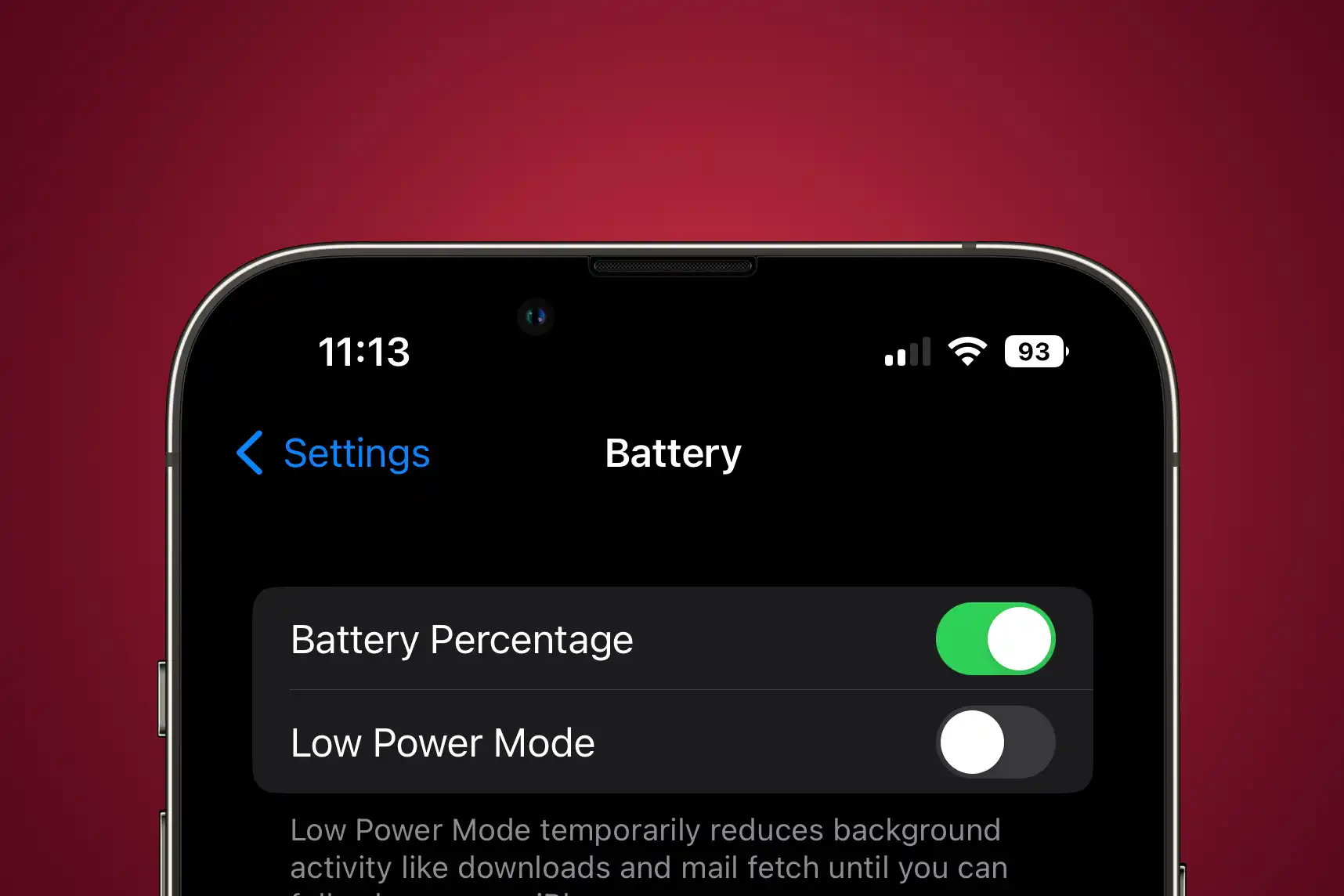
To display the battery percentage on iOS 16, follow these simple steps:
- Open the Settings app on your iPhone.
- Tap on “Battery” from the list of options.
- Scroll down to the “Battery Percentage” section and toggle the switch to turn it on.
- Once enabled, you’ll see a small battery icon in the top-right corner of your screen, displaying the current percentage charge.
Alternative Methods For Checking Battery Level
If you don’t want to display the battery percentage on your lock screen or home screen, there are other ways to check your device’s battery level:
- Centre of Control: Swipe down from the top-right corner of your screen (or swipe up from the bottom on iPhone X and later) to access the Centre of Control. Here, you’ll see a battery icon with the current percentage charge.
- Widget: Add the “Battery” widget to your home screen by tapping and holding an empty spot until the icons start to jiggle, then tap the “+” icon in the top-left corner. Select “Batteries” from the list of available widgets. You’ll see three different battery-related widgets to choose from.
How to Personalize Battery Widget
Want to customize your battery widget experience? With iOS 16, you can personalize the appearance of the battery percentage on your screen:
- Open the Settings app and navigate to “Battery”.
- Scroll down to the “Percentage” section and toggle the switch next to it.
- Choose from three different options:
- Small: Displays only the battery icon and percentage charge.
- Medium: Shows the battery icon, percentage charge, and a red or yellow color scheme when the battery level drops below 20%.
- Large: Displays the battery icon, percentage charge, name of connected devices, and other relevant information.
Conclusion
Displaying the battery percentage on iOS 16 is a simple yet effective way to keep track of your device’s power levels. With this feature enabled, you’ll have complete control over your battery life and can make informed decisions about when to recharge. Don’t forget to explore alternative methods for checking your battery level, such as using the Centre of Control or adding a widget to your home screen.
Frequently Asked Questions (FAQs)
- Q: How do I Enable The Battery Percentage Feature on Ios 16?
A: To enable the battery percentage feature, go to Settings > Battery and toggle the switch next to “Percentage” to turn it on. - Q: Can I Personalize The Appearance of The Battery Widget?
A: Yes, you can customize the battery widget experience by choosing from three different options in the Settings app under “Battery”. - Q: What Are Some Alternative Methods For Checking my Battery Level?
A: You can check your battery level using the Centre of Control or adding a widget to your home screen. - Q: How do I Add a Widget to my Home Screen?
A: To add a widget, tap and hold an empty spot until the icons start to jiggle, then tap the “+” icon in the top-left corner and select “Batteries” from the list of available widgets. - Q: What is The Centre of Control?
A: The Centre of Control is a feature that allows you to quickly access various settings and features on your iPhone by swiping down from the top-right corner (or up from the bottom). - Q: Can I Use Third-party Apps to Display Battery Percentage?
A: Yes, there are several third-party apps available in the App Store that allow you to display battery percentage using a widget or other methods. - Q: How do I Customize my Battery Widget Experience With Third-party Apps?
A: To customize your battery widget experience with third-party apps, download and install an app that supports this feature, then follow the instructions provided by the app to set it up. - Q: Are There Any Other Benefits to Displaying Battery Percentage on Ios 16?
A: Yes, displaying battery percentage can also help you identify potential issues with your device’s power management or charging habits.


