
How to Cancel a Subscription on Iphone: A Step-by-step Guide
Are you tired of unwanted subscriptions deducting from your account? Do you want to know how to cancel a subscription on your iPhone? Look no further! In this article, we will guide you through the simple process of canceling a subscription on your iPhone using both the Settings app and the App Store.
Why Cancel a Subscription?
Before we dive into the steps, let’s talk about why you might want to cancel a subscription in the first place. Maybe you signed up for a service without fully understanding what it was or how much it would cost. Perhaps you found an alternative that better suits your needs. Whatever the reason, canceling a subscription is a straightforward process that can be completed in just a few minutes.
Canceling a Subscription Using Settings
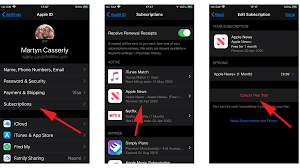
To cancel a subscription using the Settings app, follow these steps:
- Open The Settings App: Tap on the grey icon with the gears to open the Settings app.
- Tap on Your Name: Select your name from the top of the screen.
- Select Subscriptions: Choose Subscriptions from the list of options.
- Find The Subscription You Want to Cancel: Look for the subscription you want to cancel and tap on it.
- Tap Cancel Subscription: Select Cancel Subscription from the menu that appears.
- Confirm Your Decision: Tap Confirm to finalize the cancellation.
Canceling a Subscription Using App Store
Alternatively, you can also cancel a subscription directly within the App Store:
- Open The App Store: Tap on the white “A” icon on a blue background to open the App Store.
- Tap on Your Profile Picture: Select your profile picture from the top-right corner of the screen.
- Select Subscriptions: Choose Subscriptions from the menu that appears.
- Find The Subscription You Want to Cancel: Look for the subscription you want to cancel and tap on it.
- Tap Cancel Subscription: Select Cancel Subscription from the menu that appears.
- Confirm Your Decision: Tap Confirm to finalize the cancellation.
Canceling a Subscription From an App
If you’re trying to cancel a subscription from within an app itself, follow these steps:
- Open The App: Launch the app for which you want to cancel the subscription.
- Look For a Settings or Account Section: Check if there’s a specific settings or account section within the app where you can manage your subscriptions.
- Follow The App’s Instructions: If you find a dedicated section, follow the app’s instructions to cancel your subscription.
Canceling a Subscription From Netflix, Dazn, And Spotify
Specifically, here are some steps for canceling subscriptions from popular services like Netflix, DAZN, and Spotify:
- Netflix: Open Safari or another browser on your iPhone, go to netflix.Com, sign in with your account, tap the profile icon, select Account, then Cancel Subscription.
- Dazn: Visit dazn.Com, sign in with your account, tap the profile icon, choose My Account, and select Cancel Subscription.
- Spotify: Open Safari or another browser on your iPhone, go to spotify.Com, sign in with your account, tap the profile icon, select Account, then Spotify Premium, and cancel your subscription.
Conclusion
Canceling a subscription on your iPhone is a straightforward process that can be completed using either the Settings app or the App Store. Remember to always review your subscriptions regularly to ensure you’re not unknowingly paying for unwanted services.


