
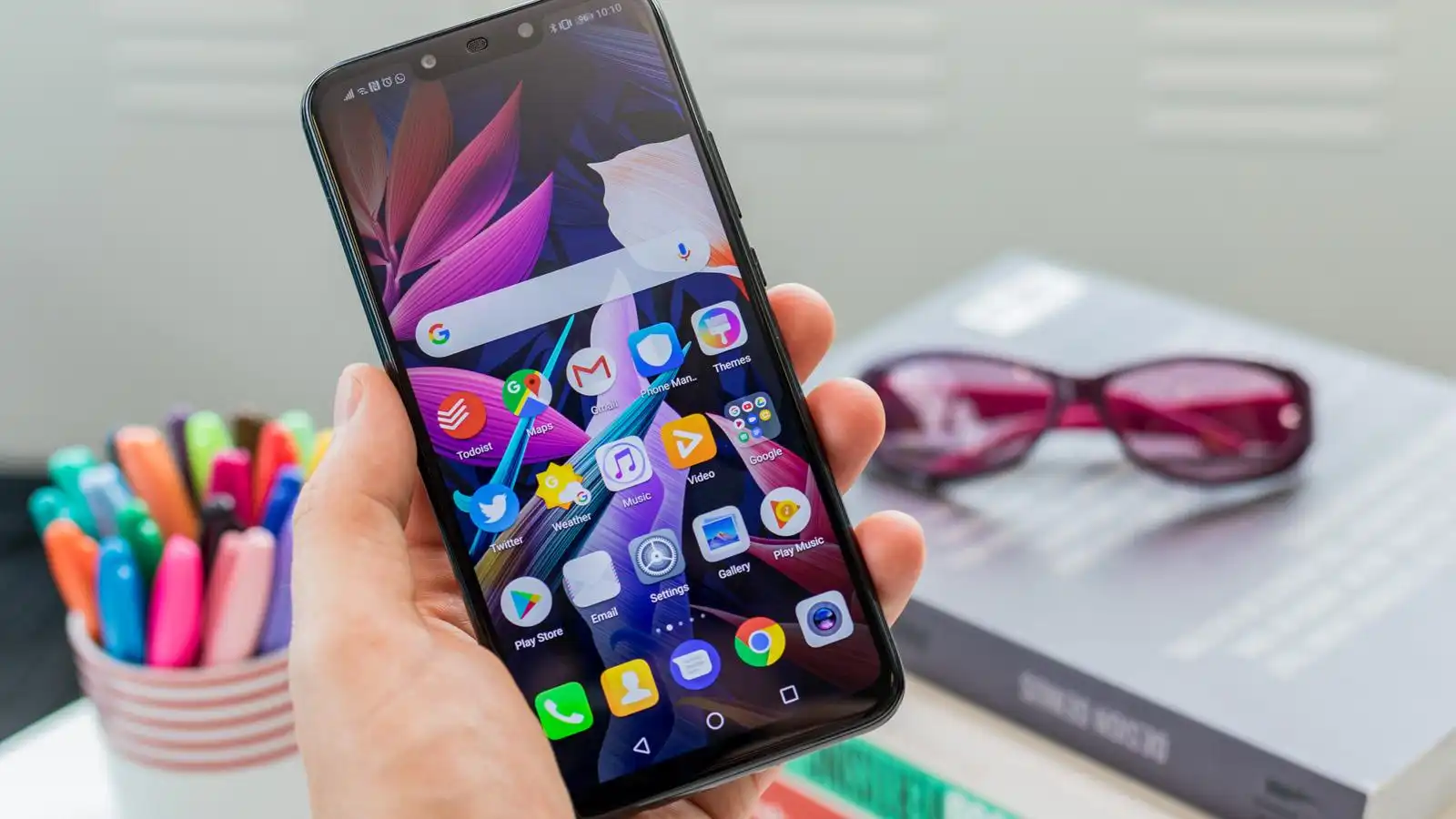
How to Set Up Weather App on Huawei Smartphone
Are you a proud owner of a Huawei smartphone? Do you want to stay updated about the weather in your city or anywhere else in the world? Look no further! In this article, we will guide you through the process of setting up the weather app on your Huawei device.
Why Set Up Weather App on Huawei Smartphone?
Setting up the weather app on your Huawei smartphone is a great way to stay informed about the current and forecasted weather conditions. With this app, you can:
- Get real-time updates on temperature, humidity, wind speed, and other meteorological conditions
- View detailed forecasts for the next few days or even weeks
- Receive notifications when severe weather warnings are issued in your area
- Even view weather information for multiple locations at once
Pre-requisites
Before we dive into the step-by-step guide, make sure you meet these pre-requisites:
- Your Huawei smartphone is connected to the internet via Wi-Fi or mobile data
- Location services (GPS) are enabled on your device
- You have granted necessary permissions to the weather app
Step 1: Connect to Internet
To set up the weather app, first ensure that your Huawei smartphone is connected to the internet. If you’re using a mobile network, make sure it’s turned on and working properly.
Step 2: Enable Location Services (GPS)
Next, enable location services (GPS) on your device. This will allow the weather app to determine your current location and provide accurate forecasts. To do this:
- Open Settings > Connections > Wi-Fi/ mobile network
- Enable GPS/Location services
Step 3: Grant Permissions
Now that you have enabled location services, grant necessary permissions to the weather app.
- Open Settings > Security > Authtorizations > Weather App
- Grant permission for the weather app to access your location and show notifications
Step 4: Install And Configure Weather App
Finally, install and configure the weather app on your Huawei device.
- Download the weather app from the Google Play Store or AppGallery (Huawei’s app store)
- Launch the app and accept its terms and conditions
- Configure the app by selecting your location or adding multiple locations
Configuring Weather App on Huawei Smartphone
Once you have installed and launched the weather app, follow these steps to configure it:
- Tap on the “Add” button in the top-right corner of the screen
- Select your current location or add a new location by searching for its name in the search bar
- Configure other settings such as units of measurement (Celsius or Fahrenheit), notification preferences, and more
Adding Weather Widget to Home Screen
To add the weather widget to your home screen, follow these steps:
- Launch the weather app
- Tap on the three dots in the top-right corner of the screen
- Select “Add to Home” from the menu
- Choose where you want to place the widget on your home screen
Troubleshooting
If you encounter any issues while setting up the weather app, refer to our troubleshooting guide for Huawei smartphones.
Conclusion
In conclusion, setting up the weather app on your Huawei smartphone is a straightforward process that requires connecting to the internet, enabling location services (GPS), granting permissions, installing and configuring the app, and adding the weather widget to your home screen. By following these steps, you can enjoy accurate and timely weather updates for yourself or anyone else in your area.
Frequently Asked Questions (FAQs)
- Q: How do I Update The Weather App on my Huawei Smartphone?
A: To update the weather app, go to Google Play Store (or AppGallery) and search for “Weather” app. If an update is available, tap on it to install.
- Q: Why Doesn’t The Weather App Show Accurate Forecasts For Me?
A: Ensure that location services (GPS) are enabled on your device, and you have granted necessary permissions to the weather app.
- Q: Can I View Weather Information For Multiple Locations at Once?
A: Yes! You can add multiple locations to the weather app by tapping on the “Add” button in the top-right corner of the screen.
- Q: How do I Reset my Location Settings on The Weather App?
A: Go to Settings > Security > Authtorizations > Weather App, and toggle off “Location services.” Then, restart your device and follow steps 1-3 again to re-grant permissions.
- Q: Can I Use Other Apps Instead of The Pre-installed Huawei Weather App?
A: Yes! You can download alternative weather apps from Google Play Store (or AppGallery) and install them on your Huawei smartphone.


