
How to Connect Smartphone to Pc: A Step-by-step Guide
Are you tired of dealing with cables and wires when connecting your smartphone to your computer? Do you want to know how to do it quickly and easily? Look no further! In this article, we will guide you through the process of connecting your smartphone to your PC using various methods.
Connecting Smartphone to PC Using Cable
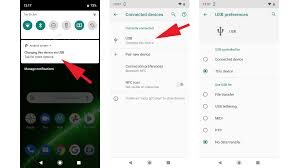
The first method is to use a cable. Yes, you read that right – a cable! You can connect your smartphone to your PC using a USB cable, and it’s surprisingly easy. Here’s how:
- Android: If you own an Android device, simply plug the cable into the charging port on your phone and the other end into your computer’s USB port.
- Iphone: If you have an iPhone, use the Lightning cable that comes with it to connect to your PC.
Connecting Smartphone to PC Without Cable
If you don’t want to deal with cables or can’t find one, there are other options available. Here are a few:
- Bluetooth Connection: Many smartphones come with Bluetooth capabilities, which allow you to connect your phone to your computer wirelessly.
- Wi-fi Direct: This method allows you to connect your smartphone to your PC using Wi-Fi without the need for a cable or internet connection.
Connecting Smartphone to PC Using Hotspot
If you want to use your smartphone’s hotspot feature to connect to the internet, follow these steps:
- Android: Go to Settings > Connections > Router Wi-Fi and Tethering, then tap on Mobile Net and select Hotspot.
- Iphone: Go to Settings > Cellular and ensure that the toggle for Personal Hotspot is turned on.
Connecting Smartphone to PC Using Airdrop
If you have an iPhone or a Mac, you can use AirDrop to transfer files between devices. Here’s how:
- Ios: Open the Finder app on your Mac and select the file you want to share.
- Mac: Open the Share menu and choose AirDrop.
Connecting Smartphone to PC Using Icloud Drive
If you have an iPhone or iPad, you can use iCloud Drive to access and share files between devices. Here’s how:
- Ios: Go to Settings > [Your Name] > iCloud > iCloud Drive.
- Mac: Open the Finder app and select the file you want to share.
Connecting Smartphone to PC Using Windows 11
If you have a Windows 11 device, you can use it to connect your iPhone to your computer. Here’s how:
- Initiate The Link to Windows App: Install the Link to Windows app on your iPhone and initiate it.
- Associate With Code QR: Scan the code QR visualized on your PC using your iPhone.
Troubleshooting
If you encounter any issues while connecting your smartphone to your PC, don’t worry! We’ve got some troubleshooting tips for you:
- Restart Your Device: Sometimes, a simple reboot can resolve connectivity issues.
- Check Your Internet Connection: Ensure that your internet connection is stable and working properly.
Conclusion
Connecting your smartphone to your PC has never been easier. Whether you use a cable, Bluetooth, Wi-Fi Direct, hotspot, AirDrop, iCloud Drive, or Windows 11, there’s an option for everyone. Remember to troubleshoot any issues that may arise, and don’t hesitate to reach out if you need further assistance.
Faqs
Q: How do I connect my Android device to my PC?
A: You can use a USB cable, Bluetooth connection, Wi-Fi Direct, or hotspot feature.
Q: Can I use my iPhone as a hotspot for my PC?
A: Yes, you can! Just ensure that the toggle for Personal Hotspot is turned on in your iPhone settings.
Q: How do I transfer files between devices using AirDrop?
A: Open the Finder app on your Mac and select the file you want to share. Then, open the Share menu and choose AirDrop.
Q: What if my smartphone’s monitor is broken?
A: If your smartphone’s monitor is damaged but its touch screen still works, you can use it as usual and connect it to your PC using a USB cable or Bluetooth connection.
Q: Can I use iCloud Drive to access and share files between devices?
A: Yes! Go to Settings > [Your Name] > iCloud > iCloud Drive on your iOS device and open the Finder app on your Mac.
Q: How do I troubleshoot issues while connecting my smartphone to my PC?
A: Try restarting your device, checking your internet connection, or resetting your settings.


