
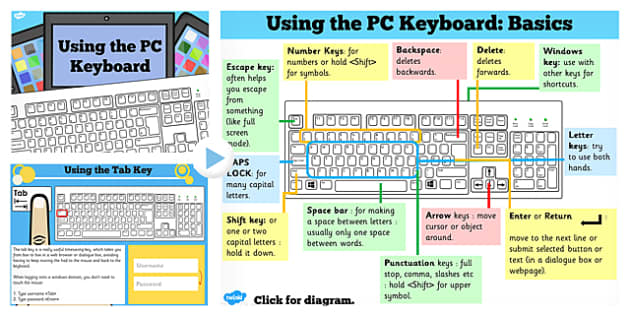
Mastering Your PC Keyboard: A Comprehensive Guide
Are you tired of feeling like a typing dinosaur? Do you want to boost your productivity and efficiency when using your computer? Look no further! In this article, we’ll take you on a journey to master your PC keyboard, covering everything from choosing the right keyboard to mastering complex combinations.
Choosing The Right Keyboard
Before you can become a keyboard virtuoso, you need to choose the right keyboard for your needs. Don’t underestimate the importance of selecting the best keyboard for your requirements. Whether you’re a gamer, writer, or programmer, having the right keyboard can make all the difference.
Using Your Keyboard With 10 Fingers
The first step to mastering your keyboard is to use it with 10 fingers. Yes, you read that correctly – 10 fingers! This may seem daunting at first, but trust us, it’s worth the effort. To do this, follow these simple steps:
- Keep a Correct Posture: Make sure you’re sitting comfortably and have your hands in the correct position.
- Use The Correct Hand Placement: Place your hands on the keyboard with your fingers curved over the keys.
- Use All Your Fingers: Use all 10 fingers to type, including your thumbs.
Common Keyboard Combinations
Now that you’ve mastered the basics, it’s time to learn some common keyboard combinations. These will help you execute tasks quickly and efficiently.
- Ctrl+s: Save a document.
- Ctrl+c: Copy selected text or file.
- Ctrl+x: Cut selected text or file.
- Ctrl+v: Paste copied or cut text or file.
- Ctrl+z: Undo the last action.
- Ctrl+a: Select all.
Capsizing The Keyboard Layout
If you find yourself needing to use a different keyboard layout, don’t worry! You can easily capsize the layout on your PC. Follow these steps:
- Open The Settings App: Press the Windows key + I.
- Go to Time & Language: Click on it.
- Select Keyboard: Choose the layout you want to add.
- Add Keyboard: Select the added layout.
Typing Symbols And Emoji
Want to type special characters or emoji? No problem! You can use the character map to find and copy symbols.
- Press Windows Key + R: Open the Run dialog box.
- Type Charmap: Open the Character Map app.
- Select a Symbol: Choose the symbol you want to insert.
- Copy it: Click on the Copy button.
- Paste it: Paste the symbol into your document or text field.
Using The Virtual Keyboard
If you’re having trouble using the physical keyboard, don’t worry! You can use the virtual keyboard instead. Follow these steps:
- Press Windows Key + R: Open the Run dialog box.
- Type Osk: Open the On-Screen Keyboard app.
- Use The Virtual Keyboard: Use the virtual keyboard to type.
Using a Mac Keyboard
If you’re using a Mac, don’t worry! The steps are similar to those on a PC. Here’s how to use your Mac keyboard:
- Use All Fingers: Use all 10 fingers to type.
- Common Combinations: Use common combinations like Command+S to save a document.
- Capsizing The Layout: Capsize the keyboard layout by going to System Preferences > Keyboard.
Conclusion
Mastering your PC keyboard takes time and practice, but it’s worth the effort. With these tips and tricks, you’ll be typing like a pro in no time! Remember to choose the right keyboard for your needs, use all 10 fingers, learn common combinations, capsize the layout, type symbols and emoji, and use the virtual keyboard if needed.
Frequently Asked Questions (FAQs)
- What’s The Best Way to Master my PC Keyboard?
- Practice regularly using all 10 fingers.
- How do I Choose The Right Keyboard For my Needs?
- Consider your typing style, comfort level, and any specific requirements you may have.
- Can I Use a Mac Keyboard With a Pc?
- Yes, but keep in mind that some combinations may not work as expected.
- How do I Capsize The Keyboard Layout on my Pc?
- Go to Settings > Time & language > Keyboard and select the added layout.
- Can I Type Symbols And Emoji on a Pc?
- Yes, use the character map or virtual keyboard to find and copy symbols.
- How do I Use The Virtual Keyboard on my Pc?
- Press Windows key + R and type osk to open the On-Screen Keyboard app.
Conclusion
Mastering your PC keyboard is an achievable goal with practice and patience. By following these tips and tricks, you’ll be typing like a pro in no time!


