
Actuating The Microphone on Windows 10: A Step-by-step Guide
Are you looking to use your computer’s microphone on Windows 10? Whether it’s for chatting with friends online, using voice commands with Cortana, or accomplishing various other tasks that require voice input, this guide will walk you through the process of actuating your microphone.
Understanding Your Microphone Options
Before we dive into the step-by-step instructions, let’s take a moment to understand your microphone options. You can either have an integrated microphone in your computer (common for laptops) or connect an external microphone using a cable or wireless technology.
Preliminary Operations
To ensure that your microphone is working correctly, you’ll need to perform some preliminary operations:
- Check if Your Microphone is Integrated: If it’s not integrated, you’ll need to connect the microphone to your computer.
- Connect The Microphone: Depending on your microphone type (cable or wireless), follow the manufacturer’s instructions to connect it to your computer.
- Install Necessary Drivers And Software: Make sure that the driver and software for your microphone are installed correctly.
Actuating Your Microphone
Now that you’ve completed the preliminary operations, let’s move on to actuating your microphone:
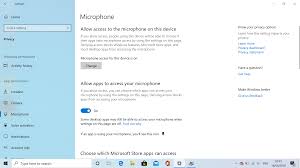
- Click on The Start Button: Press the Windows key + I to open the Settings app.
- Select System: In the Settings window, select the “System” category.
- Choose Audio: Click on the “Audio” tab in the sidebar.
- Select Input: In the right-hand pane, click on the “Input” section.
- Choose Your Microphone: Select your microphone from the dropdown menu.
Testing Your Microphone
To ensure that your microphone is working correctly, follow these steps:
- Speak Into The Microphone: Speak clearly and loudly to test the microphone’s audio input.
- Check The Microphone Icon: Look for a microphone icon on your screen; if it turns green, your microphone is working.
Configuring Your Microphone
If you need to adjust any settings or configure your microphone further, follow these steps:
- Click on The Properties Button: Click on the “Properties” button next to your microphone.
- Adjust Audio Levels: Adjust the audio levels as needed to ensure that your voice is being picked up correctly.
Actuating Your Microphone in Applications
Some applications, like Skype and Chrome, require you to configure your microphone separately within their settings:
- Open The Application: Open the application for which you need to use your microphone (e.G., Skype or Google Chrome).
- Access The Audio Settings: Click on the settings icon or menu and select the “Audio” tab.
- Choose Your Microphone: Select your microphone from the dropdown menu.
Troubleshooting
If you’re experiencing issues with your microphone, follow these steps to troubleshoot:
- Check For Driver Updates: Ensure that your microphone drivers are updated to the latest version.
- Restart Your Computer: Restart your computer to see if it resolves any audio issues.
- Consult The User Manual: Refer to your microphone’s user manual or contact the manufacturer for assistance.
Conclusion
Actuating your microphone on Windows 10 is a straightforward process that requires some basic understanding of your microphone options and settings. By following these steps, you’ll be able to use your computer’s microphone with confidence.
Frequently Asked Questions (FAQs)
- Q: How do I Connect my External Microphone to my Windows 10 Computer?
A: Follow the manufacturer’s instructions for connecting your external microphone to your Windows 10 computer. - Q: Why is my Microphone Not Working on Windows 10?
A: Ensure that your microphone drivers are updated and that you’ve completed the preliminary operations outlined in this guide. - Q: How do I Configure my Microphone in Applications Like Skype or Google Chrome?
A: Access the audio settings within each application to select your microphone and adjust any necessary settings. - Q: Why is my Microphone Not Picking up my Voice Correctly?
A: Adjust the audio levels and ensure that your microphone drivers are updated to resolve any issues with audio input. - Q: Can I Use my Laptop’s Built-in Microphone on Windows 10?
A: Yes, you can use your laptop’s built-in microphone on Windows 10 by following the steps outlined in this guide. - Q: How do I Troubleshoot Issues With my Microphone?
A: Check for driver updates, restart your computer, and consult the user manual or contact the manufacturer for assistance. - Q: Why is my Chrome Browser Not Asking Permission to Use my Microphone?
A: Ensure that you’ve granted permission to Chrome in your Windows 10 settings and that you’re running the latest version of Chrome. - Q: How do I Enable Permissions For Applications to Access my Microphone on Windows 10?
A: Access the Privacy settings within Windows 10, select Microphone, and ensure that the toggle switch is turned on to grant permission to applications.
References
- Microsoft Support: Actuating Your Microphone on Windows 10
- Skype Support: Configuring Your Microphone in Skype
- Google Chrome Support: Using Your Computer’s Microphone with Google Chrome


