
How to Remove Google Notifications: A Step-by-step Guide
Are you tired of receiving notifications from Google on your smartphone or tablet? Do you want to know how to remove them without any hassle? Look no further! In this article, we will guide you through the process of disabling Google notifications on various devices and platforms.
What Are Google Notifications?
Google notifications are messages that appear on your device’s screen when someone shares something with you or mentions your name in a comment. They can also be triggered by changes to your account settings or changes made to your online presence.
Why Disable Google Notifications?
While Google notifications can be useful, they can also become overwhelming and intrusive if not managed properly. Disabling them can help you:
- Reduce distractions and stay focused on your tasks
- Save battery life by minimizing screen interactions
- Maintain a cleaner and more organized notification center
How to Remove Google Notifications: A Step-by-step Guide
Removing Google Notifications on Android Devices
- Open The Google App: Initiate the Google app on your device.
- Tap on Your Avatar: Tap on the miniature of your photo in the top-right corner.
- Select Settings: Choose the voice “Settings” from the menu.
- Disable Notifications: Select “Notifications” and toggle off the switch beside each type of notification (e.G., Sharing, Updates, etc.).
Removing Google Notifications on Ios/ipados Devices
- Open The Google App: Initiate the Google app on your device.
- Tap on Your Avatar: Tap on the miniature of your photo in the top-right corner.
- Select Settings: Choose the voice “Settings” from the menu.
- Disable Notifications: Select “Notifications” and toggle off the switch beside each type of notification (e.G., Sharing, Updates, etc.).
Removing Google Notifications on PC Devices
- Open The Google Chrome Browser: Initiate the Google Chrome browser on your device.
- Click on The Three Dots Menu: Click on the three dots menu icon in the top-right corner.
- Select Settings: Choose the voice “Settings” from the menu.
- Disable Notifications: Select “Privacy and security” and toggle off the switch beside each type of notification (e.G., Sharing, Updates, etc.).
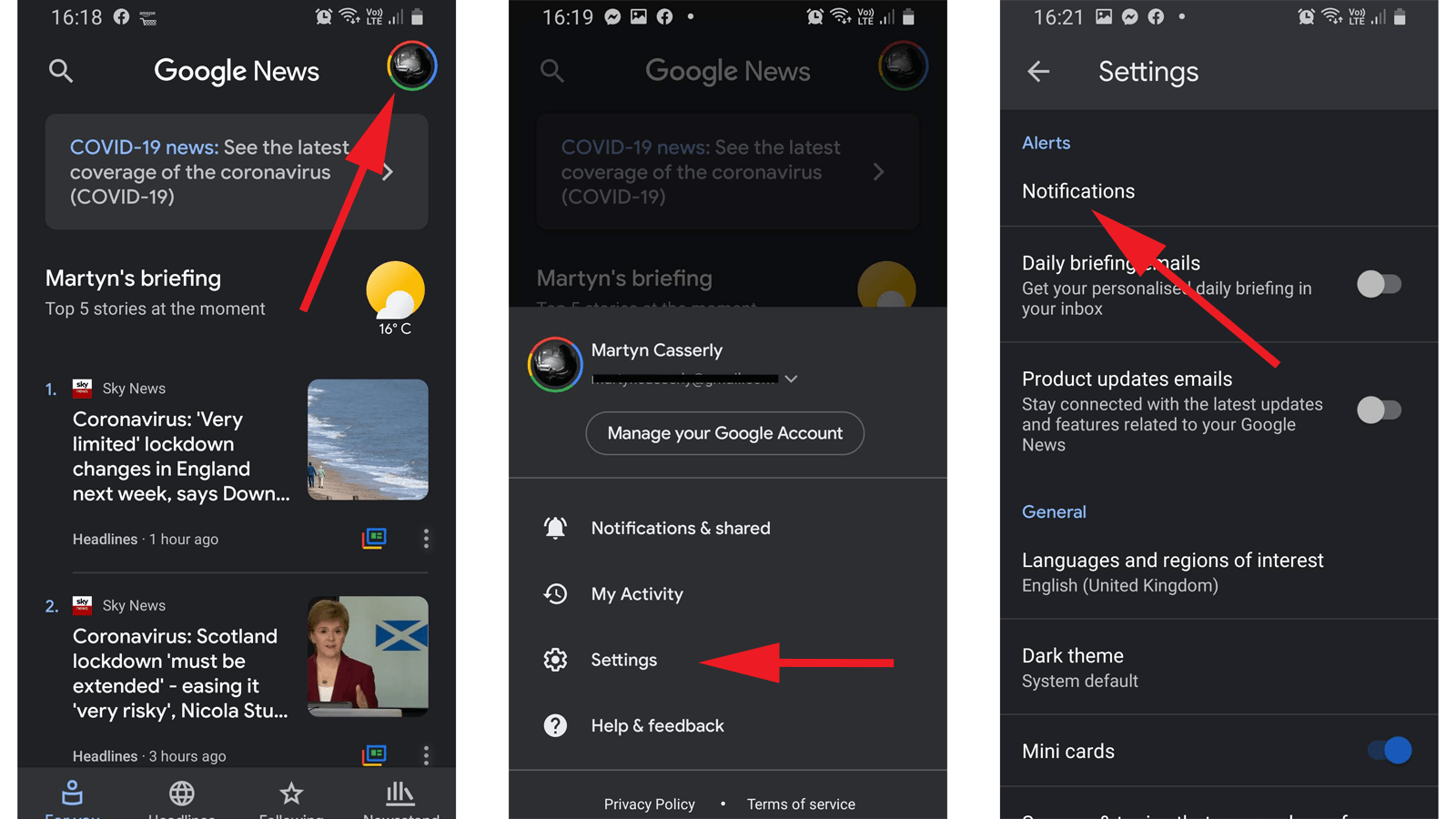
Removing Google News Notifications
- Open The Google News App: Initiate the Google News app on your device.
- Tap on Your Avatar: Tap on the miniature of your photo in the top-right corner.
- Select Settings: Choose the voice “Settings” from the menu.
- Disable Notifications: Select “Notifications” and toggle off the switch beside each type of notification (e.G., News, etc.).
Removing Google Photo Notifications
- Open The Google Photos App: Initiate the Google Photos app on your device.
- Tap on Your Avatar: Tap on the miniature of your photo in the top-right corner.
- Select Settings: Choose the voice “Settings” from the menu.
- Disable Notifications: Select “Notifications” and toggle off the switch beside each type of notification (e.G., Sharing, Memories, etc.).
Removing Google Maps Notifications
- Open The Google Maps App: Initiate the Google Maps app on your device.
- Tap on Your Avatar: Tap on the miniature of your photo in the top-right corner.
- Select Settings: Choose the voice “Settings” from the menu.
- Disable Notifications: Select “Notifications” and toggle off the switch beside each type of notification (e.G., Directions, Tips, etc.).
Conclusion
Disabling Google notifications is a straightforward process that can be done on various devices and platforms. By following these step-by-step guides, you can reduce distractions, save battery life, and maintain a cleaner and more organized notification center.
Faqs
- Q: Why do I Receive so Many Google Notifications?
A: Google notifications are triggered by changes to your account settings or changes made to your online presence. - Q: Can I Remove Only Specific Types of Google Notifications?
A: Yes, you can remove specific types of notifications by toggling off the switch beside each type in the Settings menu. - Q: Will Disabling Google Notifications Affect my Ability to Receive Important Updates?
A: No, disabling Google notifications will not affect your ability to receive important updates or changes to your account settings. - Q: Can I Re-enable Google Notifications if I Need Them Again?
A: Yes, you can re-enable Google notifications by toggling on the switch beside each type in the Settings menu. - Q: Are There Any Security Risks Associated With Disabling Google Notifications?
A: No, disabling Google notifications is a safe and secure process that will not compromise your account security or data protection. - Q: Can I Disable Google Notifications on Multiple Devices at Once?
A: Yes, you can disable Google notifications on multiple devices by following the same steps for each device. - Q: Will Disabling Google Notifications Affect my Ability to Use Other Google Services?
A: No, disabling Google notifications will not affect your ability to use other Google services such as Google Drive or Google Calendar. - Q: Can I Customize The Types of Google Notifications I Receive?
A: Yes, you can customize the types of Google notifications you receive by selecting specific types in the Settings menu.
I hope this article has helped you understand how to remove Google notifications on various devices and platforms! If you have any further questions or concerns, please don’t hesitate to ask.


