
Updating Airpods: A Step-by-step Guide
Are you struggling to update your AirPods? Look no further! In this comprehensive guide, we will walk you through the process of updating your AirPods on iPhone, iPad, Mac, and even Android devices.
Why Update Airpods?
Before we dive into the nitty-gritty, let’s quickly discuss why updating your AirPods is essential. Updates often bring new features, bug fixes, and improved performance. By keeping your AirPods up-to-date, you can ensure a seamless listening experience and access to the latest innovations.
Updating Airpods on Iphone
To update your AirPods on an iPhone, follow these simple steps:
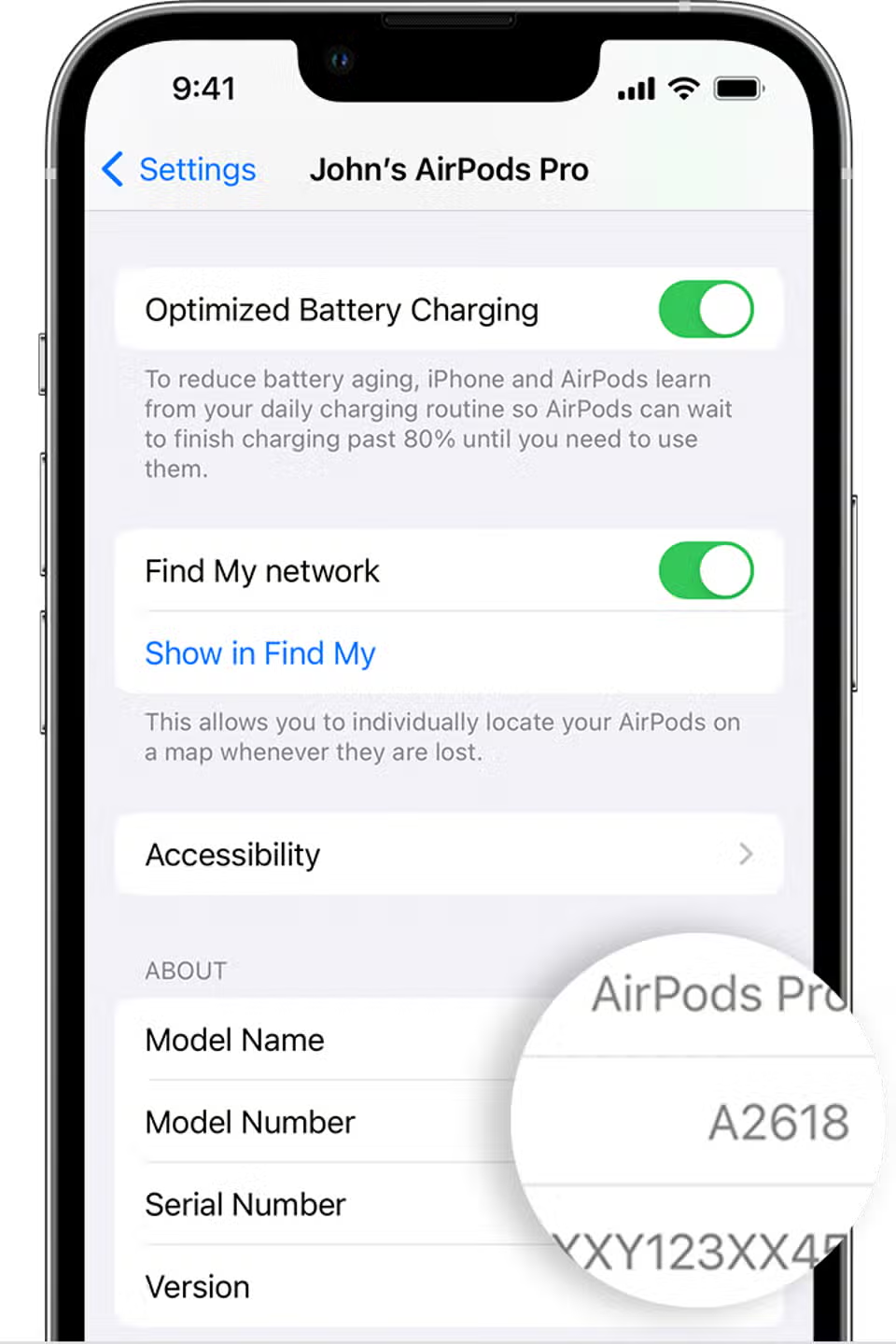
- Check The Current Firmware Version: Start by checking which version of firmware is currently installed on your AirPods. To do this, put your AirPods in their charging case and open the Settings app on your iPhone.
- Open The Settings App: Tap on “Bluetooth” and select your AirPods from the list of connected devices.
- Check For Updates: If an update is available, you’ll see a notification prompting you to update. Tap on “Update” to proceed.
Updating Airpods on Ipad
The process of updating AirPods on an iPad is similar to that on an iPhone:
- Put Your Airpods in Their Charging Case: Place your AirPods in their charging case and ensure they’re connected to your iPad.
- Open The Settings App: Tap on “Bluetooth” and select your AirPods from the list of connected devices.
- Check For Updates: If an update is available, tap on “Update” to proceed.
Updating Airpods on Mac
To update your AirPods on a Mac, follow these steps:
- Put Your Airpods in Their Charging Case: Place your AirPods in their charging case and ensure they’re connected to your Mac.
- Open The System Preferences App: Click on the Apple logo in the top-left corner of your screen and select “System Preferences.”
- Select Bluetooth: Click on the Bluetooth icon and select your AirPods from the list of connected devices.
- Check For Updates: If an update is available, click on “Update” to proceed.
Updating Airpods on Android
Unfortunately, updating AirPods directly on an Android device is not possible. However, you can use a workaround by borrowing a friend’s iPhone or iPad to update your AirPods:
- Borrow an Iphone or Ipad: Ask a friend if they have an iPhone or iPad that you can borrow.
- Update Your Airpods: Use the borrowed device to follow the steps outlined above for updating AirPods on iPhone or iPad.
Troubleshooting Tips
If you’re experiencing issues with your AirPods after attempting to update, try these troubleshooting tips:
- Check Apple’s Support Page: Visit Apple’s support page for potential solutions to common problems.
- Contact Apple Support: Reach out to Apple support via phone, chat, or online assistance.
Conclusion
Updating your AirPods is a relatively straightforward process that can be completed on various devices. By following the steps outlined in this guide, you’ll be able to keep your AirPods up-to-date and ensure a seamless listening experience. If you’re experiencing any issues, don’t hesitate to reach out to Apple support for assistance.
Faqs
- Q: Why do I Need to Update my Airpods?
A: Updates often bring new features, bug fixes, and improved performance. - Q: How do I Check The Current Firmware Version on my Iphone?
A: Put your AirPods in their charging case, open the Settings app, tap on “Bluetooth,” and select your AirPods from the list of connected devices. - Q: Can I Update my Airpods Directly on an Android Device?
A: Unfortunately, no. However, you can use a workaround by borrowing a friend’s iPhone or iPad to update your AirPods. - Q: What Should I do if I’m Experiencing Issues After Attempting to Update my Airpods?
A: Check Apple’s support page for potential solutions, and consider contacting Apple support via phone, chat, or online assistance.


