
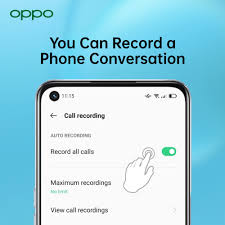
How to Record a Phone Call: A Step-by-step Guide
Are you wondering how to record a phone call on your device? Look no further! In this article, we will guide you through the process of recording a phone call on various devices, including Android and iPhone.
Why Record a Phone Call?
Recording a phone call can be useful in various situations, such as:
- To keep a record of an important conversation
- To provide evidence for a dispute or complaint
- To help with note-taking during a meeting or interview
How to Record a Phone Call on Android
To record a phone call on Android, you can use the Google Phone app. Here’s how:
- Open The Google Phone App: This app is pre-installed on most Android devices.
- Select The Contact: Choose the contact whose number you want to call.
- Initiate The Call: Tap on the phone icon to initiate the call.
- Press The Red Recording Button: Once the call is connected, press the red recording button (represented by a square red icon) to start recording.
- Stop or End The Recording: To stop or end the recording, simply tap on the same red button again.
How to Record a Phone Call on Iphone
To record a phone call on an iPhone, you can use the TapeACall app. Here’s how:
- Download And Install Tapeacall: This app is available for free download from the App Store.
- Set up Tapeacall: Follow the prompts to set up the app, which includes activating the conference feature on your phone number.
- Initiate a Call: Dial the contact whose number you want to record using the TapeACall app.
- Press The Red Recording Button: Once the call is connected, press the red recording button (represented by a square red icon) to start recording.
- Stop or End The Recording: To stop or end the recording, simply tap on the same red button again.
How to Record a Phone Call on Whatsapp
Unfortunately, WhatsApp does not have an integrated feature for recording phone calls. However, you can use your device’s built-in recording app to record conversations on WhatsApp. Here’s how:
- Open The Whatsapp App: Initiate a call with the contact whose number you want to record.
- Press And Hold The Red Recording Button: On Android devices, press and hold the red recording button (represented by a square red icon) to start recording.
- Stop or End The Recording: To stop or end the recording, simply tap on the same red button again.
How to Record a Phone Call on a Landline
Landlines typically do not have built-in recording features. However, you can use an external device such as a digital recorder or a USB voice recorder to capture phone calls.
Conclusion
Recording a phone call is a useful feature that can provide peace of mind and help with note-taking during important conversations. By following the steps outlined in this article, you can record phone calls on various devices, including Android, iPhone, and WhatsApp.
Frequently Asked Questions (FAQs)
- Q: Can I Record a Phone Call Without The Other Person’s Knowledge?
A: Yes, but it’s essential to inform the other party that you are recording the conversation. - Q: How do I Access Recorded Calls on Android And Iphone?
A: On Android devices, go to the Recent tab in the Phone app; on iPhones, open the TapeACall app. - Q: Can I Share Recordings With Others?
A: Yes, you can share recordings using various apps such as WhatsApp or email attachments. - Q: Do I Need to Purchase Additional Software or Hardware to Record Phone Calls?
A: No, most devices come with built-in recording features; however, external devices like digital recorders may be necessary for landline recordings. - Q: How do I Cancel a Subscription to Tapeacall on Iphone?
A: Go to your name user > Subscriptions > TapeACall > Cancel Subscription. - Q: Can I Use a Phone App to Transcribe Recorded Calls?
A: Yes, some apps like Google Phone and TapeACall have built-in transcription features. - Q: Do I Need to Obtain Permission From The Other Party to Record a Call?
A: It’s recommended to inform the other person that you are recording the conversation to avoid any potential disputes.
Additional Resources
- For more information on recording phone calls, consult the Google Phone app or TapeACall documentation.
- Consult online tutorials and guides for specific instructions on using external devices for landline recordings.


