
How to Use Movie Maker on Windows 10 And 11: A Step-by-step Guide
Are you looking for a simple yet powerful video editing software? Look no further than Microsoft’s own Movie Maker, which comes pre-installed on Windows 10 and 11. While it may not be as advanced as some other video editing software, Movie Maker is still a great tool for beginners and experienced users alike.
What Happened to Movie Maker?
You may have noticed that Movie Maker is no longer available for download from Microsoft’s website. This is because the company has moved on to more modern and powerful video editing software like Photo. However, don’t worry – we’ll show you how to use Movie Maker on Windows 10 and 11.
Why Use Movie Maker?
Despite being an older program, Movie Maker still has a lot to offer. With its user-friendly interface and basic yet effective features, it’s perfect for:
- Creating short videos
- Editing existing videos
- Adding music and effects to your video
How to Access Movie Maker on Windows 10 And 11
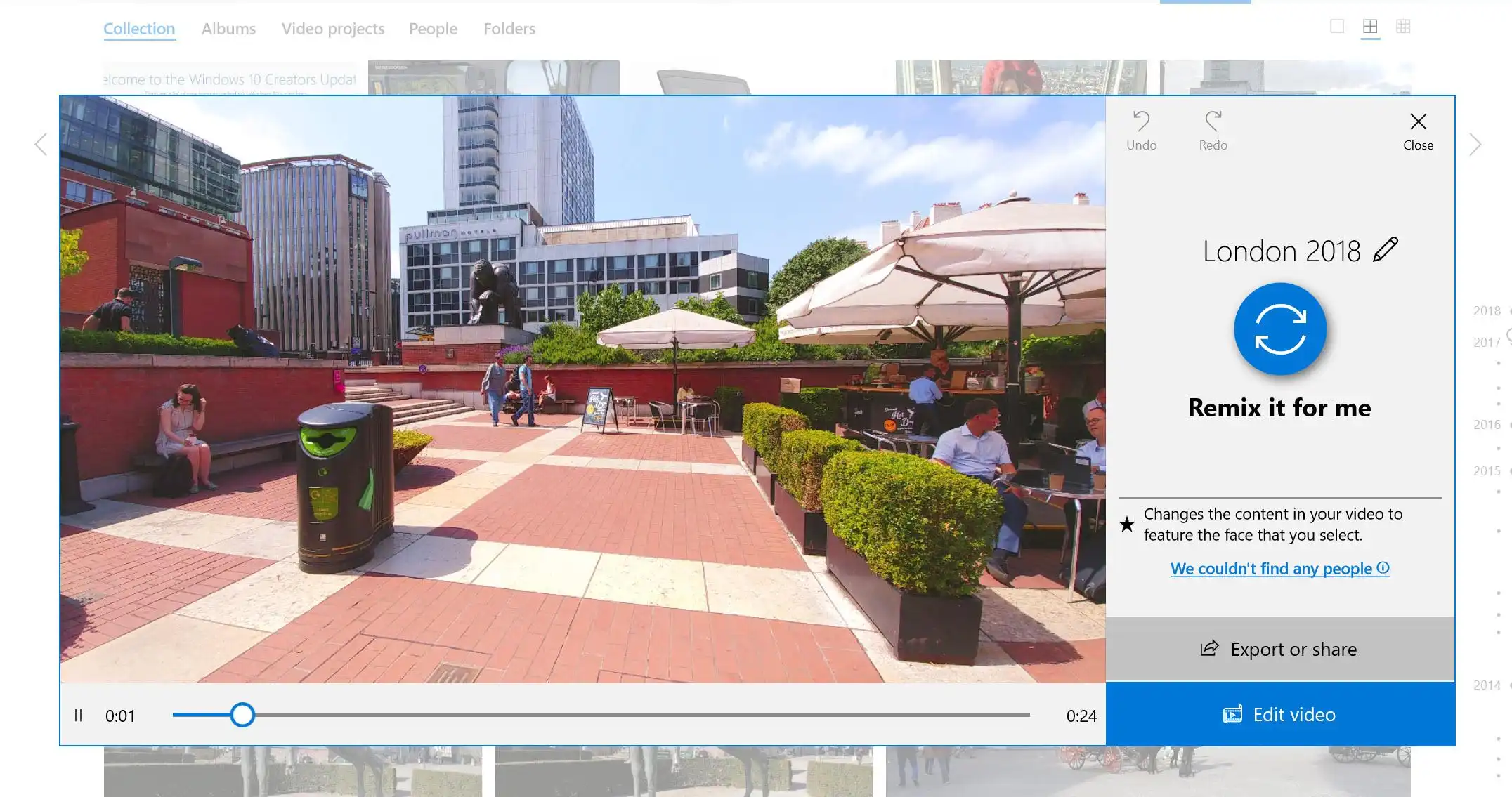
Since Movie Maker is no longer available as a standalone program, you’ll need to access its features through the Photo app. Here’s how:
- Open the Photo app on your Windows 10 or 11 device.
- Click on “Edit” at the top of the screen.
- Select “Video” from the drop-down menu.
Using Movie Maker in Photo
Once you’ve accessed the video editing feature, you’ll see a interface that’s similar to Movie Maker. From here, you can:
- Import videos and images
- Trim and split clips
- Add music and effects
- Use transitions between scenes
Advanced Features of Movie Maker
While Movie Maker is primarily designed for basic video editing, it still has some advanced features up its sleeve. These include:
- Adding 3D effects to your video
- Creating a video with text overlays
- Cutting and splitting videos into separate clips
Alternatives to Movie Maker
If you’re looking for more advanced video editing software, there are plenty of alternatives available. Some popular options include:
- Wondershare Filmora: A user-friendly video editor that’s perfect for beginners.
- DaVinci Resolve: A professional-grade video editor with a wide range of features.
Conclusion
While Movie Maker may not be as powerful as some other video editing software, it’s still a great tool for beginners and experienced users alike. With its user-friendly interface and basic yet effective features, it’s perfect for creating short videos, editing existing clips, and adding music and effects to your video. So why not give it a try?
Frequently Asked Questions (FAQs)
Q: What happened to Movie Maker?
A: Microsoft has moved on to more modern and powerful video editing software like Photo.
Q: Why use Movie Maker?
A: Despite being an older program, Movie Maker still has a lot to offer. With its user-friendly interface and basic yet effective features, it’s perfect for creating short videos, editing existing clips, and adding music and effects to your video.
Q: How do I access Movie Maker on Windows 10 and 11?
A: You can access Movie Maker through the Photo app by clicking on “Edit” at the top of the screen and selecting “Video”.
Q: What are some advanced features of Movie Maker?
A: Some advanced features of Movie Maker include adding 3D effects to your video, creating a video with text overlays, and cutting and splitting videos into separate clips.
Q: Are there any alternatives to Movie Maker?
A: Yes, there are plenty of alternative video editing software available. Some popular options include Wondershare Filmora and DaVinci Resolve.
Q: Is Movie Maker still supported by Microsoft?
A: While Movie Maker is no longer a standalone program, its features are still supported through the Photo app.
Q: Can I download Movie Maker from the internet?
A: No, it’s not recommended to download Movie Maker from the internet as this may contain malware or viruses. Instead, access its features through the Photo app on your Windows 10 or 11 device.


