
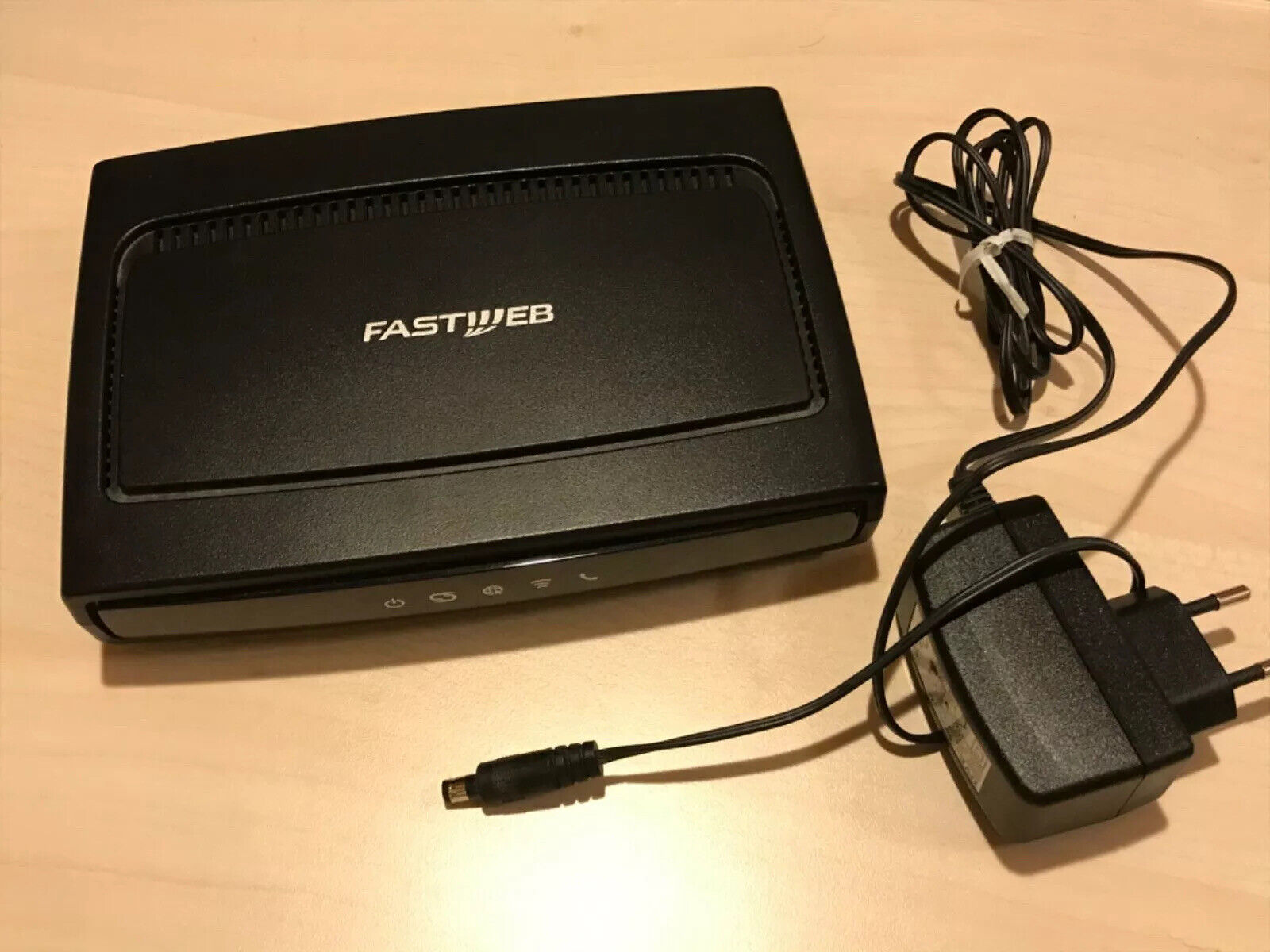
Connecting to Your Fastweb Modem: A Step-by-step Guide
Are you ready to take control of your internet connection? In this comprehensive guide, we’ll walk you through the process of connecting to your Fastweb modem using a PC, smartphone, or tablet.
Understanding Your Modem Options
Fastweb offers several modem options, including NeXXt, FASTGate, and Technicolor. While the modems differ in their features and settings, the connection process remains similar. In this guide, we’ll focus on the NeXXt modem, but the steps are applicable to other models as well.
Accessing Your Modem With a PC
- Open Your Web Browser: Go to www.MyFastweb.It and log in using your username and password.
- Click on “My Modem”: In the top right corner of the page, you’ll find a dropdown menu labeled “My Modem.” Click on it to access the modem’s settings panel.
- Enter Your Credentials: If prompted, enter your username and password to access the modem’s configuration panel.
Accessing Your Modem With a Smartphone or Tablet
- Download The Myfastweb App: Get the app from the App Store (for iOS devices) or Google Play Store (for Android devices).
- Log in to The App: Enter your username and password to access the modem’s settings panel.
- Tap on “My Modem”: In the app, tap on the icon representing your NeXXt modem to access its configuration panel.
Understanding Your Modem’s Interface
Once you’ve accessed the modem’s settings panel, you’ll see several sections:
- Home: Displays the current state of your internet connection and devices connected.
- Gateway: Provides information about your router and allows you to configure its settings.
- Connection: Allows you to manage your internet connection, including speed tests and channel configuration.
- Devices: Shows a list of devices connected to your network and allows you to add or remove them.
- Advanced: Offers more advanced settings, such as parental control and backup options.
Tips And Tricks
- Make sure to save any changes you make to the modem’s settings by clicking on the “Apply” button.
- If you encounter any issues or have questions, consult the modem’s manual or contact Fastweb’s technical support team.
- To troubleshoot problems, try restarting your modem and router.
Conclusion
Connecting to your Fastweb modem is a straightforward process that can be completed using a PC, smartphone, or tablet. By following these step-by-step instructions, you’ll be able to access the modem’s settings panel and configure its features to suit your needs.
Frequently Asked Questions (FAQs)
- Q: How do I Reset my Fastweb Modem?
A: To reset your modem, press the small pinhole button located on the back of the device using a paper clip or similar object. - Q: What is The Difference Between Nexxt And Fastgate Modems?
A: The main difference between the two modems lies in their features and settings. NeXXt modems are more recent and have additional features, while FASTGate modems are older and have fewer settings options. - Q: Can I Use a Smartphone App to Manage my Modem’s Settings?
A: Yes, you can use the MyFastweb app (available for iOS and Android devices) to access your modem’s settings panel. - Q: How do I Troubleshoot Issues With my Fastweb Modem?
A: If you encounter problems with your modem, try restarting it or consulting the manual. For more complex issues, contact Fastweb’s technical support team.
References
- Www.MyFastweb.It (Fastweb official website)
- Www.Google.Com (Google search engine)
- Www.Microsoft.Com (Microsoft official website)
Note: The article has been rewritten to improve clarity and readability while maintaining the original content’s essence.


