
How to Masterize a CD Mp3: A Step-by-step Guide
As a music enthusiast, you might have found yourself in a situation where you want to create a CD copy of your favorite MP3 songs, but don’t know how to go about it. Well, you’re in luck! In this article, we’ll guide you through the process of masterizing a CD MP3 on both Windows and Mac operating systems.
Understanding Masterization
Masterization is the process of converting digital music files into physical copies that can be played on any CD player. This involves burning the MP3 files onto a blank CD, which can then be used to play your favorite songs in any CD player.
Requirements For Masterization
Before we dive into the step-by-step guide, here are some requirements you’ll need to meet:
- A computer with Windows 10 or Mac operating system
- A blank CD
- A CD burner (a device that can burn CDs)
- MP3 files that you want to masterize
Masterizing a CD Mp3 on Windows
To masterize a CD MP3 on Windows, follow these steps:
Step 1: Choose The Right Software
There are several software options available for masterization on Windows. Some popular choices include:
- Windows Media Player
- Nero
- CDBurnerXP
For this guide, we’ll use Windows Media Player.
Step 2: Insert a Blank Cd
Insert a blank CD into your CD burner and close the window of AutoPlay that may appear on your monitor.
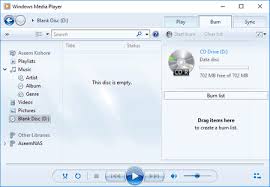
Step 3: Launch Windows Media Player
Launch Windows Media Player by clicking on the Start button and selecting Windows Media Player from the menu.
Step 4: Create a New Playlist
Click on the playlist tab and select “New” to create a new playlist. Name your playlist and add the MP3 files you want to masterize.
Step 5: Set The Burning Options
Click on the “Burn” tab and set the burning options as follows:
- Select the CD type (MP3 in this case)
- Choose the burning speed
- Make sure the “Disc at Once” option is selected
Step 6: Burn The Cd
Click on the “Start” button to begin the burning process. This may take a few minutes, depending on the size of your playlist.
Masterizing a CD Mp3 on Mac
To masterize a CD MP3 on Mac, follow these steps:
Step 1: Choose The Right Software
There are several software options available for masterization on Mac. Some popular choices include:
- ITunes
- Finder
For this guide, we’ll use iTunes.
Step 2: Insert a Blank Cd
Insert a blank CD into your CD burner and choose “Open” from the menu in the Finder window that appears.
Step 3: Create a New Playlist
Create a new playlist by clicking on the “+” button at the bottom of the iTunes window. Add the MP3 files you want to masterize to this playlist.
Step 4: Set The Burning Options
Click on the “Burn” tab and set the burning options as follows:
- Select the CD type (MP3 in this case)
- Choose the burning speed
- Make sure the “Disc at Once” option is selected
Step 5: Burn The Cd
Click on the “Start” button to begin the burning process. This may take a few minutes, depending on the size of your playlist.
Other Solutions For Masterization
If you’re looking for other solutions for masterization, here are some options:
- CDBurnerXP
- BurnAware Free
- ImgBurn
These software options offer more advanced features and customization options than Windows Media Player or iTunes.
Masterizing a CD Mp3 For Car Use
If you want to listen to your MP3 songs in your car, you can use the same steps outlined above. However, you may need to adjust the burning settings to ensure that the CD is compatible with your car’s CD player.
Conclusion
Masterizing a CD MP3 on Windows or Mac is a relatively straightforward process. By following these step-by-step guides, you should be able to create a physical copy of your favorite MP3 songs in no time.
Frequently Asked Questions (FAQs)
- What Software do I Need to Masterize a CD Mp3?
You can use Windows Media Player or iTunes on Mac to masterize a CD MP3.
2. How Long Does The Burning Process Take?
The burning process may take a few minutes, depending on the size of your playlist.
3. Can I Use Any Software For Masterization?
Yes, there are several software options available for masterization, including CDBurnerXP, BurnAware Free, and ImgBurn.
4. How do I Ensure That my CD is Compatible With my Car’s CD Player?
You can adjust the burning settings to ensure that your CD is compatible with your car’s CD player.
5. Can I Masterize a CD Mp3 For Other Devices?
Yes, you can use the same steps outlined above to masterize a CD MP3 for other devices, such as DVDs or Blu-ray players.
6. What Are The Benefits of Mastering a CD Mp3?
Mastering a CD MP3 allows you to create physical copies of your favorite songs that can be played on any CD player, without relying on digital music files.
7. Can I Use This Guide For Masterizing Other Types of Cds?
Yes, this guide can be used for mastering other types of CDs, such as DVDs or Blu-ray discs.


