
How to Modify a Photo in Pdf: A Step-by-step Guide
Are you tired of dealing with pesky image files? Do you want to convert your favorite photos into PDF format without breaking the bank? Look no further! In this article, we will guide you through the process of modifying a photo in PDF on various platforms, including Windows, macOS, Android, and iPhone.
What You Need to Know Before We Begin
Before we dive into the nitty-gritty details, let’s quickly cover some essential information. When you convert an image into PDF format, it will be saved using an algorithm of compression that reduces its weight without compromising the overall integrity of the photo. However, if the original photo is of poor quality, the resulting PDF may reflect this issue.
Modifying a Photo in Pdf on Windows
To modify a photo in PDF on Windows, you’ll need to convert the image into PDF format first. You can use the built-in application Photos to achieve this. Here’s how:
- Open the folder containing your desired photo.
- Do a right-click on the photo and select “Open with” > “Photos”.
- Click on the printer symbol in the top-right corner and select “Microsoft Print to PDF”.
- Choose your desired settings, such as orientation and format, and click “Print”.
- Save the resulting PDF file.
If you need to add multiple photos to a single PDF, create a new folder and add all the images you want to include. Open the Photos app, select the folder containing your images, and follow steps 3-5 above.
Modifying a Photo in Pdf on Macos
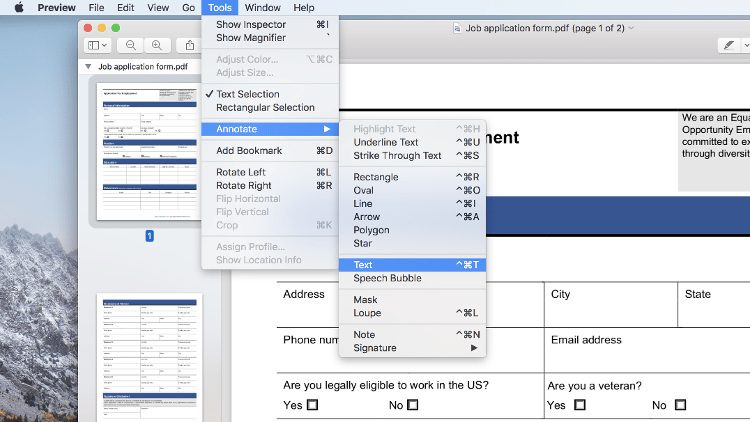
To modify a photo in PDF on macOS, you can use the built-in Preview application. Here’s how:
- Open the Preview application.
- Select the image you want to export as a PDF.
- Go to “File” > “Export” and choose the desired settings.
- Save the resulting PDF file.
If you need to add multiple images to a single PDF, use the “Export” option in Preview and select the images you want to include.
Modifying a Photo in Pdf on Android
To modify a photo in PDF on Android, you can use the built-in virtual printer or download a third-party app like Image to PDF Converter. Here’s how:
- Open the image you want to convert.
- Tap on the menu button and select “Print”.
- Choose the “Save as PDF” option.
- Select your desired settings and save the resulting PDF file.
If you need to add multiple images to a single PDF, download the Image to PDF Converter app and follow its instructions.
Modifying a Photo in Pdf on Iphone
To modify a photo in PDF on iPhone, use the built-in printer feature in Photos. Here’s how:
- Open the image you want to convert.
- Tap on the sharing icon (square with an arrow).
- Select “Print”.
- Choose the “Save as PDF” option.
- Select your desired settings and save the resulting PDF file.
Additional Tips And Tricks
If you’re having trouble converting or modifying images, don’t worry! You can always use alternative methods to achieve your goals. For example, if you need to modify a photo in PDF on Windows but can’t access the Photos app, try using Microsoft Edge instead. Similarly, if you’re using an iPhone or iPad, you can use the Books app to add annotations and drawings to your PDF files.
Conclusion
Modifying a photo in PDF is easier than you think! With these step-by-step guides, you should be able to convert and modify images on various platforms without any issues. Remember to choose your desired settings carefully to ensure the best results. Happy modifying!
Frequently Asked Questions (FAQs)
- What is The Purpose of Compressing an Image in Pdf Format?
The compression algorithm used when converting an image into PDF format reduces its weight without compromising the overall integrity of the photo.
- Can I Add Multiple Images to a Single Pdf File on Windows?
Yes, you can create a new folder and add all the images you want to include, then use the Photos app to convert them into a single PDF file.
- How do I Modify an Image in Pdf Format on Android?
You can use the built-in virtual printer or download a third-party app like Image to PDF Converter to modify images in PDF format on Android.
- Can I Add Annotations And Drawings to my Pdf Files on Iphone?
Yes, you can use the Books app on your iPhone or iPad to add annotations and drawings to your PDF files.
- What Are Some Alternative Methods For Converting or Modifying Images in Pdf Format?
You can try using different apps or programs, such as Microsoft Edge or Preview on macOS, to convert or modify images in PDF format.
- How do I Save my Modified Image in Pdf Format?
Save your modified image by clicking “Save” or choosing the desired settings and saving the resulting PDF file.
- Can I Use These Methods For Commercial Purposes?
Please check the terms of service for each app or program you’re using to ensure it’s suitable for commercial use.
- Are There Any Free Resources Available For Learning More About Image Modification in Pdf Format?
Yes, we have provided links to guides and tutorials throughout this article that can help you learn more about image modification in PDF format.


