
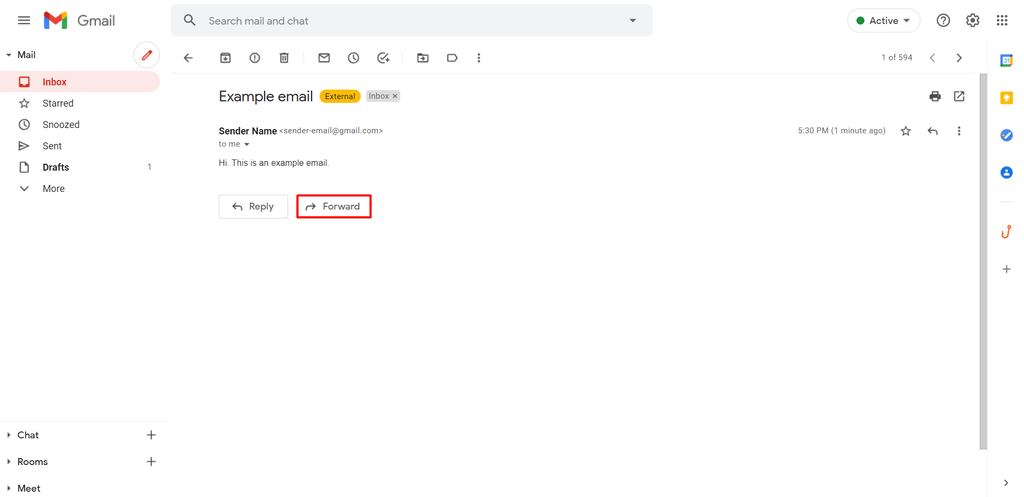
How to Forward Emails With Gmail
Are you tired of manually forwarding emails from your personal Gmail account to your office email address? Do you want to automatically forward all incoming emails to another address? Look no further! In this article, we will guide you through the process of forwarding emails with Gmail.
Why Forward Emails With Gmail?
Forwarding emails with Gmail is a convenient way to manage your incoming mail. It allows you to automatically forward emails from your personal account to your office email address or any other email address you prefer. This feature is particularly useful for professionals who need to keep their work and personal emails separate.
How to Forward Emails With Gmail Manually
If you want to forward a single email manually, follow these steps:
- Open your Gmail account on your computer.
- Click on the “Compose” button in the top left corner of the page.
- Enter the email address you want to forward the mail to in the “To” field.
- Attach the email you want to forward and click on the “Forward” button.
How to Forward Emails With Gmail Automatically
If you want to automatically forward all incoming emails, follow these steps:
- Open your Gmail account on your computer.
- Click on the gear icon in the top right corner of the page.
- Select “See all settings.”
- Scroll down to the “Forwarding and POP/IMAP” section.
- Click on the “Add a forwarding address” button.
- Enter the email address you want to forward emails to.
- Click on the “Next” button and then click on the “Proceed” button.
How to Forward Emails With Gmail Using The Mobile App
If you want to forward an email using the mobile app, follow these steps:
- Open your Gmail app on your smartphone or tablet.
- Tap on the three horizontal lines in the top left corner of the page.
- Select “See all settings.”
- Scroll down to the “Forwarding and POP/IMAP” section.
- Click on the “Add a forwarding address” button.
- Enter the email address you want to forward emails to.
- Tap on the “Next” button and then tap on the “Proceed” button.
How to Configure Filters With Gmail
If you want to configure filters with Gmail, follow these steps:
- Open your Gmail account on your computer.
- Click on the gear icon in the top right corner of the page.
- Select “See all settings.”
- Scroll down to the “Filters and Blocked Addresses” section.
- Click on the “Create a filter” button.
- Enter the email address you want to filter emails from.
- Select the action you want to take with the filtered emails.
How to Forward Emails With Gmail Using a Client
If you are using a client like Outlook, follow these steps:
- Open your Outlook account on your computer.
- Click on the “Compose” button in the top left corner of the page.
- Enter the email address you want to forward the mail to in the “To” field.
- Attach the email you want to forward and click on the “Forward” button.
Troubleshooting
If you are experiencing any issues with forwarding emails with Gmail, follow these steps:
- Check your internet connection.
- Make sure you have entered the correct email address.
- Try restarting your browser or app.
- Contact Google support for assistance.
Conclusion
Forwarding emails with Gmail is a convenient way to manage your incoming mail. Whether you want to forward a single email manually or automatically forward all incoming emails, we hope this article has been helpful in guiding you through the process. If you have any further questions or concerns, feel free to contact us.
Frequently Asked Questions
Q: How do I forward an email with Gmail?
A: You can forward an email with Gmail by opening your account on your computer and clicking on the “Forward” button.
Q: Can I automatically forward all incoming emails?
A: Yes, you can automatically forward all incoming emails by following the steps outlined in this article.
Q: How do I configure filters with Gmail?
A: You can configure filters with Gmail by opening your account on your computer and following the steps outlined in this article.
Q: Can I use a client to forward emails with Gmail?
A: Yes, you can use a client like Outlook to forward emails with Gmail.
Q: What if I am experiencing issues with forwarding emails with Gmail?
A: If you are experiencing any issues with forwarding emails with Gmail, try restarting your browser or app. If the issue persists, contact Google support for assistance.
Q: How do I cancel automatic email forwarding with Gmail?
A: You can cancel automatic email forwarding with Gmail by opening your account on your computer and following the steps outlined in this article.
Q: Can I use a filter to forward emails with Gmail?
A: Yes, you can use a filter to forward emails with Gmail.


