
Youtube on Pc: A Comprehensive Guide
Are you tired of watching videos on YouTube using your smartphone or tablet? Do you want to experience the platform in a wider format, but don’t know how to do it? Look no further! In this article, we’ll explore the world of YouTube on PC and show you how to download videos, music, and even create content for the platform.
Programs For Youtube on PC
First things first, let’s talk about programs that can help you use YouTube on your PC. Google has an official Progressive Web App (PWA) for YouTube, which allows you to install a desktop app directly from the browser. This PWA is available on both Google Chrome and Microsoft Edge browsers.
Installing The Youtube Pwa
To install the YouTube PWA, follow these simple steps:
- Open Google Chrome or Microsoft Edge and go to the official YouTube website.
- Click on the three dots in the top right corner of the browser window.
- Select “Install” from the drop-down menu.
- Wait for the installation process to complete.
Using The Youtube Pwa
Once installed, you can access the YouTube app directly from your desktop. Simply click on the YouTube icon and log in with your Google account. You’ll be able to watch videos, download content, and even create playlists without leaving the app.
Downloading Videos And Music With Youtube Premium
YouTube Premium offers a range of benefits, including ad-free video playback, background play, and exclusive content. With YouTube Premium, you can also download videos and music for offline viewing.
To download videos or music using YouTube Premium:
- Log in to your YouTube account.
- Find the video or song you want to download.
- Click on the three dots next to the title and select “Download”.
- Choose the quality of the download (e.G., 1080P, 720p, etc.).
Creating Videos With Microsoft Clipchamp
If you’re looking for a program to create videos for YouTube, Microsoft Clipchamp is an excellent option. This free app offers a range of templates and editing tools that make it easy to create professional-looking videos.
To get started with Microsoft Clipchamp:
- Download and install the app from the Microsoft Store.
- Choose a template or start from scratch.
- Add your video, audio, and visual effects.
- Export your video in the desired format.
Conclusion
In conclusion, YouTube on PC offers a range of benefits, including a wider screen and more features than mobile devices. With the YouTube PWA, you can install a desktop app directly from the browser, making it easy to access and use the platform. Additionally, with YouTube Premium, you can download videos and music for offline viewing and create exclusive content.
Frequently Asked Questions
- What is The Youtube Pwa?
The YouTube PWA (Progressive Web App) is a desktop app that allows you to install a version of YouTube directly from the browser.
- How do I Install The Youtube Pwa?
To install the YouTube PWA, open Google Chrome or Microsoft Edge and go to the official YouTube website. Click on the three dots in the top right corner and select “Install”.
- What Are The Benefits of Using The Youtube Pwa?
The YouTube PWA offers a range of benefits, including a wider screen and more features than mobile devices.
- How do I Download Videos or Music With Youtube Premium?
To download videos or music with YouTube Premium, log in to your account, find the content you want to download, click on the three dots next to the title, and select “Download”.
- What is Microsoft Clipchamp?
Microsoft Clipchamp is a free app that allows you to create professional-looking videos for YouTube.
- How do I Install Microsoft Clipchamp?
To install Microsoft Clipchamp, download and install the app from the Microsoft Store.
- Can I Download Videos or Music Without Youtube Premium?
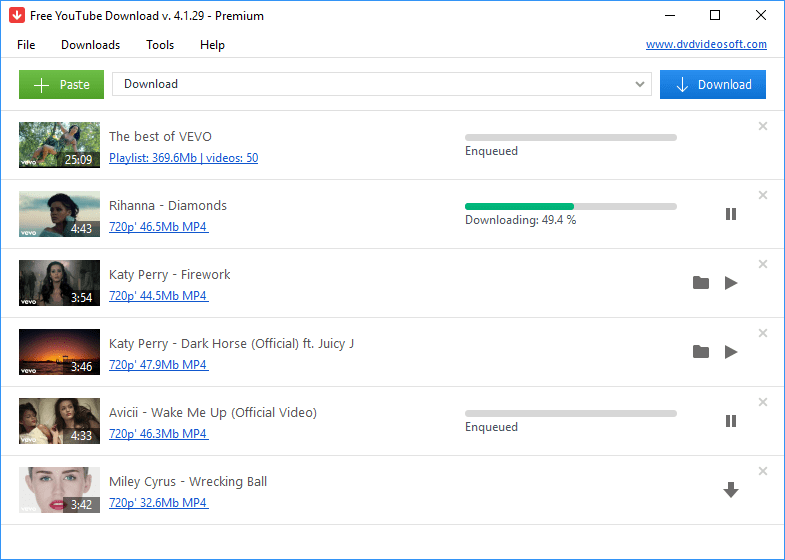
Yes, you can download videos and music without YouTube Premium using third-party apps or services.
- What Are The Benefits of Using Youtube Premium?
The benefits of using YouTube Premium include ad-free video playback, background play, exclusive content, and offline viewing capabilities.


