
How to Connect Sony Bluetooth Headphones to Your Devices
Are you tired of dealing with tangled cables and dropped connections? Do you want to enjoy your favorite music or podcasts without the hassle of cords? Look no further! In this guide, we’ll show you how to connect your Sony Bluetooth headphones to a variety of devices, including Windows PC, Mac, smartphone, tablet, PlayStation 4, and TV.
Before You Begin
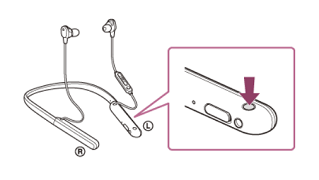
Before we dive into the steps, make sure you have activated the pairing mode on your Sony Bluetooth headphones. If you’re not sure how to do this, don’t worry – we’ll cover it in a moment!
Preliminary Operations
To pair your Sony Bluetooth headphones with your devices, follow these preliminary steps:
- Activate the pairing mode on your headphones by pressing and holding the power button for 5-7 seconds. You may see a blue light flashing or hear a voice message indicating that the headphones are in pairing mode.
- If you don’t see the pairing mode activated after 5 minutes, try turning off the headphones and restarting the process.
Connecting to Windows PC
To connect your Sony Bluetooth headphones to your Windows PC:
- Activate the pairing mode on your headphones.
- On your PC, go to Settings > Devices > Bluetooth & other devices.
- Click on “Add a device” and select “Bluetooth.”
- Select your headphones from the list of available devices.
- Wait for the connection to be established.
Connecting to Mac
To connect your Sony Bluetooth headphones to your Mac:
- Activate the pairing mode on your headphones.
- Click on the Apple menu > System Preferences > Bluetooth.
- Click on “Pair” and select your headphones from the list of available devices.
- Wait for the connection to be established.
Connecting to Smartphone (Android)
To connect your Sony Bluetooth headphones to your Android smartphone:
- Activate the pairing mode on your headphones.
- On your phone, go to Settings > Connections > Bluetooth.
- Select your headphones from the list of available devices.
- Wait for the connection to be established.
Connecting to Iphone
To connect your Sony Bluetooth headphones to your iPhone:
- Activate the pairing mode on your headphones.
- On your phone, go to Settings > Bluetooth.
- Select your headphones from the list of available devices.
- Wait for the connection to be established.
Connecting to Ipad
To connect your Sony Bluetooth headphones to your iPad:
- Activate the pairing mode on your headphones.
- On your iPad, go to Settings > Bluetooth.
- Select your headphones from the list of available devices.
- Wait for the connection to be established.
Connecting to Playstation 4
To connect your Sony Bluetooth headphones to your PlayStation 4:
- Activate the pairing mode on your headphones.
- On your PS4, go to Settings > Devices > Audio Devices.
- Select “Bluetooth” and select your headphones from the list of available devices.
- Wait for the connection to be established.
Connecting to TV
To connect your Sony Bluetooth headphones to your TV (LG, Samsung, or Sony Bravia), follow these steps:
- Activate the pairing mode on your headphones.
- On your TV, go to Settings > Audio/Video > Sound.
- Select “Bluetooth” and select your headphones from the list of available devices.
- Wait for the connection to be established.
Tips And Tricks
- Make sure you have activated the pairing mode on your headphones before attempting to connect them to a device.
- If you’re having trouble connecting your headphones to a device, try restarting the process or seeking assistance from the manufacturer’s support team.
- Consider consulting the user manual provided with your device for more detailed instructions on how to connect your Sony Bluetooth headphones.
Frequently Asked Questions
Q: How do I activate the pairing mode on my Sony Bluetooth headphones?
A: To activate the pairing mode, press and hold the power button for 5-7 seconds. You may see a blue light flashing or hear a voice message indicating that the headphones are in pairing mode.
Q: Can I connect multiple devices to my Sony Bluetooth headphones at once?
A: Yes! You can connect up to two devices simultaneously using your Sony Bluetooth headphones. Simply activate the pairing mode and follow the steps for each device separately.
Q: How do I reset my Sony Bluetooth headphones if they’re not connecting properly?
A: To reset your Sony Bluetooth headphones, press and hold the power button for 10 seconds until you see a blue light flashing or hear a voice message indicating that the headphones are resetting.
Q: Can I use my Sony Bluetooth headphones with other brands of devices?
A: Yes! Your Sony Bluetooth headphones can be used with a variety of devices from different manufacturers, as long as they support Bluetooth connectivity.


