
How to Transfer Samsung Contacts to Iphone: A Step-by-step Guide
Are you switching from a Samsung smartphone to an iPhone but struggling to transfer your contacts? Don’t worry, we’ve got you covered! In this article, we’ll guide you through the process of transferring your Samsung contacts to your new iPhone.
Why Transfer Your Contacts?
Transferring your contacts is essential when switching phones. You wouldn’t want to lose all those important phone numbers and email addresses, would you?
Method 1: Synchronizing With Google
The easiest way to transfer your contacts is by synchronizing them with Google. This method is quick and efficient.
Step 1: Set Up Your Samsung Phone
Unlock your Samsung phone and go to the Settings app.
Step 2: Add a Google Account
If you don’t have a Google account, create one now. If you already have an account, sign in.
Step 3: Synchronize Contacts
Go to the “Accounts and backup” section and tap on “Gestisci account”. Select your Google account and enable synchronization for contacts.
Step 4: Save Changes
Tap on the back button and then tap on the “Save” button to complete the process.
Method 2: Manual Import
If you want more control over your contacts or prefer not to use Google, you can import them manually using a VCF file.
Step 5: Export Contacts From Samsung
On your Samsung phone, go to the Phone app and tap on the three dots in the top-right corner. Select “Gestisci contacti” and then choose “Export contacts”.
Share the VCF file with your iPhone or computer.
Method 3: Using Icloud
If you’re using an older Samsung phone, you might not have a Google account set up. In this case, you can use iCloud to transfer your contacts.
Step 7: Go to Icloud.com
Access iCloud.Com on your computer and sign in with your Apple ID.
Step 8: Import Contacts
Click on the “Contacts” icon and select “Import vCard…”. Choose the VCF file from your computer.
Transferring Other Data
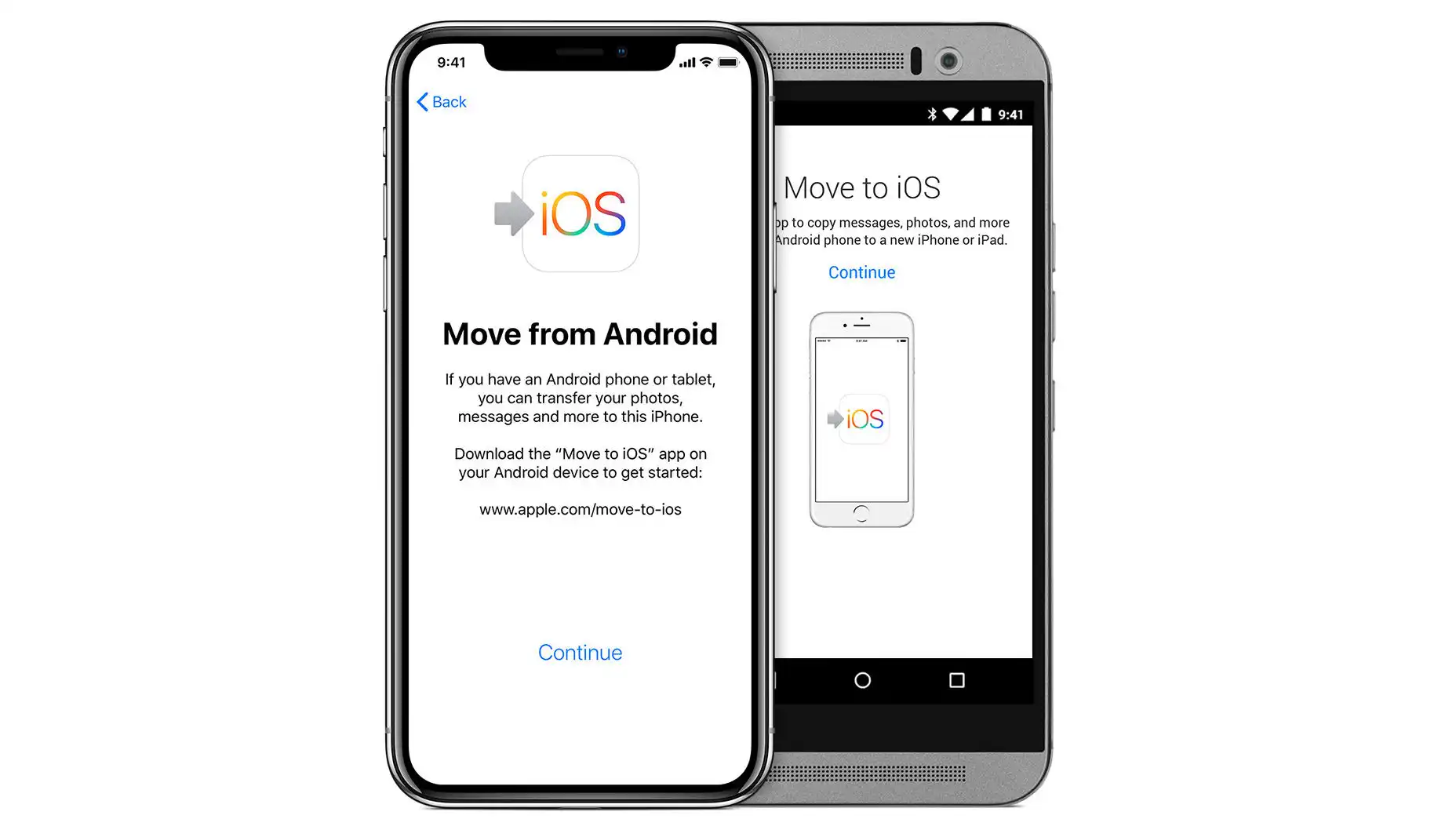
If you want to transfer other data like SMS, photos, videos, accounts, emails, calendars, browsing history, and more, consider using the “Move to iOS” app. This app is designed specifically for transferring data from Android phones to iPhones.
Step 9: Download The Move to Ios App
Download the Move to iOS app on your Samsung phone from the Play Store.
Step 10: Follow The On-screen Instructions
Follow the instructions on the screen to transfer your data to your iPhone.
Conclusion
Transferring your contacts from a Samsung phone to an iPhone is easier than you think. With these step-by-step guides, you’ll have all your important phone numbers and email addresses transferred in no time.
Frequently Asked Questions (FAQs)
- How do I Transfer my Contacts if I Don’t Have a Google Account?
You can use the manual import method or consider using iCloud to transfer your contacts.
- Can I Transfer Other Data Like Sms, Photos, And Videos?
Yes, you can transfer other data using the “Move to iOS” app.
- How do I Set up my Iphone After Transferring my Contacts?
Follow the on-screen instructions during the setup process to complete the transfer of your data.
- What if I Have Issues During The Transfer Process?
Check the guides above for troubleshooting tips or contact Apple support for assistance.
- Can I Use a Different Method to Transfer my Contacts?
Yes, you can explore other methods like using a third-party app or manual transfer using a VCF file.
- Will my Iphone Have All my Old Phone Numbers And Email Addresses?
Yes, your iPhone will have all the contact information transferred from your Samsung phone.
- Can I Still Use my Old Samsung Phone After Transferring my Contacts to Iphone?
Yes, you can continue using your old Samsung phone for other purposes like storing files or using apps.
- How do I Keep my Contacts Synced Between Devices?
You can enable synchronization using Google or iCloud to keep your contacts up-to-date across all your devices.


