
The Ultimate Guide to Audacity: A Free Audio Editing Software
Are you looking for a powerful audio editing software that won’t break the bank? Look no further than Audacity, a free, open-source, and multi-platform program that’s perfect for music production, podcasting, and more. In this article, we’ll dive into the world of Audacity, exploring its features, functionality, and benefits.
What is Audacity?
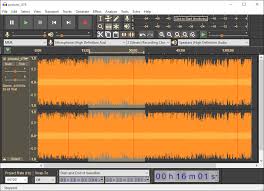
Audacity is a free audio editing software that allows you to record, edit, and mix audio files with ease. It’s available for Windows, macOS, and Linux platforms, making it accessible to users worldwide. With Audacity, you can create professional-sounding recordings, edit existing tracks, and even create music from scratch.
Downloading Audacity
Downloading Audacity is a straightforward process that takes only a few minutes. Here’s how:
Downloading Audacity on Windows
- Visit the official Audacity website (www.Audacityteam.Org) and click on the “Download” button.
- Choose your operating system (Windows) and language (English, Italian, etc.).
- Click on the “Download” button to initiate the download process.
- Wait for the file to be downloaded and extracted.
- Run the installation program and follow the prompts.
Downloading Audacity on Macos
- Visit the official Audacity website (www.Audacityteam.Org) and click on the “Download” button.
- Choose your operating system (macOS) and language (English, Italian, etc.).
- Click on the “Download” button to initiate the download process.
- Wait for the file to be downloaded and extracted.
- Run the installation program and follow the prompts.
Downloading Audacity on Ipad
Unfortunately, Audacity is not available for iPadOS. However, you can consider alternative solutions like GarageBand and Music Maker JAM, which are both music production apps that offer similar features.
Using Audacity
Once installed, Audacity is easy to use, even for beginners. Here’s a quick overview of its key features:
Recording Audio
- Open Audacity and click on the “Record” button.
- Select your microphone or input device.
- Choose the recording mode (Mono or Stereo).
- Adjust the volume levels to prevent distortion.
- Click on the “Record” button to start capturing audio.
Cutting or Editing Audio
- Open Audacity and select the audio file you want to edit.
- Use the “Split” feature to divide the audio into separate tracks.
- Cut or delete unwanted sections using the “Cut” or “Delete” tools.
- Adjust volume levels, speed, and pitch as needed.
Regulating Volume Levels
- Open Audacity and select the audio file you want to edit.
- Use the “Volume” effect to adjust the overall volume.
- Choose from various options, such as Amplify or Normalise.
- Preview the changes before applying them.
Modifying Speed And Pitch
- Open Audacity and select the audio file you want to edit.
- Use the “Speed” effect to adjust the tempo.
- Choose from various options, such as Increase or Decrease speed.
- Preview the changes before applying them.
Conclusion
Audacity is an incredibly powerful audio editing software that’s perfect for music production, podcasting, and more. With its user-friendly interface and robust features, you can create professional-sounding recordings without breaking the bank. Whether you’re a beginner or an experienced musician, Audacity has something to offer. So why not give it a try?
Faqs
- What is Audacity?
- Audacity is a free audio editing software that allows you to record, edit, and mix audio files with ease.
- Is Audacity Available For Ipad?
- Unfortunately, no. However, you can consider alternative solutions like GarageBand and Music Maker JAM.
- How do I Download Audacity on Windows?
- Visit the official Audacity website (www.Audacityteam.Org) and follow the prompts.
- How do I Use Audacity to Record Audio?
- Open Audacity, select your microphone or input device, choose the recording mode (Mono or Stereo), adjust volume levels, and click on the “Record” button.
- Can I Cut or Delete Sections of Audio Using Audacity?
- Yes! Use the “Split” feature to divide audio into separate tracks, and then use the “Cut” or “Delete” tools to remove unwanted sections.
- How do I Regulate Volume Levels in Audacity?
- Open Audacity, select the audio file you want to edit, and use the “Volume” effect to adjust the overall volume.
- Can I Modify Speed And Pitch Using Audacity?
- Yes! Use the “Speed” effect to adjust tempo, and choose from various options, such as Increase or Decrease speed.
Recommended Reading
For more information on using Audacity, be sure to check out our comprehensive guide: The Ultimate Guide to Using Audacity.


