
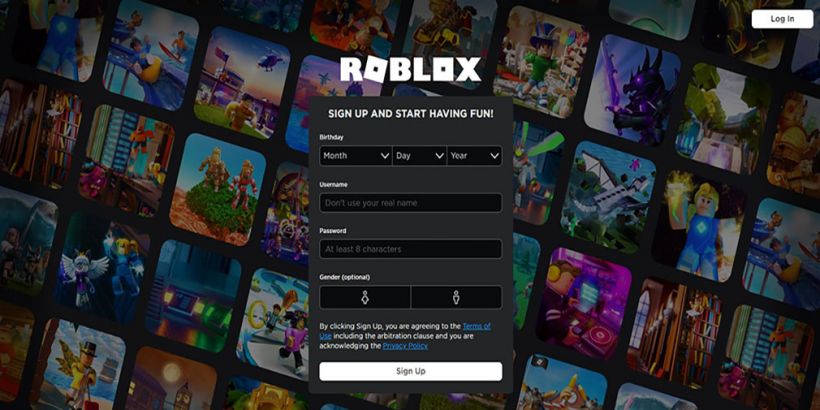
How to Capsize Account on Roblox: A Step-by-step Guide
Are you tired of constantly logging in and out of your Roblox account? Do you want to be able to switch between multiple accounts easily? Look no further! In this article, we will guide you through the process of capsizing account on Roblox, making it a breeze to manage multiple profiles.
Why Capsize Account on Roblox?
Having multiple accounts on Roblox can be useful for various reasons. You might want to keep your main account separate from your secondary one, or perhaps you have different preferences for each account. Whatever the reason, capsizing account on Roblox allows you to switch between them quickly and easily.
How to Capsize Account on Roblox of PC
To capsize account on Roblox using a PC, follow these steps:
- Accessing The Roblox Website: Log in to your primary Roblox account by visiting the official website.
- Selecting The “Capsize Account” Option: Click on the gear icon located at the top-right corner of the page and select the “Capsize Account” option from the dropdown menu.
- Adding a New Account: Enter the details for your secondary account, including username, email address, and password. Click on the “Add Account” button to complete the process.
How to Capsize Account on Roblox of App
If you prefer using the Roblox app on your smartphone or tablet, follow these steps:
- Launching The Roblox App: Open the Roblox app and log in with your primary account credentials.
- Selecting The “Another” Option: Tap on the menu icon (represented by three horizontal lines) located at the top-left corner of the screen and select the “Another” option.
- Adding a New Account: Tap on the “+” button to add a new account, then enter the details for your secondary account, including username, email address, and password.
How to Capsize Password on Roblox
If you’re looking to change your password on Roblox, follow these steps:
- Accessing The Settings Menu: Click on the gear icon located at the top-right corner of the page (or tap on the “Settings” option in the app).
- Selecting The “Info Account” Option: Select the “Info Account” option from the dropdown menu.
- Updating Your Password: Enter your current password and enter a new one, then confirm it by clicking on the “Update” button.
Benefits of Capsizing Account on Roblox
Capsizing account on Roblox offers several benefits, including:
- Easy Switching: Quickly switch between multiple accounts without having to log out and log back in.
- Convenience: No need to repeat the process of logging in and out every time you want to access a different account.
Frequently Asked Questions (FAQs)
- What is Capsizing Account on Roblox?
Capsizing account on Roblox allows you to switch between multiple accounts easily, making it convenient for managing different profiles. - How Many Accounts Can I Capsize on Roblox?
You can add up to five accounts using the “Capsize Account” feature. - What if I Forget my Password?
Don’t worry! If you forget your password, follow the steps outlined in our guide on recovering a forgotten password on Roblox.
Conclusion
Capsizing account on Roblox is a simple and convenient way to manage multiple profiles. Whether you want to keep your main account separate from your secondary one or have different preferences for each account, this feature has got you covered. By following the steps outlined in this guide, you’ll be able to switch between accounts quickly and easily, making your Roblox experience even more enjoyable!


