
How to Insert a Picture on Word: A Step-by-step Guide
Are you struggling to insert a picture on Microsoft Word? Look no further! In this article, we will guide you through the simple process of inserting an image on Word, whether you’re using a desktop computer or a mobile device.
Why Insert a Picture on Word?
Inserting a picture on Word can enhance your document’s visual appeal and make it more engaging for readers. Whether you’re creating a report, a presentation, or a simple letter, images can help convey your message more effectively.
Requirements
Before we begin, ensure that:
- You have Microsoft Office installed on your computer (Windows or macOS).
- Your image is in a compatible format (e.G., JPEG, PNG, GIF).
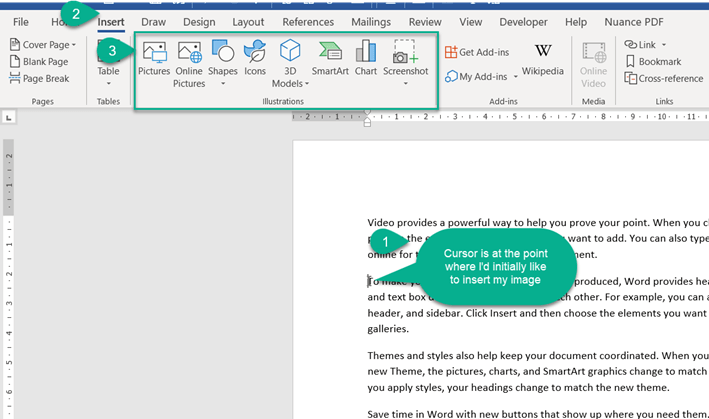
Step 1: Inserting an Image on Word Desktop
To insert an image on Word desktop:
- Open the document you want to modify.
- Click on the “Insert” tab.
- Select “Image” from the drop-down menu.
- Choose how you want to search for your image:
- This device (search local folders).
- Images in file (use images stored within Word).
- Images online (use images from Bing or OneDrive).
Step 2: Inserting an Image on Word Desktop Without Displacing Text
To insert an image on Word desktop without displacing text:
- Follow steps 1-3 above.
- Select the image and click on the “Position” icon (represented by a small square).
- Choose where you want to place your image within the document.
Step 3: Inserting an Image as Background on Word Desktop
To insert an image as background on Word desktop:
- Go to the “Design” tab.
- Select “Filigree.”
- In the “Filigree” window, select “Filigree personalizzata.”
- Choose your image and click “Insert.”
Step 4: Inserting a Pdf Image on Word Desktop
To insert a PDF image on Word desktop:
- Go to the “Insert” tab.
- Select “Object.”
- Click on “Create from File.”
- Browse for your PDF image.
Step 5: Inserting an Image on Word Online
To insert an image on Word online:
- Sign in to your Microsoft account.
- Open a new document or select the one you want to modify.
- Go to the “Insert” tab.
- Select “Image.”
- Choose how you want to search for your image:
- This device (search local folders).
- Images in file (use images stored within Word).
- Images online (use images from Bing or OneDrive).
Step 6: Inserting an Image on Mobile Devices
To insert an image on mobile devices (Android, iOS):
- Open the Word app.
- Select the document you want to modify.
- Tap on the “+” icon to add a new page.
- Go to the “Home” tab (on tablets) or access it through the menu (on smartphones).
- Tap on “Insert” and select “Image.”
Step 7: Inserting an Image Without Displacing Text on Mobile Devices
To insert an image without displacing text on mobile devices:
- Follow steps 4-6 above.
- Select your image and tap on the “Text to Boss” icon (represented by a small square).
- Choose how you want to position your image within the document.
Tips And Tricks:
- To resize an image, select it and adjust its size using the handles that appear around the image.
- To delete an image, select it and press the “Delete” key.
- Experiment with different shapes and sizes to enhance your document’s visual appeal.
Conclusion:
Inserting a picture on Word is a straightforward process. By following these step-by-step instructions, you can add images to your documents, whether you’re using a desktop computer or a mobile device. Remember to experiment with different placement options and image sizes to make the most of this feature.
Frequently Asked Questions (FAQs)
- What File Formats Are Supported For Inserting Images on Word?
Answer: JPEG, PNG, GIF, and other compatible formats. - Can I Insert a Pdf Image Directly Into my Document?
Answer: Yes, using the “Object” function in Word desktop or mobile devices. - How do I Resize an Image in Word?
Answer: Select the image, adjust its size using the handles that appear around it, and drag to the desired location. - Can I Insert Multiple Images Into a Single Document?
Answer: Yes, simply repeat the steps for inserting an image for each additional image you want to add. - How do I Delete an Image From my Document?
Answer: Select the image, press the “Delete” key, and confirm your action. - What Are Some Tips For Using Images in Documents Effectively?
Answer: Experiment with different shapes, sizes, and placement options to enhance visual appeal; use relevant images that support your message. - Can I Insert Images as Background on Word Online?
Answer: No, this feature is only available on the desktop version of Word.
I hope you found this article helpful! Let me know if you have any further questions or need additional clarification on any of these steps.


