
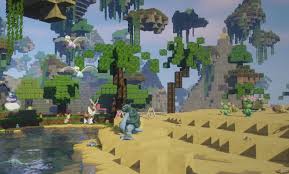
Discovering The World of Minecraft Mods
Are you tired of playing Minecraft in its standard form? Do you want to experience something new and exciting? Look no further than Minecraft mods! These community-created content packs can add hours, even days, to your gameplay experience.
What Are Minecraft Mods?
Minecraft mods are custom-made content packs created by the community that can change or enhance the game in various ways. They can range from simple tweaks to major overhauls of the game mechanics. The best part is that these mods are free and available for download on platforms like CurseForge, 9Minecraft, and Planet Minecraft.
Why Install Minecraft Mods?
Installing Minecraft mods can breathe new life into your gaming experience. You’ll have access to a vast library of content created by passionate fans who share their ideas and creativity with the community. With mods, you can:
- Explore new biomes and dimensions
- Encounter unique mobs and creatures
- Discover hidden treasures and secrets
- Play with friends in custom-made multiplayer servers
How to Install Minecraft Mods on Java Edition
Installing mods on the Java edition of Minecraft is relatively straightforward. Here’s a step-by-step guide:
- Download Forge: Forge is a modding platform that allows you to install mods seamlessly. Download the latest version from the official website.
- Install Forge: Run the installer and follow the prompts to install Forge on your system.
- Download The Mod: Find the mod you want to install on CurseForge, 9Minecraft, or another reputable source.
- Extract The Mod: Extract the contents of the mod zip file into a folder in your Minecraft mods directory (usually
C:\Users\<username>\AppData\Roaming\.Minecraft\mods). - Launch Minecraft With Forge: Run Minecraft with Forge by clicking on the “Forge” profile in the game launcher.
- Activate The Mod: Enable the mod in the game settings and enjoy!
How to Install Minecraft Mods on Bedrock Edition
Installing mods on the Bedrock edition of Minecraft is slightly different:
- Open The Game Store: Launch Minecraft and go to the in-game store by pressing the “Marketplace” button.
- Browse The Mod Store: Browse through the available mods, which include packs, skins, textures, and more.
- Download a Free Mod: Select a free mod from the store and download it directly into your game.
- Activate The Mod: Once installed, activate the mod in-game by pressing the “Play” button.
Best Minecraft Mods For Java Edition
Here are some of the most popular mods for Minecraft Java edition:
- Scp Mod: A horror-themed mod that adds a terrifying storyline to your gameplay experience.
- Herobrine Pack: A pack of custom-made content that adds new skins, textures, and mobs to your game.
- Dragon Mounts 2: A mod that allows you to ride dragons through the game world.
Best Minecraft Mods For Bedrock Edition
Some popular mods for Minecraft Bedrock edition include:
- Education Pack: A series of free mods that add educational content to your gameplay experience.
- Revolution Neolithic: A pack of custom-made content that adds new biomes, mobs, and resources to your game.
Tips And Tricks
Here are some additional tips to help you navigate the world of Minecraft mods:
- Always download mods from reputable sources to avoid malware or viruses.
- Make sure to read reviews and ratings before installing a mod.
- Be patient and adjust settings as needed when playing with new mods.
In conclusion, Minecraft mods offer an incredible way to enhance your gameplay experience. With so many free content packs available, you’ll never run out of exciting things to try. Whether you’re a seasoned pro or just starting out, mods can add hours, even days, to your gaming fun.


