
Ecco la traduzione dell’articolo in inglese:
Mastering a CD With Windows Media Player: A Complete Guide
Are you looking for a detailed guide on how to master a CD with Windows Media Player? You’re in the right place! In this article, we’ll explore step by step the process of creating an audio or data CD using the built-in utility in Microsoft’s software.
Mastering an Audio CD
Before we proceed, it’s essential to understand what “mastering” a CD means. Essentially, it means transferring audio files or data onto a physical medium, such as a CD, so that you can listen to music or access data without your computer.
How to Use Windows Media Player
To master a CD with Windows Media Player, follow these steps:
- Open Windows Media Player: Find the icon of Windows Media Player on your desktop and click on it to open it.
- Insert The Recording Media: Insert a recordable disk (CD-RW or DVD-RW) into your computer’s CD/DVD drive.
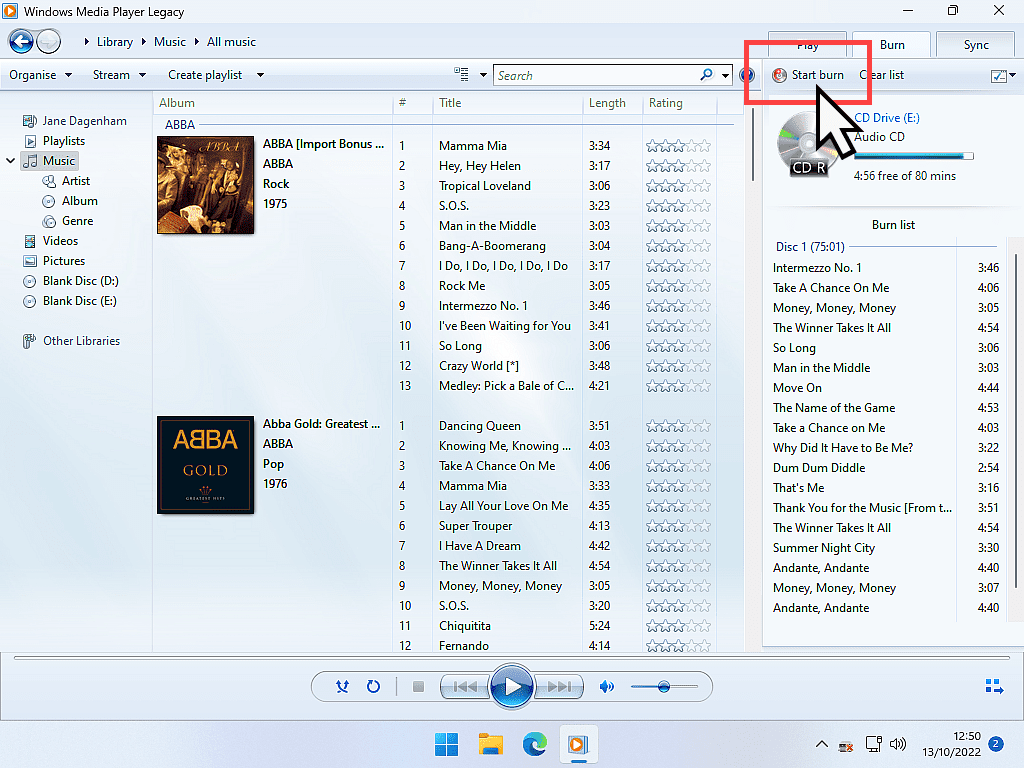
- Select The Recording Option: Click on the “Burn” button in the taskbar and select the “Audio CD” option.
- Add Audio Files: Drag and drop the audio files you want to master onto the right-hand pane of the window.
- Configure The Burn Settings: Click on the “Options” button to configure the burn settings, such as writing speed and recording unit.
Mastering a CD With Multimedial Files
If you want to master a CD containing multimedia files other than audio, like video or images, you can do so. Follow these steps:
- Open Windows Media Player: Open Windows Media Player and insert the recording media.
- Select The Recording Option: Click on the “Burn” button and select the “CD or DVD” option.
- Add Multimedial Files: Drag and drop the multimedia files you want to master onto the right-hand pane of the window.
- Configure The Burn Settings: Click on the “Options” button to configure the burn settings.
Other Programs For Mastering Cds
If Windows Media Player isn’t advanced enough for your needs, there are other programs available that can help you master CDs. Here are some examples:
- Explore Rows: A utility included in Microsoft’s operating system that allows you to view the content of disks and recording media.
- CD Burner XP: A free software that lets you burn CDs and DVDs with various configuration options.
Faq
-
What is The Difference Between Mastering an Audio CD And Mastering a CD With Multimedial Files?
The main difference is the type of content you can record onto a disk. Mastering an audio CD means recording only audio files, while mastering a CD with multimedia files allows you to record video, images, and other types of files. -
How Can I Increase The Writing Speed of my Recording Media?
You can increase the writing speed of your recording media by selecting the “High” or “Maximum” option during the recording process. -
Why Can’t I Find The Files I Dragged Onto The Right-hand Pane of The Window?
Make sure you’ve inserted the recording media correctly and selected the correct recording option. If the problem persists, try using another program to master CDs. -
Can I Record High-quality Audio Files With Windows Media Player?
Yes, you can record high-quality audio files using Windows Media Player. Make sure to select the “Audio CD” option and configure the burn settings for maximum quality. -
How Can I Remove Files From The List of Files to be Mastered?
You can remove files from the list by clicking on a file with your right mouse button and selecting the “Remove from recording path” option. -
Why Can’t I Find my Music After Mastering The Cd?
Make sure you’ve inserted the recording media correctly and configured the burn settings correctly. -
Can I Use Windows Media Player to Record a Dvd?
Yes, you can use Windows Media Player to record a DVD. Make sure to select the “DVD” option during the recording process. -
How Can I Increase The Storage Capacity of my Recording Media?
You can increase the storage capacity of your recording media by using a larger disk or switching to another type of recording media.


