
Finding Your Iphone’s Udid: A Comprehensive Guide
Are you curious about the mysterious code that makes your iPhone, iPad, or iPod touch uniquely identifiable? Look no further! In this article, we’ll delve into the world of UDIDs (Unique Device Identifiers) and explore the various ways to find yours.
What is a Udid?
A UDID is a 40-character alphanumeric code assigned to every Apple device. It’s similar to a car’s Vehicle Identification Number (VIN) or a social security number, serving as a unique identifier for each device. While it may not seem crucial in everyday use, understanding how to find your iPhone’s UDID can be essential for developers, testers, and tech enthusiasts.
Method 1: Finding Your Iphone’s Udid With Itunes
The official method to retrieve your iPhone’s UDID involves using Apple’s iTunes software. Here’s a step-by-step guide:
- Install Itunes: If you haven’t already, download and install the latest version of iTunes on your computer.
- Connect Your Iphone: Connect your iPhone to your computer using a USB cable.
- Open Itunes: Launch iTunes and select your iPhone from the top left corner of the screen.
- Click on The Summary Tab: In the left-hand menu, click on “Summary.”
- Look For The Udid: Your iPhone’s UDID will be displayed in the right-hand panel under the section labeled “Identifier.”
That’s it! If you’re using a Mac with macOS Catalina or later, you can also use Xcode to find your iPhone’s UDID.
Method 2: Finding Your Iphone’s Udid Without Itunes
If you don’t have iTunes installed or prefer not to use it, there are alternative methods to retrieve your iPhone’s UDID:
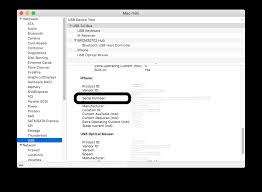
Using The System Information Panel (macOS)
- Connect Your Iphone: Connect your iPhone to your Mac using a USB cable.
- Open System Information: Press Command + I on your keyboard to open System Information.
- Select Your Iphone: Select your iPhone from the list of devices in the left-hand panel.
- Look For The Udid: Your iPhone’s UDID will be displayed under the “Identifier” section.
Using The Registry Editor (Windows)
- Connect Your Iphone: Connect your iPhone to your Windows PC using a USB cable.
- Open The Registry Editor: Press the Windows key + R on your keyboard to open the Run dialog box, type
regedit, and press Enter. - Navigate to The Correct Folder: In the left-hand panel of the Registry Editor, navigate to HKEY_LOCAL_MACHINE\SYSTEM\CurrentControlSet\Enum\USB.
- Find The Udid: Look for the subfolder containing “FriendlyName” with a value that starts with “Apple Mobile Device USB Driver.” The name of this subfolder is your iPhone’s UDID.
Using Xcode (macOS)
- Open Xcode: Launch Xcode on your Mac.
- Connect Your Iphone: Connect your iPhone to your Mac using a USB cable.
- Select Your Iphone: In the top left corner of the screen, select your iPhone from the list of devices.
- Look For The Udid: Your iPhone’s UDID will be displayed under the “Identifier” section.
Method 3: Finding Your Iphone’s Udid Using Other Methods
While not officially recommended, there are other methods to find your iPhone’s UDID that involve installing external certificates or software. However, we strongly advise against these methods as they may compromise your device’s security and privacy.
Conclusion
In this article, we’ve explored the world of UDIDs and provided you with various methods to find your iPhone’s unique identifier. Whether you’re a developer, tester, or simply curious about your device, understanding how to retrieve your iPhone’s UDID can be a valuable skill. Remember to always prioritize security and use official methods whenever possible.


