
Concealing Columns in Excel: A Comprehensive Guide
Are you tired of dealing with cluttered spreadsheets in Microsoft Excel? Do you want to hide specific columns from view without deleting them? Look no further! In this article, we’ll show you how to conceal columns in Excel using various methods.
What Are Concealed Columns?
Concealed columns are a feature in Excel that allows you to hide entire columns of data without deleting them. This can be useful when working with large datasets or when you want to keep specific information private.
Method 1: Concealing Columns in Desktop Excel
To conceal columns in desktop Excel, follow these steps:
Step 1: Select The Column to Concel
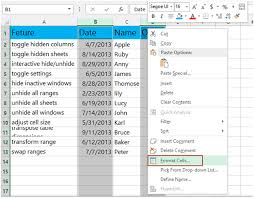
Highlight the column you want to conceal by clicking on its header.
Step 2: Go to The Home Tab
Click on the “Home” tab in the ribbon at the top of the screen.
Step 3: Format Cells And Hide Columns
Click on the “Format” button in the “Cells” group, then select “Hide & Unhide” from the dropdown menu. Choose “Hide columns” to conceal the selected column.
Method 2: Using Shortcuts
You can also use shortcuts to conceal columns in Excel:
Step 1: Highlight a Cell
Highlight any cell within the column you want to conceal.
Step 2: Press Ctrl+0 (Zero)
Press Ctrl+0 on your keyboard to instantly hide the selected column.
Method 3: Concealing Columns in Online Excel
Concealing columns in online Excel is similar to desktop Excel:
Step 1: Select The Column to Concel
Highlight the column you want to conceal by clicking on its header.
Step 2: Go to The Home Tab
Click on the “Home” tab in the ribbon at the top of the screen.
Step 3: Format Cells And Hide Columns
Click on the “Format” button in the “Cells” group, then select “Hide & Unhide” from the dropdown menu. Choose “Hide columns” to conceal the selected column.
Method 4: Concealing Columns on Mobile Devices
Concealing columns on mobile devices is also possible:
Step 1: Select The Column to Concel
Tap on the column header you want to conceal.
Step 2: Tap Format And Hide Columns
Tap on the “Format” icon, then select “Hide & Unhide”. Choose “Hide columns” to conceal the selected column.
Method 5: Using Password Protection
To protect your spreadsheet with a password and prevent others from concealing or editing columns, follow these steps:
Step 1: Open Excel Desktop
Open Microsoft Excel on your desktop computer.
Step 2: Create a New Spreadsheet
Create a new spreadsheet by clicking on the “File” tab and selecting “New”.
Step 3: Select The Columns to Concel
Highlight the columns you want to conceal.
Step 4: Protect With Password
Click on the “Protect” button in the ribbon, then select “Set Permissions”. Enter a password and confirm it.
Method 6: Unhiding Columns
If you’ve concealed columns but now want to unhide them, follow these steps:
Step 1: Select The Column to Show
Select the column header you want to show by clicking on its header.
Step 2: Go to The Home Tab
Click on the “Home” tab in the ribbon at the top of the screen.
Step 3: Format Cells And Unhide Columns
Click on the “Format” button in the “Cells” group, then select “Hide & Unhide” from the dropdown menu. Choose “Unhide columns” to unhide the selected column.
Conclusion
Concealing columns in Excel is a simple yet effective way to manage your spreadsheets. By following these methods, you can hide specific columns without deleting them, making it easier to work with large datasets or keep sensitive information private. Remember to protect your spreadsheet with a password if needed!
Frequently Asked Questions (FAQs)
-
Q: How do I Conceal Columns in Excel?
A: There are several methods to conceal columns in Excel, including using shortcuts, hiding & unhiding, and protecting with passwords. -
Q: Can I Conceal Columns on Mobile Devices?
A: Yes, you can conceal columns on mobile devices by following the steps outlined above. -
Q: How do I Protect my Spreadsheet With a Password?
A: To protect your spreadsheet with a password, follow the steps outlined in Method 5. -
Q: Can I Unhide Concealed Columns?
A: Yes, you can unhide concealed columns by following the steps outlined in Method 6. -
Q: Are There Any Other Ways to Manage my Spreadsheets?
A: Yes, consider using Excel’s grouping feature to group and hide multiple columns at once. -
Q: Can I Use Excel Online or Mobile Apps to Conceal Columns?
A: Yes, you can conceal columns in online Excel or mobile apps by following the methods outlined above. -
Q: How do I Prevent Others From Editing my Spreadsheet?
A: To prevent others from editing your spreadsheet, protect it with a password and limit permissions accordingly. -
Q: Are There Any Other Excel Features That Can Help me Manage my Spreadsheets?
A: Yes, consider using Excel’s built-in filtering, sorting, and grouping features to better organize and analyze your data.


