
How to Format an External Hard Drive on a Mac: A Step-by-step Guide
Formatting an external hard drive on a Mac can be a daunting task, especially if you’re new to the world of computer technology. However, with the right tools and guidance, it’s a relatively simple process that can help you get your external drive ready for use.
What is Formatting?
Before we dive into the steps, let’s quickly cover what formatting actually means. When you format an external hard drive on your Mac, you’re essentially erasing all data from the drive and creating a new file system. This will wipe any files, folders, or partitions currently on the drive.
Step 1: Choose The Right File System
Before we proceed with formatting, let’s choose the right file system for our external hard drive. The most common file systems used on Macs are:
- Apfs (Apple File System): This is the default file system used by macOS High Sierra and later versions.
- Fat32: This is a widely compatible file system that works with both Macs and PCs.
- Exfat: Similar to FAT32, but with improved performance and larger file size limits.
Why Choose The Right File System?
Choosing the right file system ensures compatibility with your devices. For example:
- If you plan to use your external hard drive on multiple devices (Mac and PC), choose a file system like ExFAT or FAT32.
- If you’re using macOS High Sierra or later, APFS is the default and recommended choice.
Step 2: Download And Install Disk Utility
To format an external hard drive on your Mac, you’ll need to download and install the Disk Utility app from the Mac App Store. Don’t worry; it’s free!
Once installed, launch Disk Utility and follow these steps:
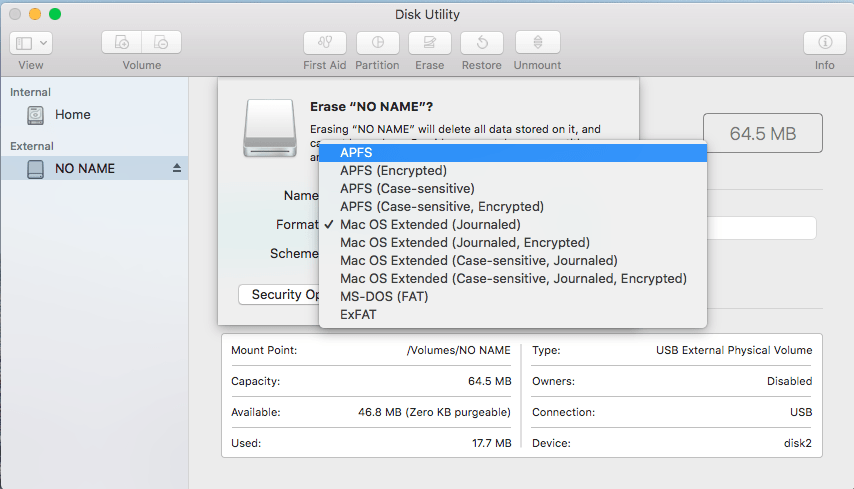
- Select The External Hard Drive: Choose the external hard drive you want to format from the list of available drives.
- Click “Erase”: Select the Erase option from the menu bar and click on it.
Step 3: Format The External Hard Drive
In the Disk Utility window, select the file system you’d like to use (APFS, FAT32, or ExFAT). If you’re unsure, stick with APFS for macOS High Sierra and later versions.
- Enter a Name: Assign a name to your external hard drive.
- Choose a File System: Select the desired file system from the menu bar.
- Set Partition Diagram: Set up the partition diagram according to your needs. You can choose to create one or multiple partitions.
Step 4: Confirm And Erase
Review your settings to ensure everything is correct:
- Confirm Name And File System: Verify that you’ve assigned a name and selected the right file system.
- Partition Diagram: Double-check your partition diagram to make sure it’s set up as desired.
- Click “Erase”: Click on the Erase button to initiate the formatting process.
Using Terminal: Formatting an External Hard Drive With Diskutil
If you’re comfortable using Terminal, you can also format an external hard drive using the command-line interface:
- Open Terminal and navigate to the directory containing your external hard drive.
- Type
diskutil listto view a list of connected drives. - Identify your external hard drive by its size or identifier (e.G., Disk2).
- Run the command
diskutil eraseDisk [file system] [name] [identifier].
How to Format an External Hard Drive For Time Machine
If you plan to use your external hard drive with Time Machine, follow these steps:
- Open Disk Utility and select the external hard drive.
- Choose “Mac OS Extended (Journaled)” as the file system.
- Set up the partition diagram according to your needs.
Conclusion
Formatting an external hard drive on a Mac can seem daunting at first, but with this step-by-step guide, you should be able to navigate the process with ease. Remember to choose the right file system for your needs and follow the instructions carefully to ensure a smooth formatting experience.
Frequently Asked Questions (FAQs)
- What Happens When I Format an External Hard Drive?
When you format an external hard drive, all data on the drive will be erased. - Can I Recover Files After Formatting?
No, formatting an external hard drive will delete all data permanently. - How Long Does The Formatting Process Take?
The formatting time depends on the size of your external hard drive and the file system you choose. - What is The Best File System For my External Hard Drive?
Choose a file system that matches your device requirements (e.G., ExFAT for cross-platform compatibility). - Can I Format an External Hard Drive Using Terminal?
Yes, you can use Terminal to format an external hard drive using Diskutil commands. - How do I Prepare my External Hard Drive For Time Machine Backups?
Format the external hard drive with “Mac OS Extended (Journaled)” as the file system and set up a partition diagram according to your needs.


