
How to Fix Common Errors on Your PC
As a computer user, you’ve likely encountered errors and issues that can hinder your productivity. In this article, we’ll explore the most common errors that occur on PCs and provide step-by-step solutions to fix them.
Understanding PC Errors
PC errors can be caused by a variety of factors, including:
- Virus and malware infections
- Outdated software and drivers
- Disk fragmentation and optimization issues
- System crashes and freezes
Fixing Common PC Errors
Here are some common PC errors and their solutions:
Error 1: Virus And Malware Infections
Symptoms: Slow computer performance, pop-up ads, and mysterious error messages.
Solution: Use an antivirus software like Windows Defender or a third-party program to scan your system for malware. Update your antivirus regularly and run a full scan at least once a week.
Error 2: Outdated Software And Drivers
Symptoms: System crashes, slow computer performance, and compatibility issues with new software.
Solution: Regularly update your operating system, browser, and other installed programs to ensure you have the latest security patches and features. Use the Windows Update tool or visit the manufacturer’s website for updates.
Error 3: Disk Fragmentation And Optimization Issues
Symptoms: Slow computer performance, disk errors, and file corruption.
Solution: Run a disk defragmentation tool like the built-in Defrag utility in Windows to optimize your hard drive. This will help improve system performance and prevent data loss.
Error 4: System Crashes And Freezes
Symptoms: System crashes, freezes, and error messages.
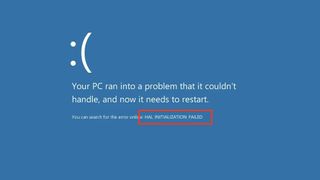
Solution: Check for software conflicts by running a System File Checker (SFC) scan using the built-in tool in Windows. Update your operating system and drivers to ensure you have the latest fixes.
Fixing PC Errors With Third-party Tools
While the above solutions can fix common PC errors, sometimes third-party tools are necessary to resolve specific issues. Here are a few examples:
Cleanmymac X For Mac
Symptoms: Slow computer performance, disk space issues, and system crashes.
Solution: Run CleanMyMac X to scan your system for unnecessary files, clear cache, and free up disk space.
Bleachbit For Windows
Symptoms: Disk errors, file corruption, and system crashes.
Solution: Use BleachBit to remove temporary files, clean registry keys, and optimize system performance.
Conclusion
PC errors can be frustrating, but with the right tools and knowledge, you can fix them quickly. Remember to regularly update your operating system, software, and drivers, and use disk defragmentation and optimization tools to prevent data loss and improve system performance.
Faqs
- What Are The Most Common PC Errors?
Common PC errors include virus and malware infections, outdated software and drivers, disk fragmentation and optimization issues, and system crashes and freezes.
- How Can I Fix a Slow Computer?
To fix a slow computer, update your operating system, software, and drivers regularly, run disk defragmentation and optimization tools, and use antivirus software to scan for malware.
- What is Cleanmymac X?
CleanMyMac X is a third-party tool that scans your Mac for unnecessary files, clears cache, and frees up disk space to improve system performance.
- How Can I Fix Disk Errors on my Windows Pc?
To fix disk errors on your Windows PC, use the built-in Defrag utility or run a System File Checker (SFC) scan using the built-in tool in Windows.
- What is Bleachbit?
BleachBit is a third-party tool that removes temporary files, cleans registry keys, and optimizes system performance to fix disk errors and improve overall system health.
- How Can I Prevent PC Errors From Occurring?
To prevent PC errors from occurring, update your operating system, software, and drivers regularly, run disk defragmentation and optimization tools, and use antivirus software to scan for malware.
- What Should I do if my Computer Freezes or Crashes?
If your computer freezes or crashes, try restarting it in safe mode, checking for software conflicts using the System File Checker (SFC) tool, and updating your operating system and drivers.
- How Can I Improve System Performance on my Mac?
To improve system performance on your Mac, run CleanMyMac X to scan for unnecessary files, clear cache, and free up disk space.


