
How to Enclose Documents on Mail Iphone: A Step-by-step Guide
Are you tired of struggling to find the perfect way to enclose documents on your Mail iPhone? Look no further! In this article, we will guide you through a step-by-step process to help you master the art of enclosing documents, photos, and videos on your Mail app.
Understanding The Basics
Before we dive into the specifics, it’s essential to understand how the Mail app works. The Mail app allows you to create new emails, reply to existing ones, and even forward emails to others. However, when it comes to attaching files, things can get a bit tricky.
Enclosing Documents on Mail Iphone: Two Ways
There are two ways to enclose documents on your Mail iPhone:
- Opening The Document of Enclosing: Open the document you want to attach by tapping on its icon in the Files app or by opening it directly from another application.
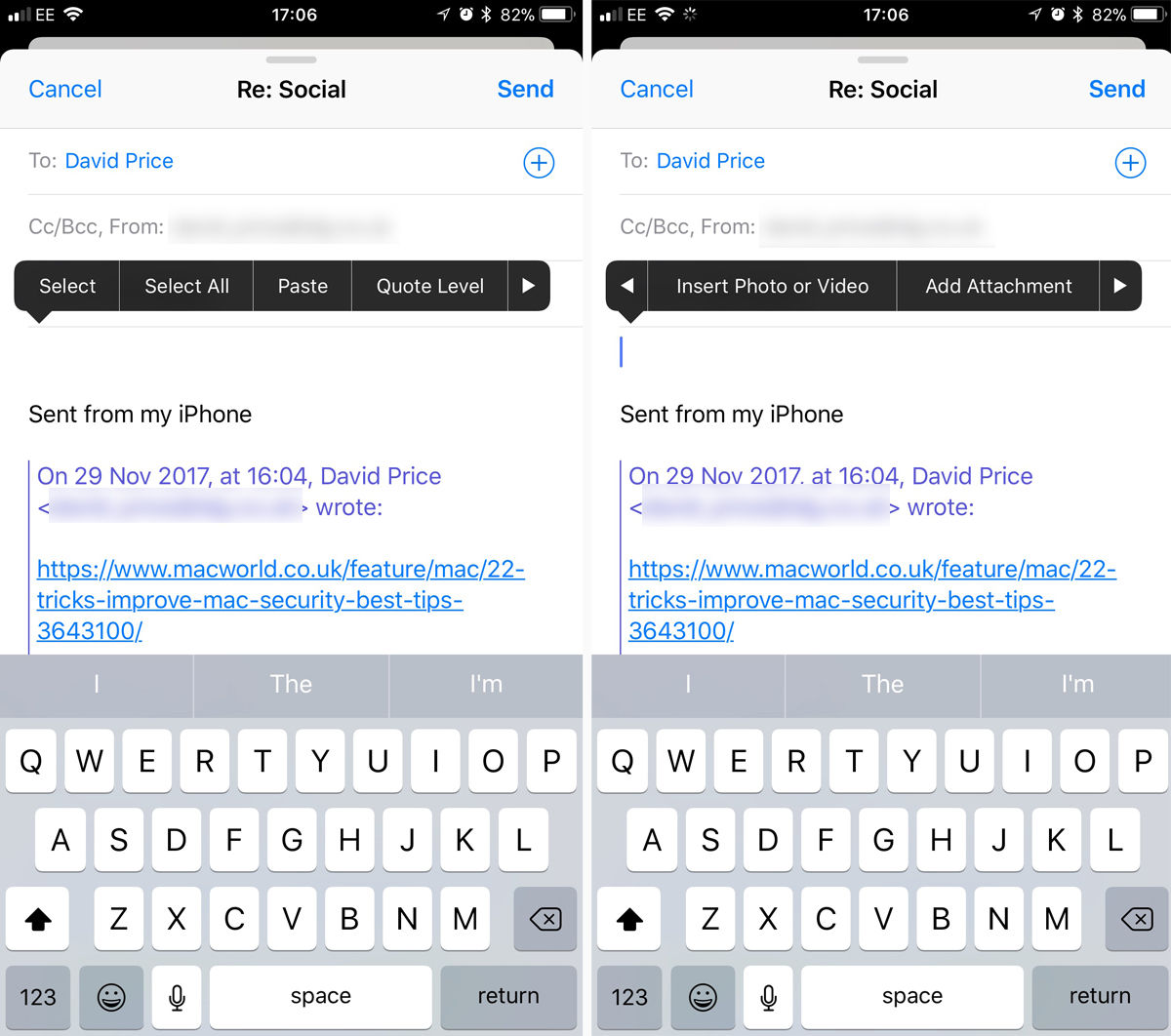
- Adding a Document Directly From Mail: Tap on the pencil icon inside a square, located at the bottom right corner of the screen, to create a new email. Then, tap on the body of the message and select the document you want to attach.
Step-by-step Guide: Enclosing Documents
To enclose documents using the first method:
- Open The Document: Open the document you want to attach by tapping on its icon in the Files app or by opening it directly from another application.
- Tap on Share: Tap on the Share button, located at the top right corner of the screen.
- Select Mail: Select the Mail option from the list of available sharing options.
- Add Document to Email: The document will be automatically added to a new email. You can add more documents by repeating this process.
To enclose documents using the second method:
- Create a New Email: Tap on the pencil icon inside a square, located at the bottom right corner of the screen, to create a new email.
- Tap on Body of Message: Tap on the body of the message and select the document you want to attach.
- Select Document: Select the document from the list of available options.
Enclosing Photos And Videos
Enclosing photos and videos is nearly identical to enclosing documents. However, it’s essential to note that photo and video files have a higher weight limit than documents, so be mindful of this when attaching multiple files.
- Open Photo or Video: Open the photo or video you want to attach by tapping on its icon in the Photos app.
- Tap on Share: Tap on the Share button, located at the top right corner of the screen.
- Select Mail: Select the Mail option from the list of available sharing options.
Additional Tips
- If the document or photo you want to attach is too large, you can try compressing it before attaching it to your email.
- You can also use the drag and drop feature to add a document or photo directly into the body of an email.
- Make sure to check your email account’s storage limits before attaching multiple files.
Enclosing Documents on Mail Iphone: Frequently Asked Questions
Q: How do I attach a document to an existing email?
A: To attach a document to an existing email, open the email and tap on the body of the message. Then, select the document you want to attach from the list of available options.
Q: Can I attach multiple documents to one email?
A: Yes, you can attach multiple documents to one email by repeating the process of selecting a document and adding it to the email.
Q: How do I compress a large file before attaching it to an email?
A: You can compress a large file using the Files app or by using third-party apps specifically designed for compression.
Conclusion
Enclosing documents, photos, and videos on your Mail iPhone is easier than you think. By following these step-by-step instructions and tips, you’ll be able to master the art of attaching files to emails in no time. Whether you’re a seasoned user or a newcomer to the world of iPhones, this guide has got you covered.
Frequently Asked Questions (FAQs)
- Q: How do I attach a document to an email?
A: To attach a document to an email, open the document and tap on Share. Select Mail from the list of available sharing options. - Q: Can I attach multiple documents to one email?
A: Yes, you can attach multiple documents to one email by repeating the process of selecting a document and adding it to the email. - Q: How do I compress a large file before attaching it to an email?
A: You can compress a large file using the Files app or by using third-party apps specifically designed for compression. - Q: Can I attach photos and videos to emails?
A: Yes, you can attach photos and videos to emails just like documents. - Q: How do I add a document directly from Mail?
A: To add a document directly from Mail, create a new email by tapping on the pencil icon inside a square. Then, tap on the body of the message and select the document you want to attach. - Q: Can I use the drag and drop feature to add a document or photo to an email?
A: Yes, you can use the drag and drop feature to add a document or photo directly into the body of an email. - Q: How do I check my email account’s storage limits before attaching multiple files?
A: You can check your email account’s storage limits by going to Settings > [Your Name] > iCloud > iCloud Storage.


