
Creating a Link on Google Meet: A Step-by-step Guide
Are you tired of struggling to create a link on Google Meet? Look no further! In this article, we’ll take you through the step-by-step process of creating a link on Google Meet, from initiation to sharing with others.
Why Create a Link on Google Meet?
Before we dive into the tutorial, let’s quickly discuss why creating a link on Google Meet is essential. With Google Meet, you can easily create virtual meetings and collaborate with colleagues, friends, or family members remotely. However, if you don’t know how to create a link, it can be challenging to invite others to join your meeting.
Understanding The Validity of a Link
Before we begin, it’s crucial to understand that all Google Meet links have a deadline. They expire after 365 days from the last use, which means you need to access the meeting link periodically to keep it active. There are exceptions for meetings organized on Jamboard and nickname-based meetings, which expire immediately after all users leave the meeting.
Creating a Link on Google Meet
Now that we’ve covered the basics, let’s get started!
Step 1: Accessing Google Meet
To create a link on Google Meet, you’ll need to access the platform. You can do this by:
- Visiting the official website of Google Meet
- Initiating the app on your smartphone or tablet
How to Create a Link on Google Meet For Meetings
Once you’re logged in, follow these steps:
- Select “New Meeting”: Click on the “New meeting” button to create a new meeting.
- Choose a Meeting Name: Give your meeting a name and specify the date and time.
- Add Videoconference: Click on the “Add videoconference” option to enable Google Meet.
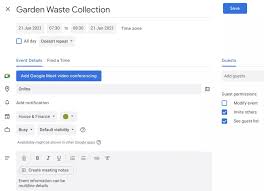
How to Create a Link on Google Meet With Google Calendar
If you prefer using Google Calendar, here’s an alternative method:
- Access Google Calendar: Visit the official website of Google Calendar or initiate the app.
- Create a New Event: Click on the “Create” button and select “Event.”
- Add Videoconference: Choose “Google Meet” as the video conferencing platform.
How to Create a Link on Google Meet With Classroom
If you’re using Google Classroom, follow these steps:
- Access Google Classroom: Visit the official website of Google Classroom or initiate the app.
- Select Your Course: Click on the course where you want to create the link.
- Generate Link: Select “Meet” from the dropdown menu and click on the “Generate link” button.
Sharing The Link With Others
Once you’ve created a link, you can share it with others by:
- Copying the link and sharing it via email or messaging apps
- Inviting participants directly through Google Meet
That’s it! With these simple steps, you’ll be able to create a link on Google Meet in no time.
Conclusion
Creating a link on Google Meet is an essential skill for anyone looking to collaborate with others remotely. By following the step-by-step guide outlined above, you’ll be able to initiate meetings and share links with ease.
Frequently Asked Questions (FAQs)
- What Happens if I Forget to Access my Meeting Link?
Your meeting link will expire after 365 days from the last use.
- Can I Create a Permanent Link on Google Meet?
No, all Google Meet links have a deadline and expire after a certain period.
- How do I Invite Participants to Join my Meeting?
You can invite participants directly through Google Meet or share the meeting link via email or messaging apps.
- Can I Use Google Meet With Google Classroom?
Yes, you can create a link on Google Meet within Google Classroom by selecting “Meet” from the dropdown menu and clicking on the “Generate link” button.
- What if I’m Using a Smartphone or Tablet to Access Google Meet?
The process remains the same as accessing Google Meet through the official website. Simply initiate the app, select “New meeting,” and follow the prompts.
- Can I Create Multiple Links For Different Meetings?
Yes, you can create separate links for each meeting by following the steps outlined above for each individual meeting.
- How do I Access my Past Meeting Links?
You can access your past meeting links by visiting the “Meetings” section in Google Meet.
- Can I Share my Meeting Link With Others Outside of Google?
Yes, you can share your meeting link with others outside of Google by copying and sharing it via email or messaging apps.


