
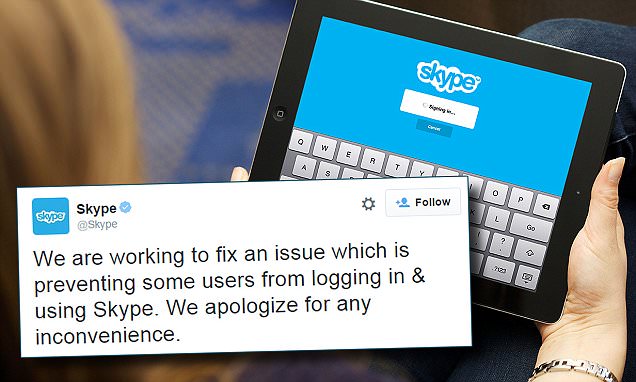
How to Restore Skype: A Step-by-step Guide
Are you experiencing technical issues with Skype? Do you want to restore it to its original functionality? Look no further! In this guide, we will walk you through the steps to restore Skype on various devices.
Understanding The Problem
Skype is a popular video conferencing platform owned by Microsoft. However, like any other software, it can experience technical issues. Whether you’re using Skype on Windows, macOS, Android, or iOS, problems can arise due to various reasons such as corrupted files, outdated software, or incorrect settings.
Why Restore Skype?
Restoring Skype can resolve various issues such as:
- Technical errors during login
- Problems with video and audio quality
- Difficulty in connecting with contacts
- Inability to receive notifications
Step 1: Uninstall And Reinstall Skype on Windows
If you’re using Skype on a Windows device, follow these steps:
Uninstall Skype
- Click on the Start button and select Settings.
- Go to Apps and find Skype in the list.
- Select Skype and click on Uninstall.
Reinstall Skype
- Open the Microsoft Store app.
- Search for Skype in the search bar.
- Select Skype from the search results.
- Click on Install to reinstall the application.
Step 2: Uninstall And Reinstall Skype on Macos
If you’re using Skype on a Mac, follow these steps:
Uninstall Skype
- Go to the Applications folder.
- Find Skype in the list.
- Drag the icon to the Trash.
Reinstall Skype
- Open the App Store app.
- Search for Skype in the search bar.
- Select Skype from the search results.
- Click on Install to reinstall the application.
Step 3: Uninstall And Reinstall Skype on Android And Ios
If you’re using Skype on an Android or iOS device, follow these steps:
Uninstall Skype
- Go to Settings.
- Select Apps or Applications.
- Find Skype in the list.
- Click on Uninstall.
Reinstall Skype
- Open the Google Play Store or App Store app.
- Search for Skype in the search bar.
- Select Skype from the search results.
- Click on Install to reinstall the application.
How to Restore Contacts on Skype
If you want to restore contacts from an old account to a new one, follow these steps:
Step 1: Add Old Account as Contact
- Open Skype and go to the Contacts tab.
- Click on the Add Contact button.
- Enter the email address or phone number of your old account.
- Initiate a conversation with the new account.
- Tap on the three dots in the top-right corner.
- Select Share contacts from the menu.
- Confirm that you want to share the contacts.
How to Restore Icon of Fast Start on Desktop or Home Screen
If you’re experiencing issues with the icon of fast start on your desktop or home screen, follow these steps:
Windows
- Right-click on the Skype icon.
- Select Pin to Taskbar.
- Alternatively, right-click on an empty space on the desktop and select New > Shortcut.
- Paste the path to the Skype executable file.
Macos
- Drag the Skype icon to the Dock.
- Alternatively, right-click on the Skype icon in the Applications folder.
- Select Show in Finder.
- Drag the icon to the desired location on your desktop.
Conclusion
Restoring Skype can resolve various technical issues and ensure that you’re able to use the service without any problems. By following the steps outlined above, you should be able to restore Skype on your device of choice.


