
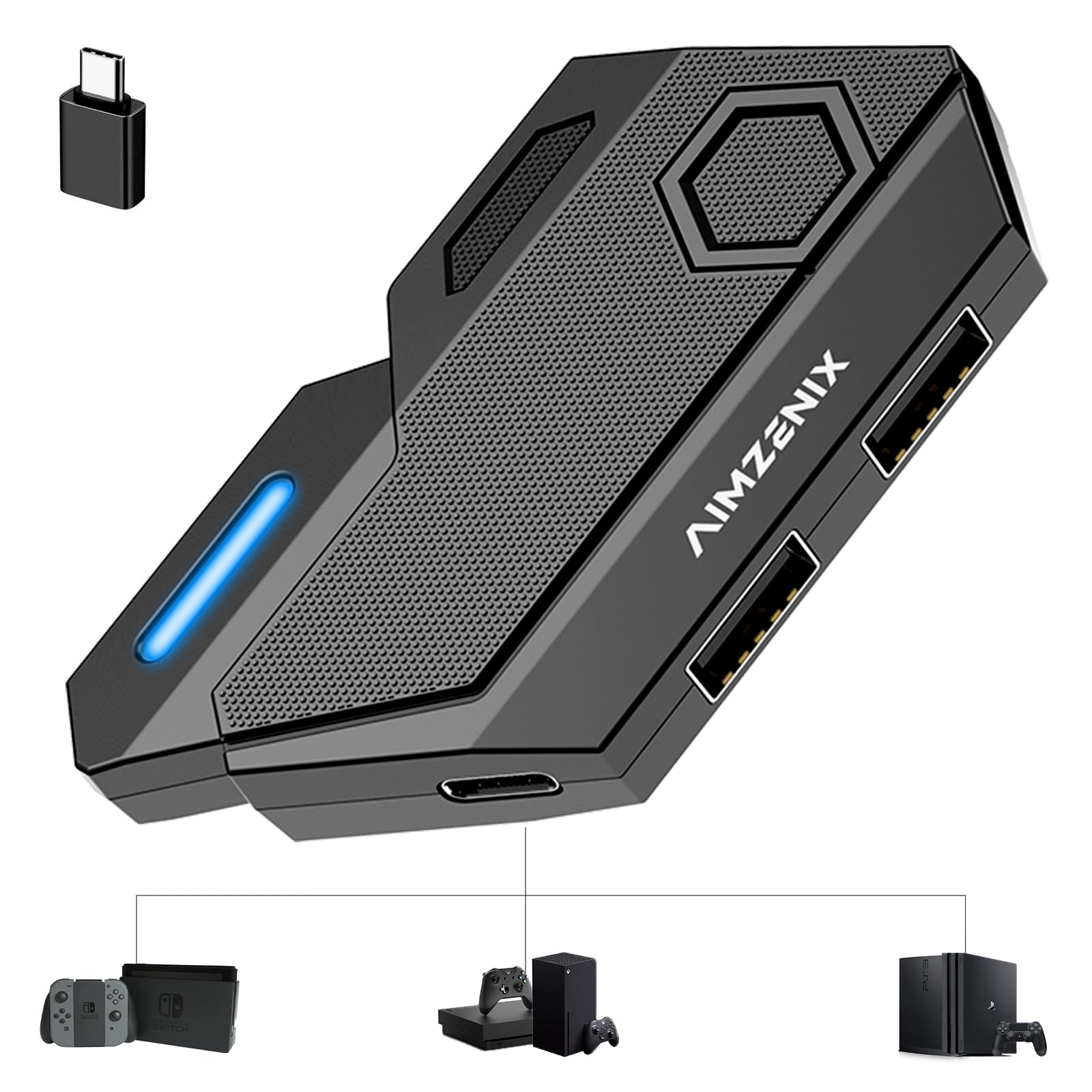
How to Connect Mouse And Keyboard to Xbox One: A Step-by-step Guide
Are you an avid gamer who wants to experience the thrill of playing your favorite games on your Xbox One with a mouse and keyboard? Look no further! In this article, we will guide you through the process of connecting your mouse and keyboard to your Xbox One, exploring the compatible peripherals and settings.
Why Connect Mouse And Keyboard to Xbox One?
Connecting a mouse and keyboard to your Xbox One offers several benefits. You can enjoy a more immersive gaming experience with improved accuracy and control. Many popular games, such as Fortnite, Minecraft, and Warframe, support keyboard and mouse input, enhancing your overall gaming experience.
Hardware Requirements
Before we dive into the setup process, ensure you have the necessary hardware:
- An Xbox One console
- A compatible mouse (see below for recommended models)
- A compatible keyboard (see below for recommended models)
- A USB 3.0 Cable or a USB hub
Recommended Mouse And Keyboard Models
For the best gaming experience, we recommend using the following peripherals:
- Logitech G502 Hero Gaming Mouse: This high-performance mouse features a Hero 25K sensor, providing accurate tracking and customizable buttons.
- Logitech G213 Prodigy Gaming Keyboard: This keyboard boasts LIGHTSYNC RGB lighting, customizable keys, and a built-in wrist rest for comfort.
Connecting The Peripherals to Xbox One
To connect your mouse and keyboard to your Xbox One:
- Locate the three USB 3.0 Ports on the back or front of your console (depending on your model).
- Connect the mouse and keyboard cables to these ports.
- If you’re using a USB hub, plug it into one of the available ports.
Regulating Settings
After connecting your peripherals:
- On your Xbox One, navigate to the main menu and select “Settings.”
- In the settings menu, choose “Devices” and then “Mouse.”
- Adjust the mouse speed, button mapping, and other settings to your liking.
Mapping Keyboard Tasties
To ensure seamless gaming experience:
- Open the keyboard settings on your Xbox One.
- Map the keys according to the following table:
- TAB: Move to next element
- MAIUSC+TAB: Move to previous element
- Windows key: Open Panel (or Xbox button)
- Spaziatrice: Select (or To button)
- Esc: Go back
- Bar spaziatrice: Forward
Troubleshooting Tips
In case of issues or problems:
- Ensure your console is connected to the internet via Wi-Fi.
- Check for updates on your Xbox One and install them if necessary.
Conclusion
Connecting a mouse and keyboard to your Xbox One enhances your gaming experience, offering improved accuracy and control. With this guide, you should now be able to set up your peripherals and enjoy seamless gameplay with popular games like Fortnite, Minecraft, and Warframe. Happy gaming!
Faqs:
- Can I Connect Any Mouse And Keyboard to my Xbox One?
No, only compatible peripherals will work. - Which Games Support Keyboard And Mouse Input on Xbox One?
Games like Fortnite, Minecraft, and Warframe currently support keyboard and mouse input. - Do I Need a Separate Controller With my Mouse And Keyboard?
No, you can use the Xbox One’s built-in controller or the keyboard/mouse combination as your primary control method.
References:
- Https://Support.Xbox.Com/en-US/help/27034
- Https://Logitechg.Com/en-us/products/g502-hero.Html
- Https://Logitechg.Com/en-us/products/g213-prodigy.Html
Please let me know if you want me to add anything else!


