
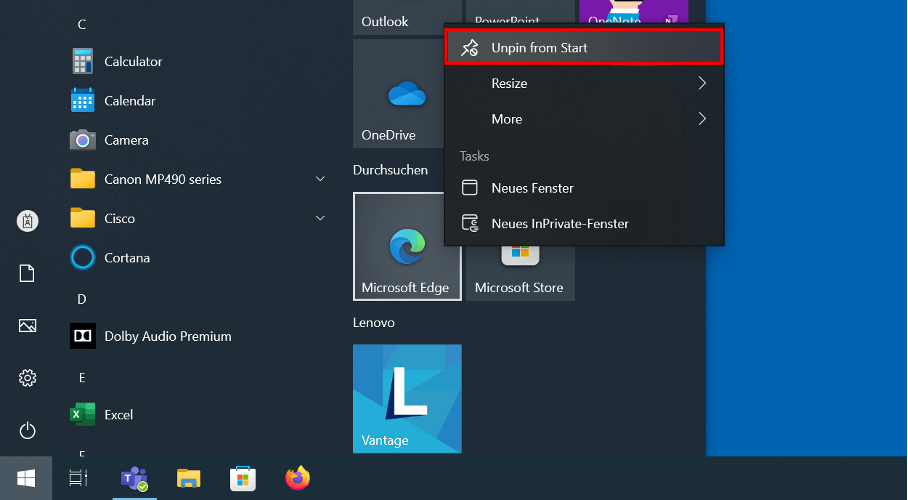
How to Uninstall Microsoft Edge From Your Computer
Are you tired of using Microsoft Edge as your default browser? Do you want to switch to a different browser, but can’t seem to get rid of Edge? You’re not alone! In this article, we’ll show you how to uninstall Microsoft Edge from your computer, whether it’s running Windows 11, Windows 10, macOS, Android, or iOS/iPadOS.
Why Uninstall Microsoft Edge?
Before we dive into the steps, let’s quickly discuss why you might want to uninstall Microsoft Edge. While it’s a decent browser, some users have reported issues with its performance, security, and compatibility. Additionally, if you’ve installed another browser as your default, you might not need Edge anymore.
Uninstalling Microsoft Edge From Windows 11
If you’re running Windows 11, you can uninstall Microsoft Edge by following these steps:
- Open Settings: Click on the Start button and select Settings.
- Go to Apps & Features: In the Settings window, click on Apps & features.
- Find Microsoft Edge: Scroll down the list of installed apps until you find Microsoft Edge.
- Uninstall Microsoft Edge: Click on the three dots next to Microsoft Edge and select Uninstall.
Uninstalling Microsoft Edge From Windows 10
If you’re running Windows 10, the process is similar:
- Open Settings: Click on the Start button and select Settings.
- Go to Apps & Features: In the Settings window, click on Apps & features.
- Find Microsoft Edge: Scroll down the list of installed apps until you find Microsoft Edge.
- Uninstall Microsoft Edge: Click on the three dots next to Microsoft Edge and select Uninstall.
Alternative Solution: Change Default Browser
If you don’t want to uninstall Microsoft Edge entirely, you can change your default browser by following these steps:
- Open Settings: Click on the Start button and select Settings.
- Go to Apps & Features: In the Settings window, click on Apps & features.
- Find Your Default Browser: Scroll down the list of installed apps until you find your preferred browser (e.G., Google Chrome or Firefox).
- Set as Default: Click on the three dots next to your preferred browser and select Set as default.
Uninstalling Microsoft Edge From Mac
If you’re running macOS, you can uninstall Microsoft Edge by following these steps:
- Find Microsoft Edge: Open the Applications folder and look for Microsoft Edge.
- Drag to Trash: Drag Microsoft Edge to the Trash icon on your dock.
- Empty Trash: Right-click (or Control-click) on the Trash icon and select Empty Trash.
Uninstalling Microsoft Edge From Android
If you’re running an Android device, you can uninstall Microsoft Edge by following these steps:
- Open Settings: Go to your device’s home screen and find the Settings app.
- Go to Apps & Notifications: In the Settings window, click on Apps & notifications.
- Find Microsoft Edge: Scroll down the list of installed apps until you find Microsoft Edge.
- Uninstall: Tap the Uninstall button next to Microsoft Edge.
Uninstalling Microsoft Edge From Ios/ipados
If you’re running an iOS or iPadOS device, you can uninstall Microsoft Edge by following these steps:
- Find Microsoft Edge: Go to your device’s home screen and find the Microsoft Edge app.
- Long-press on Microsoft Edge: Tap and hold on the Microsoft Edge icon until it starts shaking.
- Tap Delete App: Tap the X button next to Microsoft Edge.
Conclusion
Uninstalling Microsoft Edge is a straightforward process, whether you’re running Windows 11, Windows 10, macOS, Android, or iOS/iPadOS. By following these steps, you can remove Microsoft Edge from your computer and use an alternative browser as your default.


