
How to Regain Music on Instagram: A Step-by-step Guide
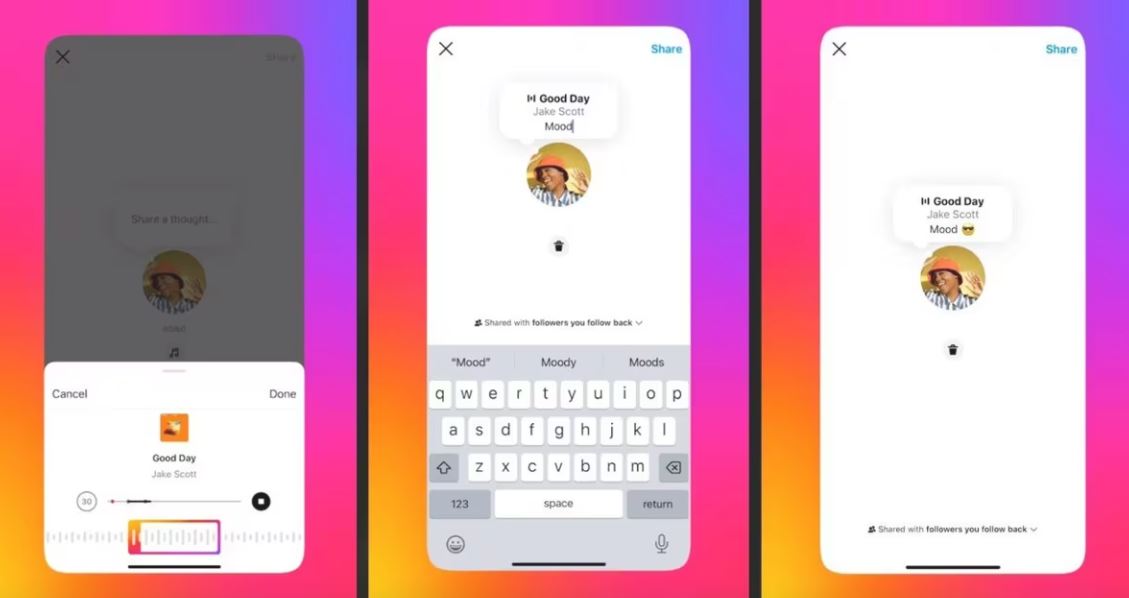
Are you struggling to find music on Instagram? You’re not alone! Many users have reported issues with the “Music” feature, which allows you to add musical pieces to your stories and feed posts. In this article, we’ll explore possible reasons behind this phenomenon and provide a step-by-step guide on how to regain music on Instagram.
What’s Happening With Music on Instagram?
Recently, I’ve received several requests from readers regarding the disappearance of the “Music” feature on Instagram. As it turns out, there might be a temporary bug or issue affecting the app. In this article, we’ll dive into possible reasons and provide solutions to help you regain music on Instagram.
Possible Reasons Behind The Disappearance
- Temporary Bug: A temporary bug might have caused the disappearance of the “Music” feature.
- App Update Issues: Outdated or corrupted app updates could be responsible for the issue.
- Device-specific Problem: The problem might be specific to your device, such as a software glitch or compatibility issue.
Step 1: Close And Reopen Instagram
The first step is to close and reopen the Instagram app on your Android or iOS device. This simple trick might resolve the issue temporarily.
- On Android devices:
- Swipe up from the bottom of the screen to access the recent apps list.
- Tap and hold the Instagram icon to close it.
- Open Instagram again by tapping its icon in the home screen or app drawer.
- On iOS devices:
- Swipe down from the top-right corner to access the Control Center.
- Find the Instagram icon and tap the “x” button next to it to close the app.
- Open Instagram again by tapping its icon on the home screen.
Step 2: Update Instagram
Updating the Instagram app might resolve the issue. Follow these steps:
- On Android devices:
- Open the Google Play Store.
- Search for Instagram in the search bar.
- If an update is available, tap “Update” to download and install it.
- On iOS devices:
- Open the App Store.
- Search for Instagram in the search bar.
- If an update is available, tap “Update” to download and install it.
Step 3: Discharge Blank on Your Smartphone
Sometimes, a blank or corrupted cache might cause issues with the app. Try discharging blank on your smartphone by following these steps:
- On Android devices:
- Go to Settings > Storage.
- Look for the “Clear cache” option and tap it.
- On iOS devices:
- Go to Settings > General > iPhone Storage.
- Find Instagram in the list of apps and tap it.
- Tap “Show in App Library.”
- Swipe up on the app’s icon to delete its data.
Step 4: Report The Issue to Instagram
If none of the above steps resolve the issue, you can report the problem directly to Instagram. Follow these steps:
- Open the Instagram app and go to your profile page.
- Tap the three horizontal lines (≡) in the top-right corner.
- Select “Settings” > “Assistance” > “Report a Problem.”
- Describe the issue you’re experiencing with the “Music” feature.
Conclusion
Regaining music on Instagram might require some troubleshooting, but it’s not impossible! By following these steps, you should be able to resolve the issue and enjoy your favorite tunes within your Instagram feed. Remember to stay calm and try each step before moving on to the next one.
Frequently Asked Questions (FAQs)
- Q: Why is Music Missing From my Instagram Stories?
A: There might be a temporary bug or app update issue causing this problem. - Q: How do I Close And Reopen Instagram on Android Devices?
A: Swipe up from the bottom of the screen, tap and hold the Instagram icon to close it, and open it again by tapping its icon in the home screen or app drawer. - Q: How do I Update Instagram on my Ios Device?
A: Open the App Store, search for Instagram, and tap “Update” if an update is available. - Q: What’s The Purpose of Discharging Blank on my Smartphone?
A: This step helps clear corrupted cache data that might be causing issues with the app. - Q: How do I Report a Problem to Instagram Directly?
A: Open the Instagram app, go to your profile page, tap the three horizontal lines (≡), and select “Settings” > “Assistance” > “Report a Problem.” - Q: Can I Still Add Music to my Instagram Stories if It’s Not Working For Me?
A: Unfortunately, no. The issue with adding music to your stories is related to the disappearance of the “Music” feature.
Stay tuned for more updates and troubleshooting guides!


