
How to Find Your Lost Ipad: A Comprehensive Guide
Are you worried sick about your lost iPad? Don’t be! With this step-by-step guide, you’ll learn how to track down your device using various methods.
Table of Contents
- Find My Ipad on Iphone
- Find My Ipad on Mac
- Find My Ipad on Icloud
- Find My Ipad on PC
- Finding Your Ipad in Your Home
- Finding Your Ipad Offline
How to Find Your Lost Ipad: A Comprehensive Guide
Losing your iPad can be a nightmare, but with the right tools and knowledge, you can track it down quickly. Here’s what you need to know:
Find My Ipad on Iphone
If you have an iPhone associated with the same Apple ID as your lost iPad, follow these steps:
- Open the “Where” app on your iPhone.
- Select the option “Devices” in the menu at the bottom of the screen.
- Tap on the name of your lost iPad to see its exact location or last known position.
Note: If your iPad is turned off or not connected to Wi-Fi, you might only see the last known position.
Find My Ipad on Mac
The process is similar to finding your iPad on an iPhone:
- Open the “Where” app on your Mac.
- Select the option “Devices” in the menu at the top of the screen.
- Click on the name of your lost iPad to see its exact location or last known position.
Find My Ipad on Icloud
You can also use a web browser to find your iPad:
- Go to icloud.Com/find on any device with an internet connection.
- Sign in with your Apple ID and password.
- Click on “All Devices” at the top of the screen.
- Select your lost iPad from the list to see its exact location or last known position.
Find My Ipad on Pc
Unfortunately, you can’t use the “Where” app on a Windows 10 or 11 device to find your iPad directly. However, you can use iCloud.Com:
- Go to icloud.Com/find on any device with an internet connection.
- Sign in with your Apple ID and password.
- Click on “All Devices” at the top of the screen.
- Select your lost iPad from the list to see its exact location or last known position.
Finding Your Ipad in Your Home
If you think your iPad is still in your home, but can’t find it:
- Use the “Where” app on an iPhone or Mac associated with the same Apple ID.
- Enable the “Play Sound” feature to make your iPad emit a sound for 2 minutes.
Finding Your Ipad Offline
If you think your iPad is turned off or not connected to Wi-Fi, try:
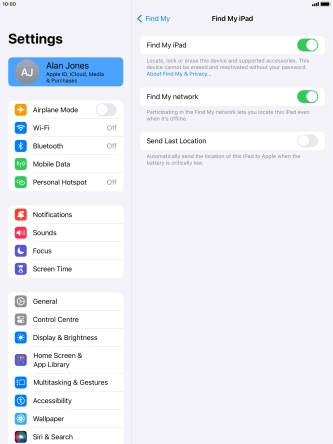
- Actuating the “Net Where” option on your iPad (only available on newer Apple devices).
- Using the “AirTag” feature to track your iPad using Bluetooth Low Energy.
- Enabling the “Forward Last Position” feature to see the last known position of your iPad.
What’s Next?
If you’ve tried all these methods and still can’t find your iPad, it might be time to take more drastic measures. Consider:
- Resetting your iPad to its factory settings (if possible).
- Contacting local authorities or a professional recovery service.
Remember, prevention is the best medicine! Make sure to keep your Apple ID and password secure, and consider using additional security features like Face ID or Touch ID to protect your device.
Faqs
- Can I Find my Ipad if It’s Turned Off?
Yes, you can try to locate your iPad even if it’s turned off. - How do I Enable The “Play Sound” Feature?
To play a sound on your lost iPad, go to Settings > [Your Name] > Find My and select “Play Sound.” - What is The “Net Where” Option?
The “Net Where” option allows you to locate your iPad using Bluetooth Low Energy, even if it’s turned off or not connected to Wi-Fi. - How do I Use an Airtag to Track my Ipad?
You can pair an AirTag with your iPad to receive notifications when the device is in close proximity to you. - Can I Recover Data From a Lost Ipad?
In some cases, yes. If you have backed up your data using iCloud or iTunes, you might be able to restore it on a new device.


